










Executive summary
To develop for VITURE BEAST, open VITURE’s Developer page and choose the VITURE XR Glasses SDK. This is the cross-platform C SDK for connecting software to VITURE glasses. Its documentation lists Android, Linux, Windows and macOS. The separate VITURE XR SDK for Unity is described for experiences running on the VITURE Neckband, so it is not the starting point for a BEAST glasses-control app.
The glasses SDK gives an app access to device communication, head-tracking data, camera streaming and selected glasses controls. For BEAST specifically, VITURE documents native 3DoF tracking, camera passthrough and native display controls. It does not turn the glasses into a general-purpose computer or automatically create a finished XR app. You build a host application, connect BEAST over USB, and call the SDK from that app.
Development flow: Choose the host platform -> download its SDK package -> build the vendor’s first connection sample -> read tracking data -> add a BEAST control or camera feature -> test the app with the glasses.
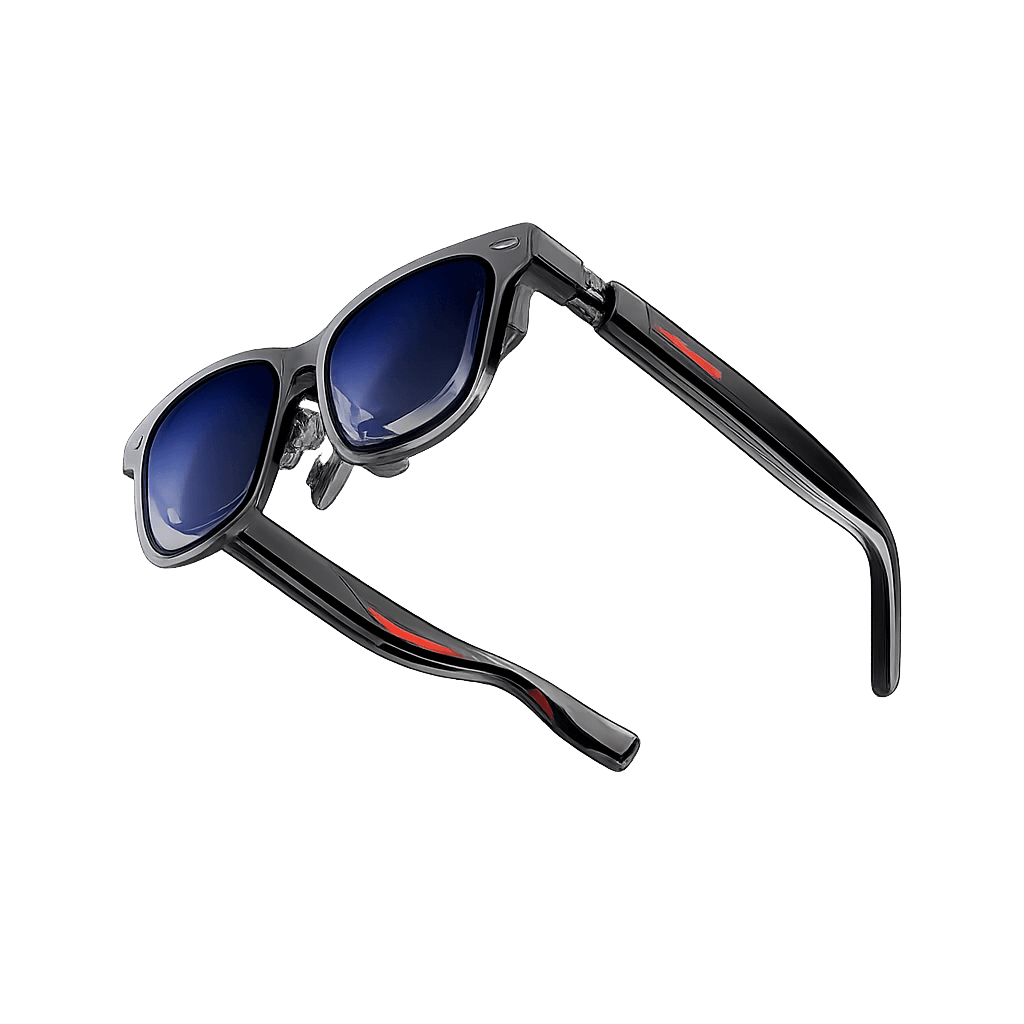
For product context before planning the software integration, see the VITURE BEAST review on VRX. VITURE’s official product page is also useful for hardware details.
INTRODUCTION:
(already know about SDK and platform support, move to the main guidance)
What is VITURE BEAST?
VITURE BEAST is a USB-C XR display with built-in sensors and a camera. In native mode, its own processing handles 3DoF tracking and supported display effects; in bypass mode, the host sends a video signal that the glasses pass through. This native-versus-bypass distinction matters when software changes display mode or tracking behaviour.
The developer SDK is software your program links to so it can communicate with the glasses. It is separate from everyday VITURE apps such as SpaceWalker, which is for using supported display and spatial-screen features, not writing code.
The two VITURE SDKs are for different jobs
VITURE XR Glasses SDK:
- What it is for: Native C API for glasses device access, tracking, camera streaming and device controls across supported host platforms.
- Use it for BEAST development?: Yes. This is the BEAST SDK covered in this guide.
VITURE XR SDK for Unity:
- What it is for: Unity XR package documented for building immersive experiences on the VITURE Neckband, with Unity integrations such as hand tracking.
- Use it for BEAST development?: Not as the default BEAST glasses SDK. Do not confuse it with the native glasses SDK.
SpaceWalker:
- What it is for: VITURE companion software for supported display modes and spatial-screen features.
- Use it for BEAST development?: No. It is an end-user app, not a development environment.
What the XR Glasses SDK controls
Device connection:
- What the app can do: Discover a connected device, create a device handle, initialise it, start it and close it cleanly.
- BEAST detail to remember: The SDK communicates with the glasses through the host connection.
Head tracking:
- What the app can do: Read orientation/IMU data and use the model-specific tracking interface.
- BEAST detail to remember: BEAST is documented for native 3DoF; the 6DoF VIO entry in the device table is for Luma Ultra.
Display and glasses controls:
- What the app can do: Read or set supported brightness, volume, display mode, 2D/3D mode, tint and native-mode options.
- BEAST detail to remember: Use the BEAST-specific native display constants in native mode. Some mode/rate combinations are unsupported.
Camera stream:
- What the app can do: Access supported passthrough camera frames through the SDK camera API.
- BEAST detail to remember: BEAST is listed with a passthrough UVC camera. Camera access is separate from 6DoF tracking.
The SDK does not provide by itself: your app’s workflow, business logic, menus, data storage, user accounts or a complete Unity scene. Your application team builds those parts around the device functions the SDK exposes. The main developer page highlights these four platforms. Since SDK 2.4.0 (6 August 2026) the documentation lists a fifth target: Browser, a WebAssembly build with a TypeScript API that reaches the glasses over WebHID, Chrome and Chromium only, with BEAST supported and Luma Ultra excluded. Check the current package and release notes before selecting a production device or OS.
Cross-platform support: Android, Linux, Windows and macOS
“Cross-platform” means VITURE provides platform-specific SDK builds and setup instructions for the same glasses SDK. It does not mean one binary runs unchanged everywhere. Choose the host where your application needs to run, then use its matching library and integration guide. The current API documentation lists these architectures:
Windows:
- Documented architecture: x86_64
- Typical setup route: C/C++ desktop app using the Windows SDK library and headers; follow Quick Start: Desktop (C++).
Linux:
- Documented architecture: x86_64 and aarch64
- Typical setup route: C/C++ desktop app. Add VITURE’s udev rule so the app can access the USB/HID interface without running as root.
macOS:
- Documented architecture: aarch64 (Apple silicon)
- Typical setup route: C/C++ desktop app using the macOS library and headers; follow Quick Start: Desktop (C++).
Android:
- Documented architecture: armeabi-v7a and arm64-v8a
- Typical setup route: Android app using the native C library through JNI; handle USB permission and connection in the Android app.
The main developer page highlights these four platforms. The detailed API page may add targets or change supported architectures over time, so check the current package and release notes before selecting a production device or OS.
What you need before development
· VITURE BEAST glasses and a USB-C data connection to the computer or Android host you plan to support.
· A development computer with the compiler/build tools for your target: a C/C++ toolchain and CMake for desktop, or Android Studio with its NDK and CMake components for Android.
· The VITURE XR Glasses SDK package for the target platform, downloaded from VITURE’s Developer page.
· The matching SDK documentation, especially Core Concepts, Quick Start: Desktop (C++), Android Integration Guide, Head Tracking, Device Control, Camera Streaming and Native-DOF Devices.
· A basic understanding of the language used by your app team: C/C++ for desktop examples, plus Kotlin or Java and JNI for a typical Android integration.
How to build a first VITURE BEAST SDK test
Start with a small host app that finds BEAST and reads tracking data. Once that works, add one control or camera feature.
Step 1: Choose where your app will run
Choose the computer or phone that will run your app; this sets the SDK package and setup guide.
1. Choose the host. Use Windows, Linux or macOS for a computer, or Android for a phone connected to BEAST.
2. Note its OS and processor. For example, record Windows x86_64 or macOS Apple silicon, then check the platform table above.
3. Follow the Android branch only for an Android app. It uses a native library, a JNI bridge and USB permission.
Step 2: Download the VITURE XR Glasses SDK
Download the official glasses SDK and open the guide for your host. The Unity Neckband package is for a different setup.
1. Open the Developer page. In a browser, go to https://www.viture.com/developer and scroll to “VITURE XR Glasses SDK”.
2. Download your platform package. On the SDK card, click “Download” and choose your host if asked.
3. Open your setup guide. On the same card, click “Documents”, then “Core Concepts”, then “Quick Start: Desktop (C++)” or “Android Integration Guide”.
4. Check compatibility. Return to the Developer page, open “Release Notes” and check your OS, processor and BEAST firmware.
Move to Step 3 when: you have the matching library, headers and setup guide.
Step 3: Set up the SDK on your host platform
Use only the setup branch for the host you chose in Step 1.
For Windows, Linux or macOS
1. Open the desktop guide. In SDK Documents, choose “Quick Start: Desktop (C++)” and keep it beside your code editor.
2. Link the SDK. Open the sample or your project, then use the guide’s CMake example to add the SDK headers and glasses library.
In your project’s `CMakeLists.txt`, add the SDK include and library paths. Replace `VITURE_SDK_ROOT` with the folder where you unpacked the SDK:
target_include_directories(my_xr_app PRIVATE "${VITURE_SDK_ROOT}/include")
target_link_directories(my_xr_app PRIVATE "${VITURE_SDK_ROOT}/lib")
target_link_libraries(my_xr_app PRIVATE glasses)
3. Linux only: allow USB access. In Terminal, follow “Linux udev Rule” and create `/etc/udev/rules.d/70-viture.rules`; reload the rules and reconnect BEAST. Skip on Windows and macOS.
4. Build the sample. Open the SDK example’s `main.cpp` and make sure it builds before adding features.
For Android
1. Create an Android project. In Android Studio, start a project with CMake/NDK support and open `app/src/main` in the project panel.
2. Copy in the SDK files. Follow “Android Integration Guide”: put headers in `app/src/main/include/` and the matching `.so` file in `app/src/main/jniLibs/<ABI>/`.
3. Link the library. In Android Studio, open `app/src/main/cpp/CMakeLists.txt` and `app/build.gradle.kts`; apply the guide’s CMake, NDK and ABI settings.
In `CMakeLists.txt`, import the SDK library and link it to your JNI bridge. This example assumes the SDK files are in the folders shown in the Android Integration Guide:
add_library(glasses SHARED IMPORTED)
set_target_properties(glasses PROPERTIES IMPORTED_LOCATION
"${CMAKE_SOURCE_DIR}/../jniLibs/arm64-v8a/libglasses.so")
add_library(glasses_bridge SHARED glasses_bridge.cpp)
target_include_directories(glasses_bridge PRIVATE "${CMAKE_SOURCE_DIR}/../include")
target_link_libraries(glasses_bridge glasses android log)
4. Add the app-to-C++ bridge. In the app source folder, create the guide’s `GlassesBridge` class; its `external` functions call your JNI code.
5. Request USB permission. Use Android’s `UsbManager` to find BEAST; after the user taps Allow, open USB and pass its file descriptor to the bridge.
After the user taps Allow, open the USB connection in your Kotlin activity and pass its file descriptor to the native bridge. Replace `GlassesBridge` with your project’s bridge class name:
val connection = usbManager.openDevice(device) ?: return val ok = GlassesBridge.create(device.productId, connection.fileDescriptor)
In `glasses_bridge.cpp`, the native create function passes that Android file descriptor to VITURE’s SDK:
static XRDeviceProviderHandle g_handle = nullptr;
extern "C" JNIEXPORT jboolean JNICALL Java_com_example_GlassesBridge_create(JNIEnv*, jobject, jint pid, jint fd) { g_handle = xr_device_provider_create((int)pid, (int)fd); return g_handle != nullptr; }
Move to Step 4 when: your app builds and loads the SDK without a missing-file or linker error.
Step 4: Connect BEAST and run the first sample
Now test the glasses connection. Use the desktop sample on Windows, Linux or macOS. On Android, keep the USB and JNI setup from Step 3; do not use desktop HID discovery code.
1. Connect BEAST. Use a USB-C data cable; on Android, accept the phone’s USB prompt.
2. Find BEAST and create its handle. On desktop, find the BEAST product ID using HID discovery, then create the provider with xr_device_provider_create(product_id). On Android, pass both the product ID and the file descriptor from the USB connection.
3. Start tracking. Start tracking by registering a callback. A callback is a function the SDK calls when tracking data arrives. BEAST delivers roll, pitch and yaw in data[0] to data[2] and the quaternion in data[3] to data[6], but only with SDK 2.4.0 or later and updated glasses firmware. On older firmware the pose callback never fires on BEAST (VITURE lists this under “Known Limitations on Beast” in its release notes): then either register xr_device_provider_register_imu_raw_callback and integrate the raw IMU data yourself, or switch the glasses to native mode and let them track.
Add this function above main():
</> C++ static void on_pose(float* data, uint64_t timestamp) {
std::printf(
"Timestamp: %llu | Roll: %.2f | Pitch: %.2f | Yaw: %.2f\n",
static_cast<unsigned long long>(timestamp),
data[0], data[1], data[2]
);
}
Register the callback before initializing and starting the SDK:
</> C++ xr_device_provider_register_imu_pose_callback(handle, on_pose);
int rc = xr_device_provider_initialize(handle, nullptr, nullptr);
if (rc != VITURE_GLASSES_SUCCESS) return rc;
rc = xr_device_provider_start(handle);
if (rc != VITURE_GLASSES_SUCCESS) return rc;
Use handle on desktop. In Android JNI code, use g_handle.
4. Open the tracking stream. Add this call to desktop `main.cpp`; on Android, expose it through JNI and call it after `start`.
rc = xr_device_provider_open_imu( handle, VITURE_IMU_MODE_POSE, VITURE_IMU_FREQUENCY_HIGH); if (rc != VITURE_GLASSES_SUCCESS) return rc;
When the app exits, close the IMU, then stop, shut down and destroy the provider. On Android, call the same cleanup functions before closing USB:
xr_device_provider_close_imu(handle, VITURE_IMU_MODE_POSE); xr_device_provider_stop(handle); xr_device_provider_shutdown(handle); xr_device_provider_destroy(handle);
5. Check the output. Run the app and look in the desktop console or Android Studio Logcat for connection and tracking updates.
Move to Step 5 when: BEAST connects and tracking updates arrive without errors.
Step 5: Add one BEAST control
After tracking works, add one glasses control in your app’s device-control code, after the SDK handle starts.
1. Choose a control. In SDK Documents, open “Device Control” and check BEAST’s supported brightness, volume or display options.
2. Read and set its value. Add the C/C++ calls to your control code; on Android, put them in `glasses_bridge.cpp` and expose them through JNI.
After starting the provider, read BEAST’s brightness and try a supported value. The documented range is 0 to 8:
int brightness = xr_device_provider_get_brightness_level(handle); int rc = xr_device_provider_set_brightness_level(handle, 5); if (rc != VITURE_GLASSES_SUCCESS) { std::fprintf(stderr, "Brightness update failed: %d\n", rc); }
3. Match the display API to the mode. You can also configure BEAST’s display mode. Native mode uses the glasses’ built-in display processing and supports native 3DoF. Bypass mode passes the host’s video signal through the glasses. Choose the branch that matches your app’s selected mode. Do not run both branches one after the other.
In this example, use_native_mode is a Boolean setting in your app, and rc is the existing result variable.
</> C++ if (use_native_mode) {
rc = xr_device_provider_native_set_mode(handle, 1);
if (rc != VITURE_GLASSES_SUCCESS) return rc;
rc = xr_device_provider_native_set_display_mode(
handle, VITURE_NATIVE_DISPLAY_MODE_1920_1200_60HZ);
if (rc != VITURE_GLASSES_SUCCESS) return rc;
rc = xr_device_provider_native_set_dof(handle, VITURE_NATIVE_DOF_3);
if (rc != VITURE_GLASSES_SUCCESS) return rc;
} else {
rc = xr_device_provider_native_set_mode(handle, 0);
if (rc != VITURE_GLASSES_SUCCESS) return rc;
rc = xr_device_provider_set_display_mode(
handle, VITURE_DISPLAY_MODE_3840_1200_90HZ);
if (rc != VITURE_GLASSES_SUCCESS) return rc;
}
Choose a resolution and refresh rate supported by BEAST.
4. Test one change. Run the app, check the result on BEAST, then restore the original setting.
Important: BEAST supports native 3DoF, but current firmware accepts only three display modes: 1920 x 1200 at 60 Hz and 3D side-by-side 3840 x 1200 at 60 Hz in native mode, and 3840 x 1200 at 90 Hz in bypass mode (VITURE XR Glasses SDK release notes, 2.3.0 and 2.3.1). Other constants pass the SDK’s check but the glasses reject or ignore them, so read the mode back after setting it and treat the release notes as the list of supported values.
Step 6: Add camera access only if the app needs it
Add the passthrough camera only if your app needs image frames. Camera streaming is separate from head tracking and does not provide 6DoF.
1. Open the camera guide. In SDK Documents, choose “Camera Streaming” and follow your host’s setup section.
2. Add a frame handler. In your app, create a function that receives camera frames and sends them to the feature that needs them, such as a preview.
In your C++ camera module, create BEAST’s camera provider and start it with your frame callback, `on_frame`. This two-argument call is for desktop:
int camera_vid = xr_camera_provider_get_camera_vid(pid); int camera_pid = xr_camera_provider_get_camera_pid(pid); XRCameraProviderHandle camera = xr_camera_provider_create(camera_vid, camera_pid); int rc = xr_camera_provider_start(camera, on_frame, nullptr);
// When finished xr_camera_provider_stop(camera); xr_camera_provider_destroy(camera);
On Android, pass the camera USB file descriptor as the third argument, using the permission setup from Step 3:
XRCameraProviderHandle camera = xr_camera_provider_create(camera_vid, camera_pid, camera_fd);
3. Get permission first. Android needs camera and USB permissions; on desktop, follow the platform guide.
4. Protect privacy. Explain camera use, capture only what the feature needs, and follow your organisation’s GDPR process in the EU.
Skip this step if your app only needs tracking or display controls.
Step 7: Test and prepare a small pilot
1. Test reconnecting. Restart the app, unplug and reconnect BEAST, and check that the app stays stable.
2. Test on BEAST. Check each feature’s display mode, resolution, tracking and camera permissions against the firmware.
3. Save test details. Record SDK, OS, processor, compiler/NDK and firmware versions, connection details and errors.
4. Plan rollout. Decide how to install and update the host app, manage camera access and data, and handle support.
Pilot gate: expand only after you have tested the host, features, permissions and update process.
What the SDK does not do
The VITURE XR Glasses SDK is a device-integration toolkit, not a finished XR authoring environment. It exposes functions your software can call. Your team still chooses an application framework, writes the user interface and task logic, builds the app for the host platform, and decides how the business will deploy and support it.
It also does not make every capability available on every VITURE model. In the current hardware table, BEAST is listed with native 3DoF and passthrough camera access, while Luma Ultra is the model listed with 3/6DoF and stereo VIO. Check the supported-hardware table for each API you plan to use instead of reading the general “3DoF/6DoF” portal description as a promise that BEAST supports every tracking mode.
Common VITURE BEAST SDK development mistakes
- Downloading the Unity XR SDK for a BEAST glasses-control app.: Use the VITURE XR Glasses SDK card; the Unity guide is documented for the VITURE Neckband.
- Assuming cross-platform means the same binary or setup everywhere.: Download the correct library and follow the target platform’s architecture and connection guide.
- Treating BEAST as a 6DoF VIO device because the portal mentions 6DoF.: Check model-level support: the current SDK table lists BEAST native 3DoF and lists 6DoF VIO for Luma Ultra.
- Calling standard display-mode functions while BEAST is in native mode.: Check the active mode and use the matching standard or `native_*` function set.
- Opening the camera before permissions or without a camera use case.: Request the platform permissions first and add camera streaming only when the app needs image data.
- Using SpaceWalker as a code editor or SDK setup app.: Use the Developer page, SDK package, documentation, and a code editor or Android Studio.
Conclusion
VITURE BEAST development starts with the VITURE XR Glasses SDK, not the Unity package for Neckband experiences or the SpaceWalker consumer app. Choose Android, Linux, Windows or macOS as the host, download the matching SDK from VITURE’s Developer page, follow its platform guide, and first build a small program that connects over USB and reads tracking data. From there, add a supported BEAST control or camera feature and test it on the actual hardware. For businesses, this separates the application’s workflow and data from the glasses’ device functions, supports development on the host platform that fits the deployment, and gives teams a way to validate a focused industrial use case before investing in a wider rollout.
Building an XR workflow for VITURE BEAST? Explore the VITURE BEAST product page and the VITURE developer documentation before defining your pilot requirements.