













Executive summary
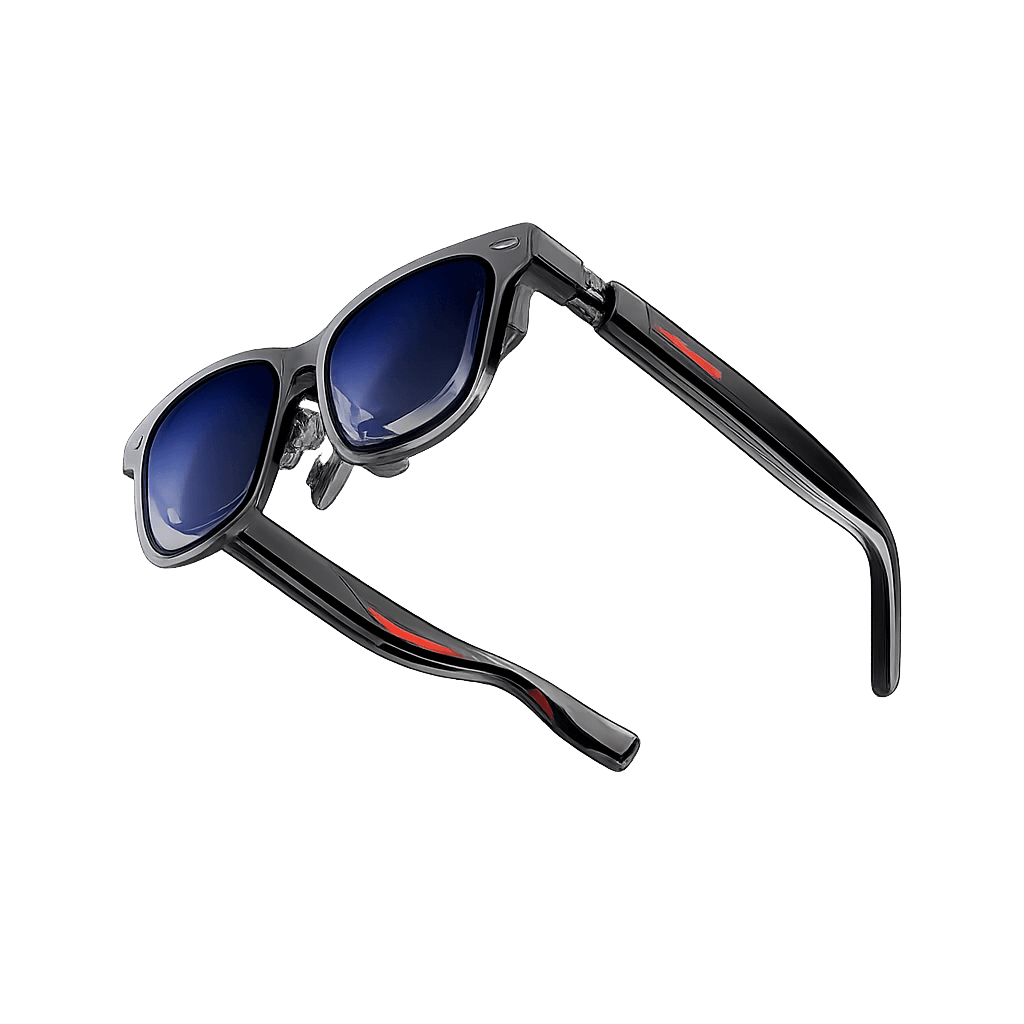
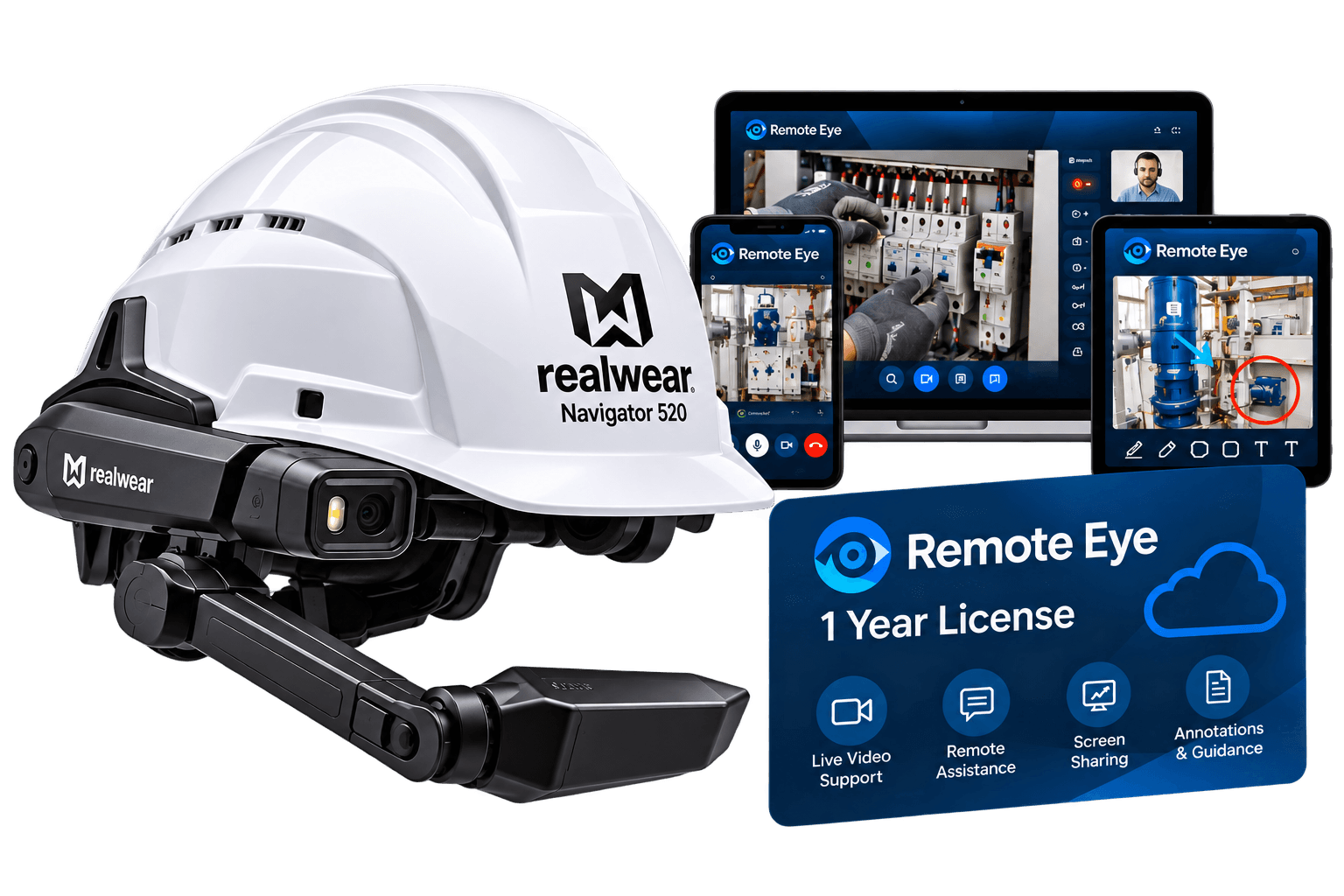
The RealWear Arc 3 uses a full-colour, see-through micro-OLED display positioned for the right eye, plus a built-in capacitive touchpad and Ari OS, which is based on Android 13. Developers can start with an Android app and adapt its screen for concise, high-contrast, hands-free use. RealWear’s WearHF voice service is already built into the device, so basic voice navigation does not require a separate SDK. The main design shift from the Navigator 520 is to plan for a transparent, fixed right-eye view rather than an opaque display on an adjustable boom. Test the app on a real Arc 3 before rollout. [1][2][3]
Introduction
Building for the RealWear Arc 3 is not just a matter of shrinking a phone screen. The Arc 3’s see-through display leaves the worker’s surroundings visible, the display is for the right eye only, and work is designed to be hands-free. A useful app therefore needs short screens, clear controls and voice commands that make sense while a person is working.
This guide follows a small example: a technician opens a simple inspection screen, reads one check, then chooses “MARK PASS” or “REPORT ISSUE.” Your team defines the actual task and wording from its work instructions; the Arc 3 does not create that process for you. The steps below show where to start, which software to open, where the screen code lives and how to test it on the headset.
Build and test your Arc 3 app step by step
For non-developers: Steps 3 to 6 involve Android app files and code. If you do not build apps, ask your Android developer to complete those steps; Steps 1 to 2 and 7 to 10 show where the team starts and how it tests and pilots the app.
Step 1. Open the Android Studio download page
Start on the development computer. Android Studio is the program used to create, edit and run the sample Android app.
1. Open a browser on the computer. Go to developer.android.com/studio, Google’s official Android Studio download page.
2. Download and install Android Studio. Choose the download for your computer and follow the installer instructions.
3. Open Android Studio after installation. Leave it open; Step 3 will use its Welcome screen to create the sample project.
Step 2. Open the RealWear developer website
Use a browser on the same computer to check RealWear’s guidance before you create the app. This shows what works on Arc 3 and how its built-in voice controls are used.
1. Open a new browser tab. Go to developer.ari-os.com, the RealWear Ari OS developer documentation site.
2. In the left navigation, open “AR Device” and then “Basics” or “Get Started.” Portal labels can change, so look for the basics section if the wording differs.
3. Open “Android Development” and “User Experience Guidelines.” These pages explain how to adapt an Android app for RealWear and keep it readable when used hands-free.
4. Also open the “Enabling Developer Tools” page. You will use these instructions in Step 8 to connect the headset for testing.
Step 3. Create the sample Android app
Return to Android Studio on the computer. Create a small sample app so the later steps have a real project, screen file and code location.
1. On the Welcome screen, select “New Project.” Choose “Empty Views Activity” if it is listed. This template creates a simple Android screen that uses an XML layout file.
2. Name the project “ArcInspectionDemo.” Select Kotlin as the language, then press “Finish.”
3. Wait for Android Studio to finish loading the project. Keep the project open. In Step 4, you will add the prompt and buttons to its screen file.
Step 4. Open the screen file and add the prompt and buttons
In Android Studio, add the visible inspection screen to the XML layout file. XML is the text format this Android template uses to describe screen elements.
1. In the Project panel on the left, open its view menu and select “Project.” The view menu is at the top of the Project panel. This shows the full folder path.
2. Open app > src > main > res > layout. This is the folder that contains the sample app’s screen layout.
3. Open “activity_main.xml.” Replace its contents with the example below. It creates a prompt, a status line and two large buttons.
4. Save the file. In Android Studio, choose File > Save or press Ctrl+S on Windows/Linux or Cmd+S on macOS.
<?xml version="1.0" encoding="utf-8"?> <LinearLayout xmlns:android="http://schemas.android.com/apk/res/android" android:layout_width="match_parent" android:layout_height="match_parent" android:orientation="vertical" android:padding="24dp">
<TextView android:id="@+id/statusText" android:layout_width="match_parent" android:layout_height="wrap_content" android:text="Pump 04: Check pressure" android:textSize="24sp" />
<Button android:id="@+id/passButton" android:layout_width="match_parent" android:layout_height="wrap_content" android:text="MARK PASS" android:contentDescription="hf_commands:Mark Pass" />
<Button android:id="@+id/reportButton" android:layout_width="match_parent" android:layout_height="wrap_content" android:text="REPORT ISSUE" android:contentDescription="hf_commands:Report Issue" /> </LinearLayout>
To adjust for your own design: This XML layout file is the blueprint for the app screen: change the words inside “android:text=…” to show your own task and button labels, and change “android:contentDescription” after “hf_commands:…” to set the words workers say to use each button. The design is controlled by settings such as “android:orientation=…” (how items are arranged), “android:padding=…” (space around them), and “android:textSize=…” (text size). Keep the “android:id=…” names unchanged because the Kotlin code uses them to connect the screen items to their actions.
Step 5. Add an action to each button
Keep using Android Studio, but open the Kotlin file that handles the screen. This tells the sample app what to do after the worker chooses MARK PASS or REPORT ISSUE.
1. In the Project panel, open app > src > main > java. Open the folder with your project name, then open “MainActivity.kt.” If you see “Android” instead of “Project” at the top of the panel, switch its view menu to “Project” first.
2. Keep the package line at the top of MainActivity.kt. Replace the code below that line with the example shown next. Android Studio created the package line for your project.
3. Save MainActivity.kt. The example changes the message on the screen when either button is selected. In a real project, your developer can connect the buttons to the company’s save or reporting system.
import android.os.Bundle import android.widget.Button import android.widget.TextView import androidx.appcompat.app.AppCompatActivity
class MainActivity : AppCompatActivity() { override fun onCreate(savedInstanceState: Bundle?) { super.onCreate(savedInstanceState) setContentView(R.layout.activity_main)
val status = findViewById<TextView>(R.id.statusText) findViewById<Button>(R.id.passButton).setOnClickListener { status.text = "Inspection marked PASS" } findViewById<Button>(R.id.reportButton).setOnClickListener { status.text = "Issue report started" } } }
The example displays a short confirmation on the screen. It does not send or store inspection data; a production app needs your company’s own save or reporting connection.
Which parts you can change: The words inside status.text = "Inspection marked PASS" and status.text = "Issue report started" are the confirmation messages shown on screen, so you can replace them with messages that fit your task. The lines containing passButton, reportButton, and statusText connect this Kotlin code to the buttons and text area in the XML layout, so keep those names the same unless you also change them in the layout file.
Step 6. Make the screen easy to read on Arc 3
Return to activity_main.xml in Android Studio. Keep the screen brief because Arc 3 shows content in a see-through display positioned for the right eye.
1. Open app > src > main > res > layout > activity_main.xml again. This is the same screen file from Step 4.
2. Keep one instruction and two clear actions. Use short button names and voice phrases that sound different from each other.
3. Keep the text and buttons large and easy to find. Use Android’s flexible sizing so elements adapt to the display instead of fixing their position to specific pixels.
4. Save the file with Ctrl+S on Windows/Linux or Cmd+S on Mac. You will connect the Arc 3 and check the updated screen in Steps 8 and 9.
Step 7. Prepare the touchpad controls
Arc 3 includes a capacitive touchpad. The same buttons should work with normal Android selection, but check the exact touchpad actions on the headset before relying on them.
1. Stay in activity_main.xml. Keep MARK PASS and REPORT ISSUE as normal Android buttons so the app can receive their standard selection actions.
2. Do not assume a particular swipe or tap gesture. RealWear lists a touchpad but does not publish a complete developer gesture map for every app.
3. Save the screen file. You will test touchpad input on the physical headset in Step 9.
Step 8. Connect Arc 3 and turn on developer access
Move to the headset and computer. Android Studio needs permission to install a test copy of your app on Arc 3.
1. Connect Arc 3 to the computer with a USB-C cable. Keep it connected.
2. (Optional) On the computer, open Vysor, the desktop mirroring tool RealWear recommends. Mirroring is optional: Android Studio only needs the USB connection and the USB debugging setting from the next step.
3. On the headset, enable developer options and USB debugging. RealWear says its devices ship with ADB enabled but the developer tools disabled. Say MY SETTINGS, then ADVANCED SETTINGS, then ABOUT DEVICE; say PAGE DOWN until Build Number is visible, then say BUILD NUMBER about seven times until the device shows “You are now a developer!”. Say NAVIGATE BACK, then SYSTEM, then DEVELOPER OPTIONS, and turn on USB debugging. When Arc 3 asks whether to allow USB debugging, choose “Allow.”
4. Return to Android Studio. The connected Arc 3 should now be available as a device for testing.
Step 9. Run and test the app on Arc 3
Use Android Studio to install the sample app, then check the screen, voice commands and touchpad while wearing the headset.
1. In Android Studio, open the device list in the top toolbar. Choose the connected Arc 3; it may appear as model A31G.
2. Select “Run” in the toolbar. Android Studio installs and opens the app on the headset. If Arc 3 is missing, check the cable, developer setting and USB debugging permission.
3. Put on Arc 3 and check the screen. Confirm the prompt is readable in the right-eye display against the real work area and lighting.
4. Say “Mark Pass,” then “Report Issue.” Check that the message changes to the matching confirmation each time.
5. Test the touchpad separately. Confirm you can select each button as intended. Return to Android Studio and edit the same files if anything is hard to see or use.
Step 10. Choose how to distribute the app
After the prototype passes the device test, coordinate with your IT team before installing it for a pilot or wider deployment.
1. For a small team pilot, ask IT to install the test APK. Use the company’s approved app-management process.
2. For marketplace publishing or developer support, open the RealWear Developer Program page. Check its current entry and publishing requirements; joining is optional for private testing.
3. Confirm compatibility before wider rollout. A successful test install does not equal marketplace approval or formal certification. Recheck the RealWear guidance and your app dependencies before deployment. [6]
Design checks before release
· Keep the core task to a small number of voice-selectable controls. RealWear warns that dense touch-first screens can be difficult to use hands-free.
· Use clear labels that a worker can say naturally. Avoid commands that sound alike, and show the command text where possible.
· Test text size, colours and contrast on the Arc 3 itself. Its optical see-through view places real backgrounds behind digital content.
· Keep the main action easy to find for the fixed right-eye view. Do not assume a Navigator boom layout will line up in the same place.
· Do not depend on Google Play Services or ARCore without checking support. RealWear says its Android-based devices do not include Google Services and its support page says ARCore is not supported.
· Use a real headset for final checks. The emulator can test basic app logic, but it cannot reproduce the Arc 3 touchpad, voice control, right-eye fit or see-through background.
Conclusion
Building for the RealWear Arc 3 means shaping an Android app for a compact, see-through, right-eye display and hands-free use. Start with one clear work task, use readable controls, add WearHF commands where they help, and test voice and touchpad input on a physical headset. Compared with the Navigator 520 boom display, the Arc 3’s transparency, fixed right-eye position and capacitive touchpad call for a different layout and on-device checks. For businesses, this approach can make work instructions easier to consult while workers remain aware of their surroundings, while a short pilot helps catch usability or compatibility issues before wider deployment.