











Executive summary
The Even Realities G2 display is designed for short information that can be understood quickly. Even Hub gives developers a 576 x 288 pixel canvas per eye in monochrome green, and the public SDK builds the screen from text, list and image containers rather than a free-form phone-style interface. The most effective layouts therefore use short text, clear spacing and only a few elements at a time.
The development flow is easiest to understand in one continuous sequence: pair the G2 in the Even Realities phone app, sign in to Even Hub on a computer with the same account, install the development tools, create a project, open src/main.ts, build one text container, preview it in the Simulator and then scan a QR code in the phone app to test the same layout on the real glasses. The goal is not to fit as much information as possible onto the display, but to give the wearer one useful piece of information without pulling attention away from the real world.
What is the Even Realities G2 display?
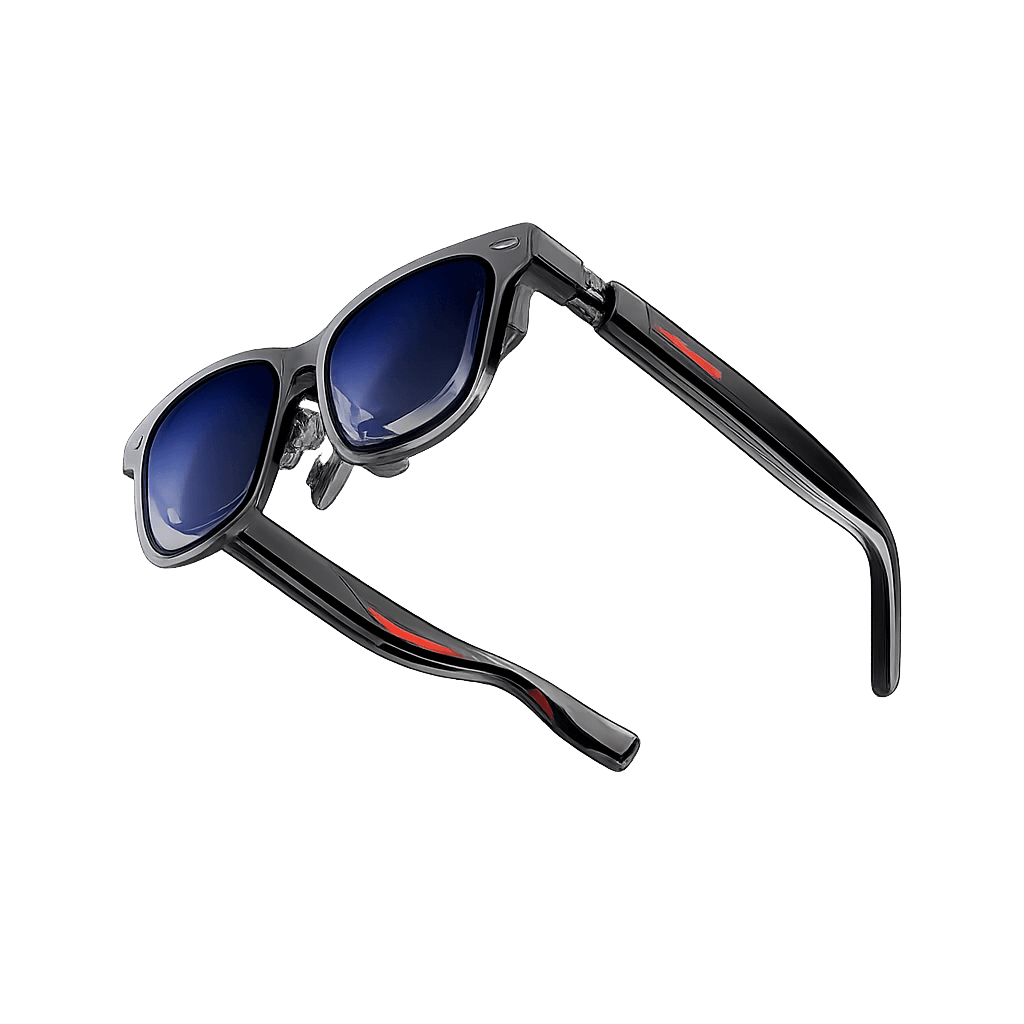
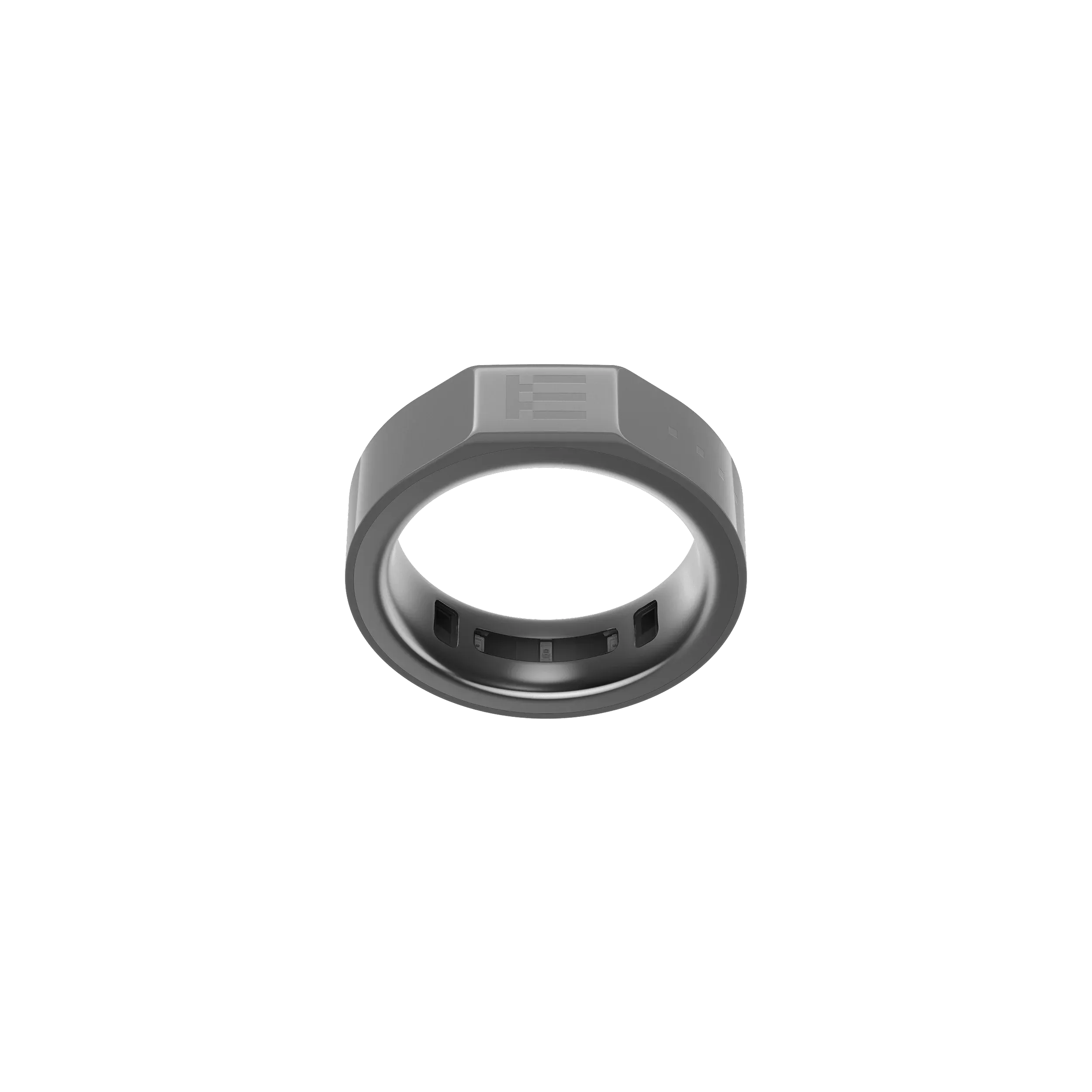
Even Realities G2 is a pair of lightweight smart glasses with a binocular micro-LED waveguide display. For Even Hub plugins, the glasses mainly act as the display and input surface: the plugin runs through the connected phone, while the G2 shows the content and sends touchpad or optional R1 ring input back to the app.
The developer canvas is 576 x 288 pixels per eye and is shown in green with 16 brightness levels. Unlit areas remain transparent, so the wearer continues to see the real world behind the information. This makes the G2 better suited to prompts, translations, status updates and short instructions than dense pages or rich phone-style interfaces.
How to design your first Even G2 display from zero
Step 1: Set up the G2 in the Even Realities phone app
Start on the phone. This creates the account you will also use on the computer and makes sure the glasses are ready.
1. Open the Even Realities App. Create an account or sign in on the phone app.
2. Pair the G2. Open Devices > Add device > Even G2 and follow the pairing prompt.
3. Update the firmware. Accept any firmware update offered after pairing, or check Devices > Firmware.
Step 2: Enable developer access on the computer
Now move to the computer, but keep the phone nearby. Use the same account on both devices.
1. Open Even Hub. In a computer browser, go to hub.evenrealities.com/login.
2. Sign in with the same account. Use the email and password from the phone app.
3. Return to the phone. Force-quit the Even Realities App, then reopen it.
4. Find the developer section. Open the Even Hub tab in the phone app. The developer section should now appear in the top-right area, including Scan QR.
Step 3: Install Node.js and the Even Hub tools
Stay on the computer. Node.js is software that lets Even Hub run on your computer. It must be installed before the Even Hub command-line tools can run.
1. Install Node.js. Even Hub currently requires Node 20 LTS or Node 22 or newer versions.
2. Open Terminal or PowerShell App. Use Terminal on macOS or PowerShell/Terminal on Windows.
3. Check Node.js. Type the command below and press Enter. A version such as v20.x or v22.x means it is ready.
node -v
4. Install the Even Hub tools. In the same window, enter:
npm install -g @evenrealities/evenhub-cli @evenrealities/evenhub-simulator
Step 4: Create the G2 project
The computer is now prepared. Create one new project folder and add the Even Hub SDK inside it.
1. Create the project in Terminal. Enter these commands one line at a time:
npm create vite@latest g2-display-demo -- --template vanilla-ts cd g2-display-demo npm install npm install @evenrealities/even_hub_sdk@latest evenhub init
Even also offers ready-made templates: npx degit even-realities/evenhub-templates/minimal g2-display-demo gives you a project with the SDK and app.json already in place
2. Finish app.json. Vite created the project, the SDK was installed inside it, and evenhub init created app.json. Open app.json and set package_id (reverse domain style, for example com.yourcompany.g2demo), name (up to 20 characters, and it may not contain the word Even) and min_sdk_version to the SDK version you installed (npm list @evenrealities/even_hub_sdk shows it). Add a greyscale 24 x 24 icon as public/icon.png.
Step 5: Open the project and find the display file
The project exists, but the display has not been designed yet. Open the folder in a code editor.
1. Open Visual Studio Code or another code editor. Visual Studio Code is a common option.
2. Open the project folder. Choose File > Open Folder and select g2-display-demo.
3. Open the main file. In the Explorer panel on the left, open src > main.ts.
This is the key location: src/main.ts is where the first G2 display code in the next step is entered.
Step 6: Build one simple text container
Start with one container. This confirms that the project and display work before you add more layout elements.
1. Replace the starter code in src/main.ts. Delete the default Vite demo code and paste the code below, then add these lines at the end so the wearer can leave the app with a double press. Even's submission rules require this on the first screen, and their reviewers check for it:
import { waitForEvenAppBridge, TextContainerProperty, CreateStartUpPageContainer, OsEventTypeList, } from '@evenrealities/even_hub_sdk'
const bridge = await waitForEvenAppBridge()
const statusBox = new TextContainerProperty({ xPosition: 24, yPosition: 24, width: 528, height: 240, paddingLength: 8, borderWidth: 0, containerID: 1, containerName: 'status', content: 'MACHINE 04\nReady\n> Continue', isEventCapture: 1, })
await bridge.createStartUpPageContainer( new CreateStartUpPageContainer({ containerTotalNum: 1, textObject: [statusBox], }), )
bridge.onEvenHubEvent((event) => {
if (event.textEvent?.eventType === OsEventTypeList.DOUBLE_CLICK_EVENT) {
bridge.shutDownPageContainer(1)
}
})
2. Save main.ts. Use File > Save or Ctrl+S / Cmd+S.
- xPosition / yPosition: Where the container starts on the 576 x 288 canvas.
- width / height: How much display space the container receives.
- paddingLength: Space between the container edge and the text.
- content: The words the wearer sees.
- containerID / containerName: The identity used to update this same container later.
- isEventCapture: 1: Marks this as the one container receiving the main touch and swipe events.
Step 7: Preview the display in the Even Hub Simulator
The code is saved. Preview it on the computer before sending it to the real glasses.
1. Return to Terminal. Make sure it is still inside the g2-display-demo folder.
2. Start the project. Enter:
npm run dev
3. Keep that Terminal running. Vite normally shows an address such as http://localhost:5173.
4. Open a second Terminal window. Start the Simulator with the same local address:
evenhub-simulator http://localhost:5173
5. Check the Simulator. You should see MACHINE 04, Ready and > Continue inside the 576 x 288 preview.
Step 8: Adjust the layout in the same src/main.ts file
Do not open a new program or section. Return to the file you already used in Step 6.
1. Go back to Visual Studio Code > src > main.ts. Keep the Simulator and development server running.
2. Change the content first. Replace the sample words inside content with the real information for your use case.
3. Adjust spacing only if needed. Change xPosition, yPosition, width, height or paddingLength, then save and look at the Simulator again.
4. Add another container only if it improves clarity. If you separate a heading, main message or status, give every container a unique containerID and containerName (16 characters at most), add it to textObject and raise containerTotalNum to match. A page holds up to 8 text or list containers plus 4 image containers.
Do not add phone-style design features: The G2 does not provide normal font sizing, bold typography, colored cards or arbitrary background fills. Use position, spacing, borders and supported brightness levels instead.
Step 9: Update changing text without rebuilding the page
If the container stays in the same place and only the words change, update that existing container.
1. Stay in src/main.ts. At the top of the file, where the Even Hub SDK tools are imported, add TextContainerUpgrade.
2. Use the same container ID and name. For example:
await bridge.textContainerUpgrade( new TextContainerUpgrade({ containerID: 1, containerName: 'status', content: 'MACHINE 04\nComplete\n> Next', }), )
3. Use this only for content changes. If the number, position or size of containers changes, rebuild the page instead. Even Realities documents textContainerUpgrade as the faster, flicker-free option for text-only updates.
Step 10: Test the same layout on the real G2
The Simulator checks the structure, but the final design should be reviewed through the real optics.
1. Make the dev server reachable from the phone. Vite only listens on localhost by default, so the phone cannot reach it until you tell it to accept outside connections. Create a vite.config.ts in the project folder (or add the server block to the one you have) with the settings Even documents, then restart npm run dev and keep it running:
import { defineConfig } from 'vite'
export default defineConfig({
server: {
host: true,
hmr: {
host: '192.168.1.100', // Replace with your actual local IP address
},
},
})
2. Find the computer's local network IP. On Windows PowerShell, use ipconfig and find the IPv4 address. On macOS, use ipconfig getifaddr en0 for Wi-Fi.
3. Generate the QR code. Replace <YOUR-IP> with the local address:
evenhub qr --url "http://<YOUR-IP>:5173"
4. Move to the phone. Open Even Realities App > Even Hub tab > developer section > Scan QR.
5. Scan the QR shown on the computer. The phone loads the local project and relays it to the paired G2.
6. Look through the glasses. Check that the main message is easy to find and understandable while looking at the real environment.
Network note: The phone and computer must be able to reach each other. Corporate Wi-Fi, AP/client isolation or a firewall can block local QR testing.
Practical layout rules for the small green display
One purpose per screen:
- Do: Show one status, instruction, prompt or small choice.
- Avoid: Combining a dashboard, instructions and navigation on one page.
Keep text short:
- Do: Use a few compact lines.
- Avoid: Using the technical text limit as a design target.
Use spacing for hierarchy:
- Do: Separate title, main information and action with empty space.
- Avoid: Trying to create hierarchy with unsupported font-size changes.
Use containers deliberately:
- Do: Add a container only when it gives information a clear role.
- Avoid: Adding containers just because the page allows up to 12.
Design for transparency:
- Do: Remember that unlit areas show the real world behind the HUD.
- Avoid: Treating the canvas like an opaque phone screen.
Use images carefully:
- Do: Use simple high-contrast icons or compact cues.
- Avoid: Detailed photos or graphics that need close inspection.
Test on hardware:
- Do: Use the Simulator for speed, then verify on the real G2.
- Avoid: Approving the final design only from desktop preview.
What business information fits this display?
The G2 is strongest when the wearer needs a small amount of information without leaving the current task or conversation.
· Meeting prompts: a speaker name, one key figure, a talking point or short reminder.
· Live translation: one or two lines of translated speech rather than a full transcript page.
· Guided workflows: one instruction or confirmation step at a time.
· Status updates: machine state, delivery status, task progress or a short alert.
· Navigation cues: a direction, distance or simple arrow rather than a detailed map.
· Knowledge prompts: a short answer, reference number or contextual note.
Why good G2 display design matters for businesses
The value of the G2 is not how much information can fit on the display, but how little attention the display needs to take. A short, well-structured HUD can surface useful information without asking employees to stop what they are doing and open a phone or laptop. For businesses, that can support more focused meetings, faster access to status information and more consistent step-by-step workflows.
The design limits can also help teams keep custom applications disciplined. Reusing a small number of containers, short content and predictable interactions makes interfaces easier to learn and reduces the risk of turning the glasses into another crowded application.
Conclusion
Designing for the Even Realities G2 display starts on the phone by pairing and updating the glasses, then moves to the computer to enable Even Hub access, install Node.js and the Even Hub tools, create a Vite project and open src/main.ts, where the first 576 x 288 green HUD is built from a simple text container. Preview the layout in the Even Hub Simulator, adjust the content and spacing in the same file, use textContainerUpgrade when only the words change, and finally scan the development QR code in the Even Realities App to test the layout on the real G2. The strongest business interfaces keep each screen short, focused and easy to understand at a glance, allowing companies to surface translations, prompts, status information or workflow instructions without repeatedly pulling employees away from the physical task or conversation to check another screen.
Building a custom Even G2 workflow? Start with one useful screen, test it in the Simulator and on the real glasses, then expand only when the next piece of information clearly improves the wearer's task.