















Executive summary
RealWear Navigator 520 development does not require a separate speech SDK for basic voice interaction. WearHF is part of the device software. It can inspect an Android screen, identify supported interactive views and expose voice commands for them. A standard Android button labeled CONTINUE can therefore be activated by saying “CONTINUE” without importing a RealWear library.
Start with a standard Android app and test it on the target Navigator firmware. WearHF can recognize supported screen controls without app-side speech code. Add a view directive in android:contentDescription when a control needs alternate phrases or special behavior. Use OVERRIDE_COMMANDS only when the app must take control of the recognizer and handle commands itself. These paths have different effects, described below.
Important: “No SDK” does not mean “no code.” You still build the Android interface and business logic. The app does not need a separate RealWear speech SDK for basic voice control because WearHF supplies that device-level capability.
Core concept: You do not open WearHF, install WearHF or import a WearHF SDK for basic voice control. WearHF runs in the background as part of the RealWear operating system.
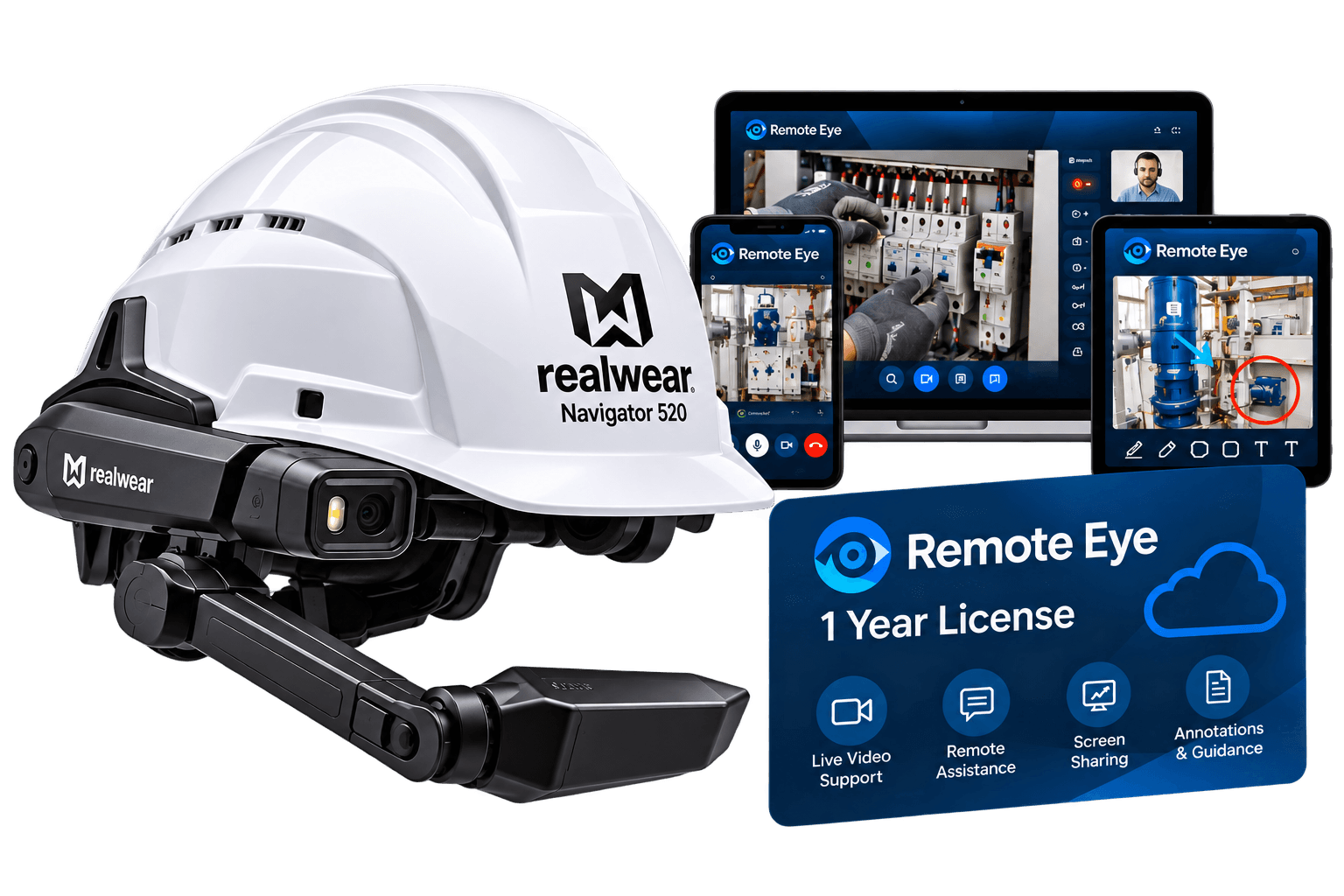
What is the RealWear Navigator 520?
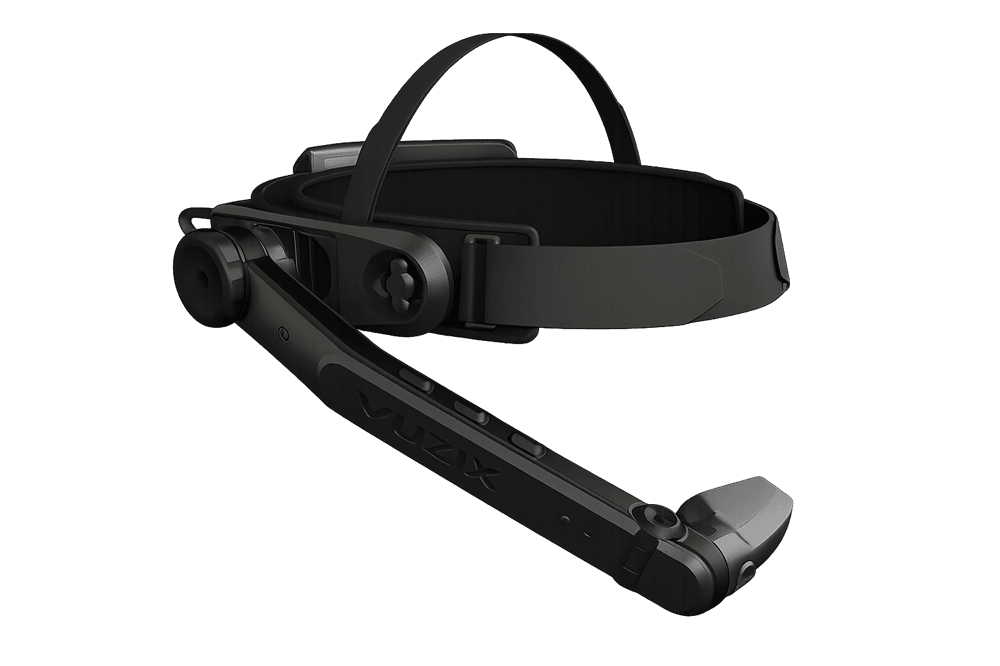
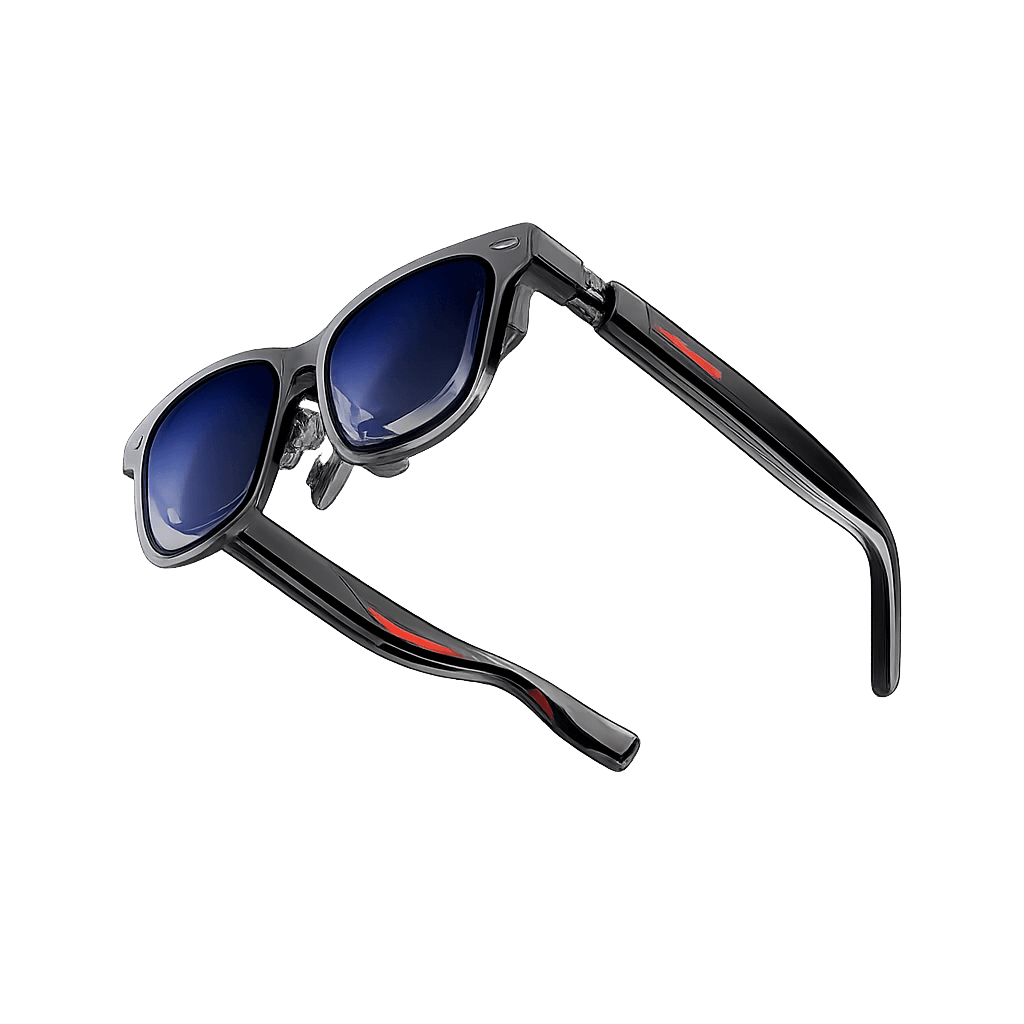
The RealWear Navigator 520 is a rugged monocular assisted-reality computer designed for frontline work such as maintenance, inspection and field service. RealWear’s Navigator 500/520 firmware 2.x is based on Android 13, and the Ari OS 2.0 maintenance release of 17-09-2026 (firmware 3.0, build 3.0.3-15 offered to devices on build 2.2.3-33) moves the device to Android 16. Firmware roadmaps can change, so treat the device OS as a deployment constraint: record the tested firmware build, Android API level, app minSdk/targetSdk and device model in your release matrix. Do not infer minSdk or targetSdk solely from the headset’s Android version.
For developers, this means you build and package a normal Android app. WearHF runs on the device and can expose supported controls to voice; it does not implement your workflow, authorize a business action, or replace app-side validation.
What is WearHF?
WearHF is RealWear’s built-in speech and hands-free interaction service. It interprets supported Android views and screen directives, then activates a view or sends a speech event according to the selected integration. Basic view interaction needs no separate RealWear speech library. Embedded directives are parsed from android:contentDescription; programmatic commands use documented Android broadcast intents. Do not mix up a view click with a recognizer override: an override takes control of the recognizer and can suppress embedded/scripted commands until restored.
What you need before building the first app
· A Navigator 520 running the firmware build you intend to support; record its exact build and Android version.
· A Windows, macOS or Linux computer.
· Android Studio with the Android SDK and Platform Tools (ADB). Use the Android API level required by your app and validate against RealWear’s supported firmware.
· A USB-C data cable.
· No RealWear SDK for the first app.
· A business workflow to test, such as advancing an inspection step or reporting an equipment issue.
How to build a voice-controlled Android app without a RealWear SDK
Step 1: Create a normal Android project
Start with an Android Views project for this walkthrough. In Android Studio, choose a Views-based Empty Activity (not a Compose-only template), then select Java or Kotlin. The examples below use Java. Compose can also work with WearHF on supported software, but its semantics and accessibility tree should be tested on the target build.
1. Open Android Studio and select New Project.
2. Choose a Views-based Empty Activity. If the wizard offers language and minimum SDK fields, select Java and set minSdk to the lowest Android API your app actually supports; do not copy a value from this example without checking your dependencies and device fleet.
3. Enter the app details. Set the app name, package name and save location, then create the project.
4. Wait for the project to open. Android Studio completes the Gradle sync and opens the project.
Do not add anything yet: You are not looking for a RealWear project template. The point of the first build is to prove that a standard Android app can run on the Navigator 520.
Step 2: Add one Android button and connect it to Java
Create one button first. You will add its Android layout, connect its click action in Java, then test it on the device.
1. In Android Studio’s Project panel, open app > res > layout > activity_main.xml. The full file path is app/src/main/res/layout/activity_main.xml.
2. Select Code in the layout editor. Replace the file contents with the complete XML shown next.
XML: One button with a WearHF command
Paste the complete layout into activity_main.xml, then save the file:
<LinearLayout xmlns:android="http://schemas.android.com/apk/res/android" android:layout_width="match_parent" android:layout_height="match_parent" android:orientation="vertical" android:padding="24dp">
<Button android:id="@+id/continueButton" android:layout_width="wrap_content" android:layout_height="wrap_content" android:text="CONTINUE" android:contentDescription="hf_commands:CONTINUE" />
</LinearLayout>
Quick explanation: `LinearLayout` stacks its contents vertically. `android:text` is the visible button label. `android:contentDescription` contains the WearHF directive; Android accessibility services also read this field, so test that the control remains understandable to your users.
Next, open app > java > your package > MainActivity.java in the Project panel. The full path is app/src/main/java/<your.package.name>/MainActivity.java. Keep the generated Activity class and `onCreate()` method.
If missing, add `import android.widget.Button;` with the imports at the top of MainActivity.java. Inside the existing `onCreate()` method, paste these lines immediately after `setContentView(R.layout.activity_main);`:
Button continueButton = findViewById(R.id.continueButton); continueButton.setOnClickListener(v -> openNextStep());
Add this method below `onCreate()` but before the final closing brace of the MainActivity class:
private void openNextStep() { // Navigate to the next inspection or work-order step. }
How to adjust it: change `android:text` to the label that fits your workflow. Change `hf_commands:CONTINUE` to the phrase workers should say, for example `hf_commands:Continue Work, Next Step`. The XML ID `continueButton` must match `R.id.continueButton` in Java; if you rename it, update both. Replace the comment in `openNextStep()` with the navigation or business action your app needs. Basic voice control does not require a separate WearHF SDK or `RECORD_AUDIO` permission.
Step 3: Prepare the Navigator 520 for Android development
The development computer needs ADB authorization to install and debug the app. Use a data-capable USB-C cable; charge-only cables will not enumerate as an ADB device.
1. Open Advanced Settings. From the Navigator Home screen say MY SETTINGS to reach the Android settings list.
2. Open About Device. Say ABOUT DEVICE, then PAGE DOWN until Build Number is visible.
3. Enable Developer Options. Say BUILD NUMBER repeatedly, about seven times, until the device confirms that developer mode is enabled.
4. Open Developer Options. Say NAVIGATE BACK, then SYSTEM, then DEVELOPER OPTIONS.
5. Enable USB debugging. Inside Developer Options, turn on USB debugging.
6. Connect the USB-C cable and approve the RSA debugging prompt on the device. Confirm the connection with `adb devices`; the device should appear as `device`, not `unauthorized`.
If Android Studio does not list the headset, run `adb devices`. If it shows `unauthorized`, unlock the headset and approve the RSA prompt. For a repeat install from the project root, use `adb install -r app/build/outputs/apk/debug/app-debug.apk`; replace the path if your build variant or APK name differs. Use Android Studio Logcat or `adb logcat` to inspect crashes and application logs.
USB debugging is a development setting. Disable it after lab testing or manage it under the organization’s device security policy; do not leave development access enabled on production fleet devices.
Step 4: Run the app on the Navigator 520
1. Select the Navigator in Android Studio. Use the device selector in the top toolbar and choose the connected RealWear device.
2. Click Run. Select the green Run triangle or use Run > Run 'app'.
3. Wait for installation. Android Studio builds the APK and installs it on the Navigator through ADB.
4. Launch the installed app from the device’s application launcher, or run `adb shell monkey -p your.application.id 1` from a development terminal. Replace `your.application.id` with the applicationId in the app module’s Gradle build file.
5. Confirm the CONTINUE button is visible and enabled.
Step 5: Test WearHF without adding any SDK
WearHF is already running on the Navigator 520. With only the CONTINUE button on screen, test this control first:
1. Say CONTINUE and verify that the app’s normal click listener runs exactly once.
2. Say SHOW HELP to inspect the command WearHF exposes for this screen. Confirm it shows CONTINUE.
3. Check the WearHF indicators and test numeric selection if it is offered. Do not rely on an indicator as the only way to identify a safety-critical action.
Optional: Add a second action after the CONTINUE test
After the first button works, you can add REPORT ISSUE. In activity_main.xml, put this Button inside the LinearLayout, below CONTINUE and before </LinearLayout>:
<Button android:id="@+id/reportIssueButton" android:layout_width="wrap_content" android:layout_height="wrap_content" android:text="REPORT ISSUE" />
In MainActivity.java, add this listener inside onCreate(), after the CONTINUE listener:
Button reportIssueButton = findViewById(R.id.reportIssueButton); reportIssueButton.setOnClickListener(v -> openIssueReport());
Add openIssueReport() below onCreate(), inside MainActivity. Replace the comment with the issue-report workflow in your app:
private void openIssueReport() { // Open the equipment issue form. }
Rebuild and reinstall the app, then say REPORT ISSUE. Confirm that the issue-report workflow opens.
Conclusion
Developing for the RealWear Navigator 520 without a dedicated SDK proves that clean, standard Android code is already voice-capable, relying on the built-in WearHF service to transform visible views and contentDescription directives into intuitive hands-free controls. For technical teams, this avoids third-party library bloat and complex speech engines while keeping core business logic within standard Android architecture. From a business perspective, this approach accelerates time-to-market and minimizes deployment costs: enterprises can directly leverage existing Android apps and in-house developer skill sets, sidestep proprietary SDK lock-in, and smoothly modernize frontline workflows without disrupting their software stack.
For a first enterprise prototype, build one inspection or maintenance screen, verify view labels and accessible descriptions, then test voice activation on the exact Navigator 520 firmware used by the pilot fleet. Add embedded directives for specific UI needs and recognizer overrides only when the workflow requires full command ownership.