











Executive summary
XREAL One Pro does not run the custom application itself. The app is created in Unity on a computer, installed as an Android APK on XREAL Beam Pro or another supported Android host device, and then displayed through the One Pro glasses. This host-device model is the main point developers need to understand before starting.
The setup follows a clear workflow: prepare Beam Pro, install Unity and Android support, add the XREAL SDK, open and test the HelloMR sample, build the APK, install it on Beam Pro with ADB, connect the One Pro and launch the app through MyGlasses. For businesses, this architecture makes it easier to develop and test custom XREAL workflows using familiar Android and Unity tools, while keeping the application logic on a separate host device that can be managed, updated and integrated with existing company systems.
The mistake to avoid: Do not plan a project where the APK is installed directly on [XREAL One Pro](https://ai.vr-expert.com/en/ai-glasses/xreal-one-pro). The APK is installed on the Android host device.
What is XREAL One Pro?
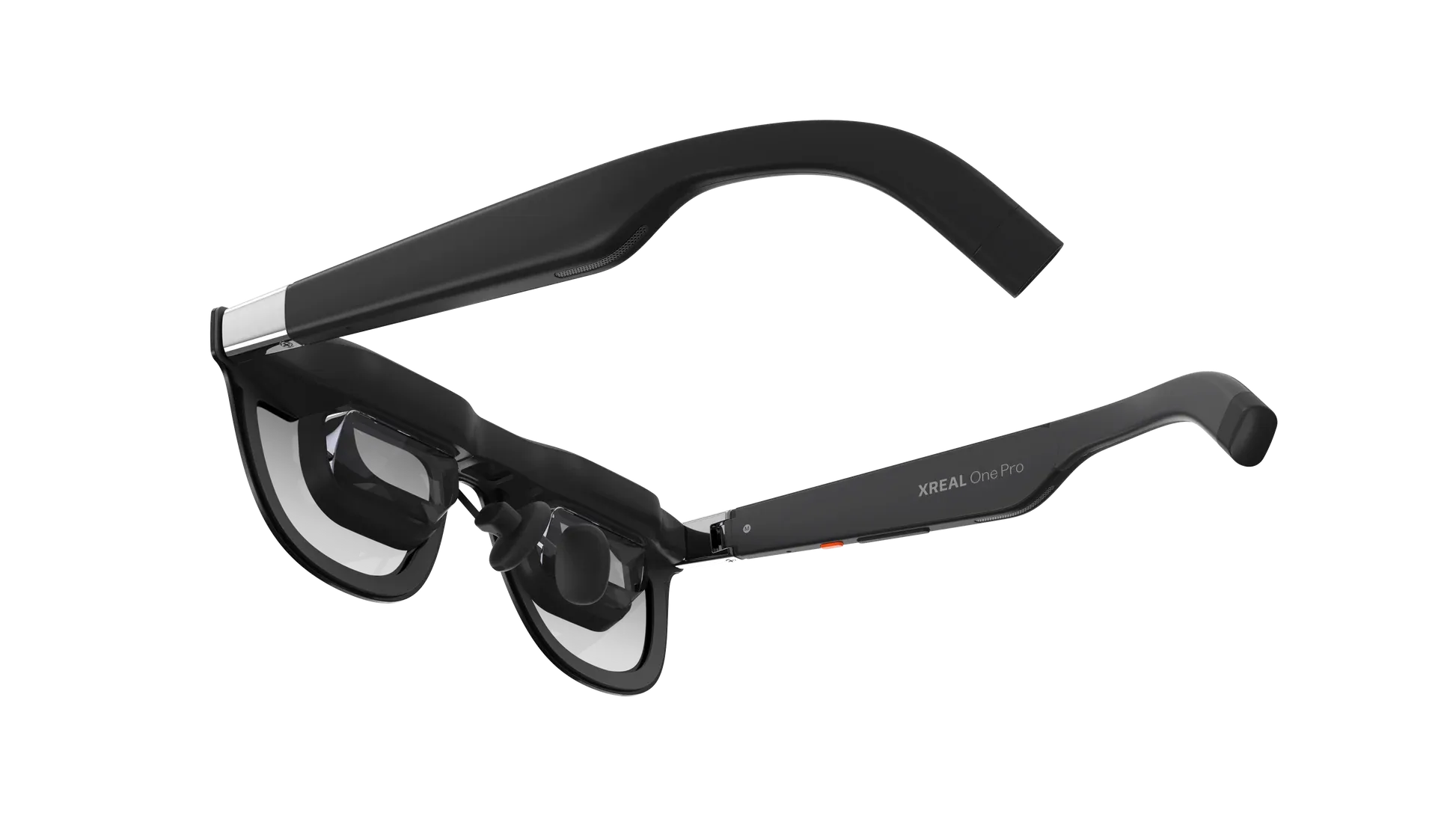
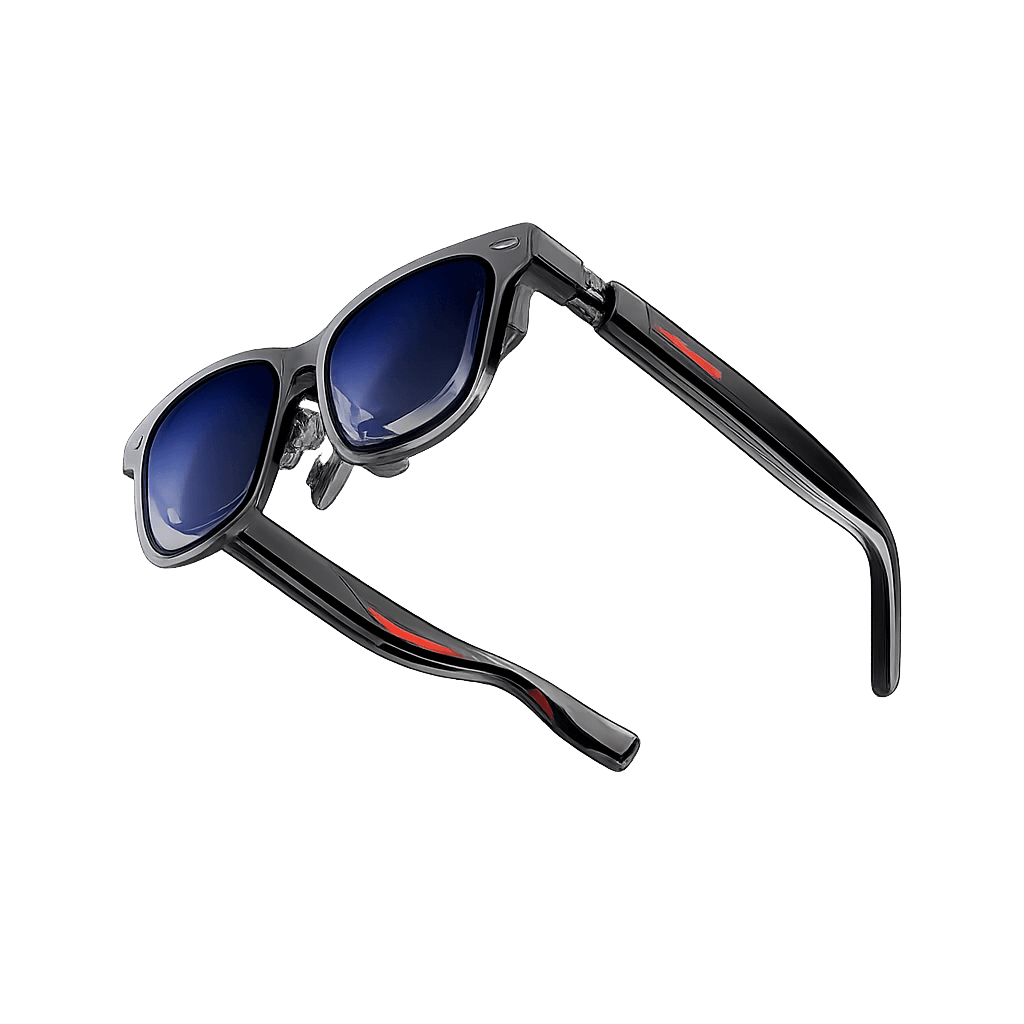
XREAL One Pro is a tethered AR display with a 57-degree field of view, Sony Micro-OLED displays and XREAL's X1 spatial-processing chip. The X1 chip provides native 3DoF, so the screen stays in place when you turn your head, and since SDK 3.1.0 the One series also supports 6DoF head tracking with the optional XREAL Eye camera after a firmware update. None of this makes the glasses a standalone Android computer.
For custom XREAL SDK development, the connected Android host handles the application. The One Pro is the wearable display and tracking endpoint.
What you need for this guide
· A Windows or macOS computer.
· XREAL Beam Pro, or a Samsung flagship phone that XREAL has tested: the Galaxy S24 on Android 14 or the Galaxy S25 on Android 15. XREAL supports Samsung flagships only, and asks developers not to use phones updated to Android 16 while its compatibility notice stands. Beam Pro is the host used in the main steps.
· A USB-C cable for connecting One Pro to Beam Pro.
· Unity Hub and a supported Unity LTS version with Android Build Support. (Instruction in the article)
· The current XREAL SDK for Unity from XREAL's developer download page. (Instruction in the article)
· Android Debug Bridge (ADB) for installing the APK on Beam Pro. (Instruction in the article)
How to develop your first XREAL One Pro app
Step 1: Prepare Beam Pro, the device that will run the app
Start with Beam Pro because this is where the finished Android app will be installed. Beam Pro is a physical handheld device, not something you download.
1. Get XREAL Beam Pro. Purchase the Beam Pro hardware from XREAL or an authorized reseller. It is separate from the One Pro glasses.
2. Turn it on and connect it to Wi-Fi. Complete the normal first-time Android/nebulaOS setup on Beam Pro.
3. Open MyGlasses on Beam Pro. MyGlasses is the XREAL glasses-management application used on Beam Pro.
4. Update Beam Pro and MyGlasses if prompted. SDK 3.1.0 pairs with MyGlasses 1.11.0. XREAL's release note says to update MyGlasses first and then connect the glasses, which triggers their firmware update automatically. Beam Pro runs nebulaOS on Android 14, so XREAL's Android 16 warning applies to phones, not to Beam Pro.
5. Connect One Pro to Beam Pro once. Use the glasses USB-C cable. If a glasses firmware update appears, complete it before development.
****
Step 2: Install Unity Hub on the development computer
1. Open the Unity website on the computer. Download Unity Hub for Windows or macOS.
2. Install and open Unity Hub. Unity Hub is a separate desktop program used to install Unity Editor.
3. Sign in or create a Unity account if asked. This gives Unity Hub access to the editor installation and licensing flow
Step 3: Install a Unity Editor version with Android support
XREAL SDK runs inside Unity, so Unity Editor must be installed before the SDK can be imported.
1. Open Unity Hub > Installs. Select Install Editor.
2. Choose a supported LTS version. XREAL supports Unity 2021.3.X, 2022.3.X and 6000.0.X LTS. Use a supported version listed in the current XREAL documentation.
3. Select Android Build Support. XREAL's minimum is Android SDK API level 31 (Android 12) or later, which the bundled SDK covers.
4. Finish the installation. Wait until Unity Hub shows the editor under Installs.
Move to Step 4 when: the Unity Editor is installed and Android Build Support is included.
Step 4: Download XREAL SDK to the computer
The XREAL SDK is a file that is imported into Unity later. Do not try to install it on Beam Pro or the glasses.
1. Open the XREAL Developer Download page. On the development computer, go to developer.xreal.com/download.
2. Find XREAL SDK for Unity. Accept the XREAL API terms and download the current SDK.
3. Keep the downloaded file. The package is supplied as a file such as com.xreal.xr.tar.gz.
Move to Step 5 when: the XREAL SDK file is saved on the computer. Do not open the tar.gz file manually.
Step 5: Create the Unity project
Now use Unity Hub to create the project that will later become the Android app installed on Beam Pro.
1. Open Unity Hub > Projects. Select New project.
2. Choose a normal 3D template. Give the project a simple name such as XREAL-One-Pro-Test and choose where to save it.
3. Create the project. Wait for Unity Editor to open.
4. Switch the project to Android. In Unity Editor open File > Build Settings. Select Android and click Switch Platform. In Unity 6, use File > Build Profiles if that is the menu shown.
Move to Step 6 when: Android is the active build platform in Unity.
Step 6: Install the Unity package XREAL needs
Stay inside the Unity Editor. The next tools are added to this same project.
1. Open Window > Package Manager. In the Package Manager window, set the package source to Unity Registry. This shows packages provided by Unity.
2. Find XR Interaction Toolkit. Select it and click Install. XREAL lists versions 2.5.x and 3.0.x as supported; if the Package Manager installs a newer one and the sample misbehaves, pick 3.0.x from the version list instead.
3. Open its Samples tab. Find Starter Assets and click Import, then import Hands Interaction Demo as well. XREAL's troubleshooting page says HelloMR shows missing prefabs without it.
Step 7: Import XREAL SDK into the same Unity project
You are still in Unity. Now use the XREAL SDK file downloaded in Step 4.
1. Stay in Window > Package Manager. Click the + button in the upper-left area. Then select: “Add package from tarball”.
2. Find the XREAL SDK file you downloaded earlier. Go to your Downloads folder, select the file called something like com.xreal.xr.tar.gz, and click Open. Unity will now add the XREAL XR Plugin to your project.
3. Open XREAL XR Plugin in Package Manager > Samples. Import Interaction Basics. This adds the ready-made HelloMR sample scene that you will use to check that the XREAL setup is working.
Step 8: Enable XREAL in the project
The SDK is present, but Unity still needs to know that this Android project should use the XREAL plug-in.
1. Open Edit > Project Settings > XR Plug-in Management. Select the Android tab.
2. Tick XREAL. This enables the XREAL XR provider for the Android build.
3. Open Project Validation. Click Fix All for any required XREAL changes.
4. Open XR Plug-in Management > XREAL. For a One Pro without the XREAL Eye, set Initial Tracking Type to MODE_3DOF, Initial Input Source to Controller (Beam Pro or the phone acts as a 3DoF controller) and Support Devices to XREAL_DEVICE_CATEGORY_VISION, XREAL's category for 3DoF glasses such as the One series. Leave everything else at its default until the sample works.
Move to Step 9 when: Project Validation no longer shows unresolved required XREAL settings.
Step 9: Open XREAL's HelloMR sample
Before writing your own app, use XREAL's sample. This confirms that Unity, XREAL SDK, Beam Pro and the glasses can work together.
1. Open the Project panel in Unity. Go to Assets > Samples > XREAL XR Plugin > [your SDK version] > Interaction Basics.
2. Find HelloMR.unity. Double-click the scene to open it.
3. Do not customize it yet. First build the unchanged sample so you know the development environment is working.
Step 10: Build the Android APK on the computer
Unity now turns the HelloMR project into an Android app file. That file is called an APK.
1. Open File > Build Settings or Build Profiles. Select Add Open Scenes so HelloMR is included.
2. Confirm Android is active. If it is not, switch to Android.
3. Click Build. Set the Player Settings, then build. In Player Settings, fill in Company Name and Product Name (MyGlasses shows the Product Name, so use XREAL-HelloMR) and check that Scripting Backend is IL2CPP with ARM64 as the target architecture; XREAL requires both. Then click Build, choose a folder on your computer and save the file as XREAL-HelloMR.apk
4. Wait for the build to finish. The APK now exists on the computer, but it is not on Beam Pro yet.
What an APK is: An APK is the file used to install an Android app. In this workflow, the APK goes onto Beam Pro, not onto [XREAL One Pro](https://ai.vr-expert.com/en/ai-glasses/xreal-one-pro).
Step 11: Install the APK on Beam Pro
ADB: Android Debug Bridge, a computer tool used to install and test Android apps on Beam Pro or a phone.
The app is built. The next step moves that APK from the computer to Beam Pro.
1. Connect Beam Pro to the computer by USB-C.
2. Open Terminal or PowerShell on the computer.
3. Enable USB debugging on Beam Pro. XREAL's guide only says to enable Developer options and USB debugging on the host; on Android that means tapping “Build number” seven times under “About” to unlock Developer options, then switching on USB debugging there. If Beam Pro shows a message asking whether to allow USB debugging from this computer, select Allow.
4. Check that the computer can see Beam Pro. In PowerShell, type:
adb devices
Beam Pro appears as device, the connection is working and you can continue.
5. Install the APK. First, find the XREAL-HelloMR.apk file on your computer. For example, if you saved it inside a folder called XREAL Test on your Desktop, the Windows path might look like:
C:\Users\YourName\Desktop\XREAL Test\XREAL-HelloMR.apk
In PowerShell, type:
adb install -r "C:\Users\YourName\Desktop\XREAL Test\XREAL-HelloMR.apk"
Replace the example path with the actual location of your APK, then press Enter.
6. Wait for Success. When ADB reports Success, the application is installed on Beam Pro.
Move to Step 12 when: the APK installation reports Success on the computer.:
Step 12: Connect One Pro to Beam Pro and open the app
The Android app is now on Beam Pro. Only now do you move the USB-C connection from the computer to the glasses.
1. Disconnect Beam Pro from the computer.
2. Connect [XREAL One Pro](https://ai.vr-expert.com/en/ai-glasses/xreal-one-pro) to Beam Pro. Use the XREAL USB-C cable.
3. Open MyGlasses on Beam Pro. This is the XREAL environment used to manage the connected glasses and start XREAL 3D applications.
4. Find your app in MyGlasses. It is listed under the Product Name from Player Settings, not the APK file name. Select it and open it. If it is missing, or MyGlasses says the app is not supported on this device, tap the glasses icon in the top-left corner of MyGlasses ten times with the glasses disconnected to open developer mode, then use 'select other MR App' to pick it.
5. Approve permissions if asked.
6. Look through the One Pro. The HelloMR scene should now appear in the glasses while Beam Pro is running the application.
Step 13: Make the first small custom change
Once the unchanged HelloMR sample works, return to Unity and change one thing. This avoids debugging your own code before the basic XREAL setup has been proven.
1. Return to Unity on the computer. Open the HelloMR scene. Open the Scene tab. This is where you can build the interface and position objects that will appear through the XREAL One Pro.
2. Add a Cube. Choose GameObject > 3D Object > Cube and place it about a metre in front of the camera. Text, buttons, panels and imported models are added the same way later. (HelloMR does not come with a Cube; XREAL's sample shows its logo object, so the Cube in points 6 and 7 has to be created here.)
3. Select an object in the Hierarchy. Use the Inspector to change its position, size, rotation and other settings.
4. Arrange the application layout. Build the interface needed for the project, such as instructions, a product model, a status panel or a Start Inspection button.
5. Add C# code only when custom behavior is needed. Code is not required just to place and design objects. Create a script under Assets > Scripts only when an object needs to move, respond to input, change information or connect to external data.
For example, this optional script makes an object rotate:
using UnityEngine;
public class SpinObject : MonoBehaviour
{
public float speed = 30f;
void Update()
{
transform.Rotate(0f, speed * Time.deltaTime, 0f);
}
}
6. Attach the script to the Cube. Drag SpinObject from Assets > Scripts onto the Cube in the Hierarchy.
7. Build and install again. Repeat Steps 10 to 12. The Cube should rotate when the app runs on Beam Pro and is displayed through One Pro.
What this demonstrates: Your custom C# code is executed by the Android application on Beam Pro. The glasses display the result.
If you want to use an Android phone instead of Beam Pro
The same overall architecture applies, but the host becomes a supported Android phone. You do not use MyGlasses for this route.
· Use a phone XREAL approved. SDK 3.1.0 lists the Samsung Galaxy S25 on Android 15; XREAL's compatibility page also lists the Galaxy S24 on Android 14 and says it supports Samsung flagships only. Check the phone's Android version before you buy or update: XREAL asks developers not to move development devices to Android 16, and Samsung has shipped Android 16 (One UI 8) to both models since September 2025. Turn off Samsung DeX while developing.
· Install the APK on the phone instead of Beam Pro.
· Connect XREAL One Pro to the phone by USB-C.
· Open ControlGlasses, find the installed XREAL app and launch it.
Do not mix the two routes: Beam Pro uses MyGlasses. A supported Android phone uses ControlGlasses.
Common development mistakes
- Trying to install the APK on the glasses: Install it on Beam Pro or the supported Android phone.
- Thinking Beam Pro is an app: Beam Pro is separate physical hardware. MyGlasses is the XREAL app used on Beam Pro.
- Using MyGlasses on a normal Android phone: Phone development uses ControlGlasses instead.
- Starting with custom code before HelloMR works: Run the unmodified sample first, then customize.
- Leaving Beam Pro connected to the computer when trying to use the glasses: After installing the APK, disconnect Beam Pro from the computer and connect One Pro to Beam Pro.
Conclusion
Development for XREAL One Pro starts by separating the three parts of the system: the computer is where the Unity project is created, Beam Pro or a supported Android phone is where the Android APK actually runs, and XREAL One Pro is the wearable display and tracking device. Using Beam Pro as the clearest path, set up the physical Beam Pro first, install Unity Hub and a supported Unity Editor on the computer, download and import XREAL SDK, enable the XREAL plug-in, open the HelloMR sample, build an APK, install that APK on Beam Pro with ADB, then disconnect Beam Pro from the computer, connect the One Pro and launch the app through MyGlasses. For businesses, understanding this architecture before development starts helps define the correct hardware, security and deployment plan, makes pilots easier to troubleshoot and prevents teams from spending time building for a standalone-glasses model that the One Pro does not use.
Planning an XREAL One Pro application? Start with one Beam Pro, one One Pro and the HelloMR sample, prove the host-to-glasses workflow first, then add only the Unity features required for the business use case.