












Executive summary
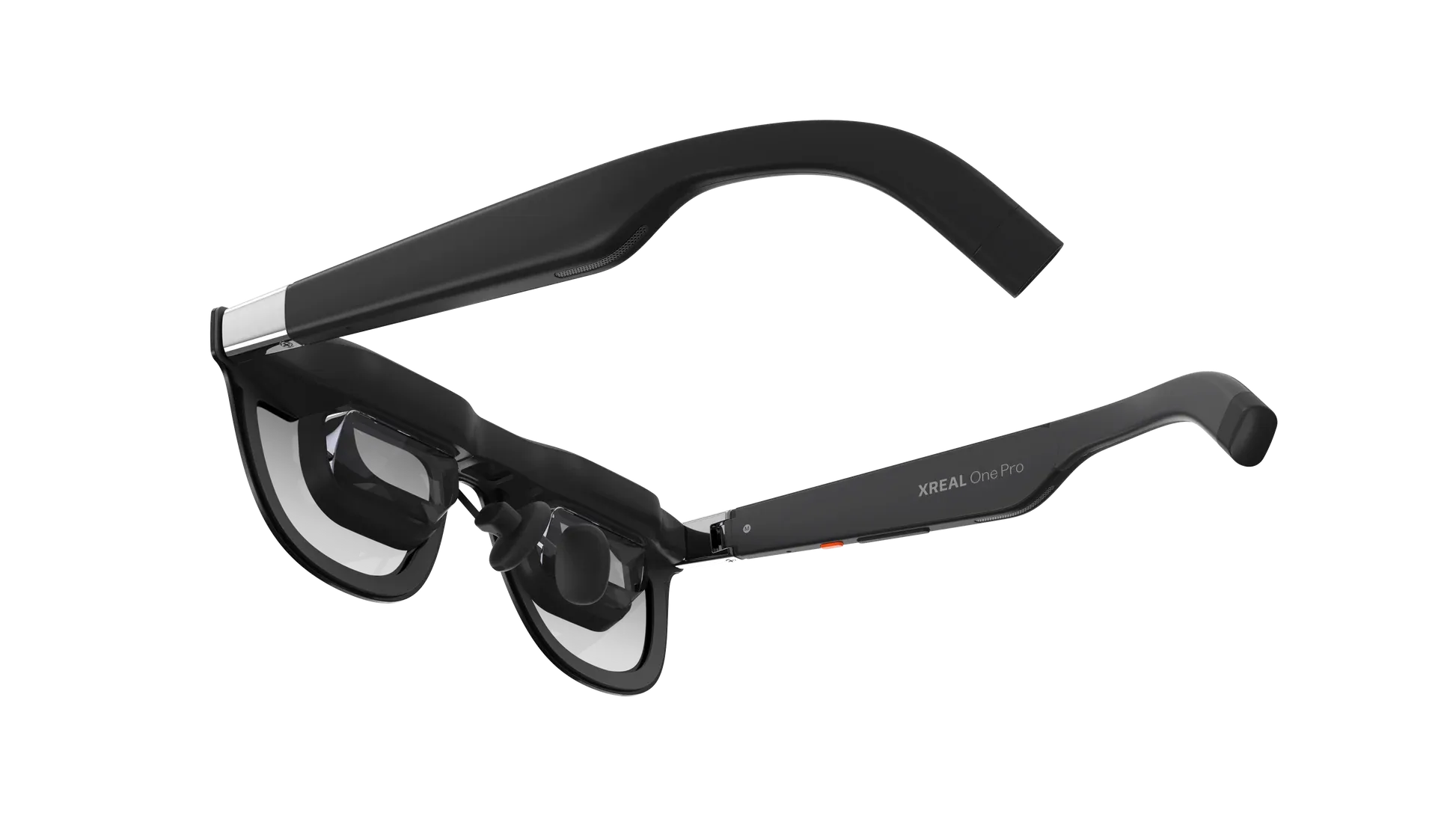
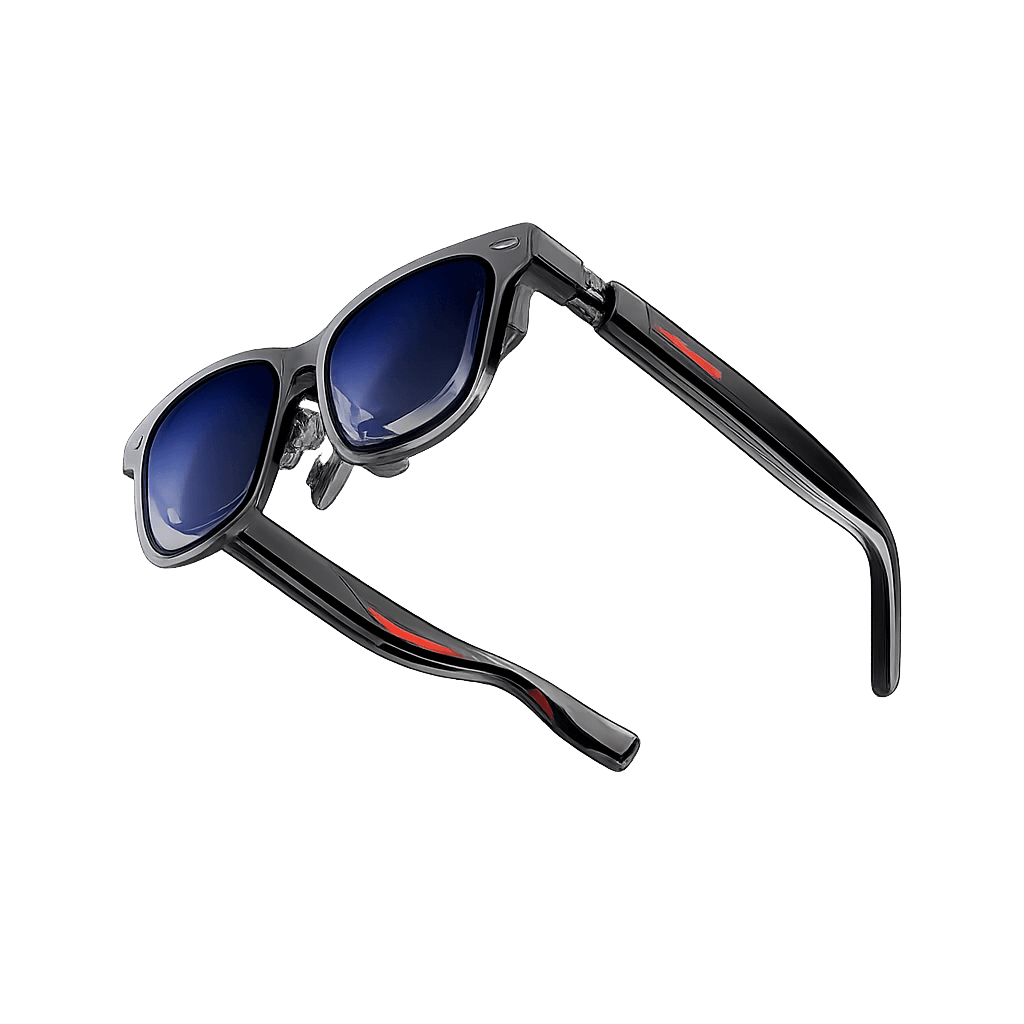
This XREAL One Pro Unity SDK guide shows developers and business teams how to build and test an app using XREAL SDK 3.1.0. The first result is an Android APK that opens through XREAL Control Glasses on a supported phone. Start with the official Hello MR sample, then add a simple business instruction panel if you need to show your own workflow content.
The first Hello MR build does not require custom code. A business specific experience does require Unity development work when teams add their own steps, controls, data flow, authentication, or backend connection. The XREAL One Pro is a connected display, not a standalone computer, so the supported phone runs the app. Confirm compatibility, permissions, data handling, and device management with your internal technical team before a wider deployment.
Introduction
The XREAL One Pro Unity SDK workflow is a practical way to test a hands free business interface, such as a task list, remote guidance view, or short work instruction. See the XREAL One Pro product page at VR Expert for the device overview. This guide focuses on the Unity development path and the checks that matter before a business pilot: supported host phone, correct XREAL plug in, Android permissions, and a clear first build.
XREAL One Pro Unity SDK requirements
- Development route: XREAL SDK for Unity. This guide does not cover native Android, Java, or Kotlin development.
- Current SDK documentation: Version 3.1.0 at the time checked. Review the latest XREAL release notes before development or rollout.
- Unity versions in the quickstart: Unity 2021.3 LTS, 2022.3 LTS, or Unity 6000.0 LTS with Android Build Support.
- Supported host: XREAL lists Beam Pro or supported Android phones; the quickstart names Samsung S24 and later flagship series. Version 3.1.0 notes list Beam Pro and Samsung S25 as tested compatible.
- Tracking on One Pro: Start with 3DoF. XREAL SDK 3.1.0 adds One series 6DoF with XREAL Eye attached and updated glasses firmware.
- Phone connection: The phone needs USB C DisplayPort video output and separate XREAL SDK host compatibility. Display output alone does not prove SDK support.
Before opening Unity
· Supported host phone: Use Beam Pro or a phone listed as compatible in XREAL’s current SDK documentation. The quickstart currently identifies Samsung S24 and subsequent flagship series; the 3.1.0 release notes identify Beam Pro and Samsung S25 as tested compatible hosts (XREAL tests the S24 on Android 14 and the S25 on Android 15). Keep the phone preferably off Android 16, since XREAL’s documentation carries the notice “Please do not upgrade your development devices to Android 16”, and turn off Samsung DeX during development.
· Unity: Install an XREAL listed Unity LTS editor with Android Build Support. Add Android Build Support from Unity Hub > Installs > (your editor) > Add modules if it is missing.
· Android SDK tools: Install Android SDK 12.0 (API 31) or newer from Android Studio > More Actions > SDK Manager, or Tools > SDK Manager in an open Android Studio project. This is only the Android build toolchain for Unity, not a native app workflow.
· SDK and runtime: Download XREAL SDK for Unity 3.1.0 from the XREAL developer download page. Get ControlGlasses 3.1.0 from the link in the SDK 3.1.0 release note; the download page still lists the older 1.1.0 build, which belongs to SDK 3.0.0. Review current firmware notes before testing.
· SDK terms and data notice: Before development, review and accept the current XREAL APIs Terms. XREAL requires developers to disclose how the SDK collects and processes data in the app and recommends identifying XREAL SDK and linking to its privacy policy. Add this alongside your organisation’s own privacy information and review process.
· Glasses cable: Use a USB C connection that supports DisplayPort video. Confirm the phone is also an SDK supported host, since that is a separate check.
Build and run the first XREAL One Pro app
Step 1 Create an Android Unity project
· Open Unity Hub. Select Projects, then New project.
· Choose a template. Select a 3D template, enter a clear project name such as `BusinessXREALPilot`, and click Create project.
· Switch to Android. In the Unity Editor, open File > Build Settings or the Android Build Profile in Unity 6. Select Android and choose Switch Platform.
Check: The Android platform is selected and Unity has completed importing the project.
Step 2 Install the Unity XR packages
· Open Package Manager. In the Unity Editor, choose Window > Package Manager.
· Select the Unity Registry. Use the package source menu in the upper left, then search for XR Interaction Toolkit.
· Install the toolkit. Select XR Interaction Toolkit (XREAL supports 2.5.x and 3.0.x) and click Install. Open its Samples tab and import Starter Assets and Hands Interaction Demo; XREAL’s troubleshooting notes say HelloMR shows missing prefabs without the hands sample.
· Keep the first build small. Skip AR Foundation. XREAL’s compatibility table marks plane tracking, image tracking, hand tracking, depth mesh and spatial anchors as not supported on the XREAL One series, with or without the camera add-on; those features need the Air 2 Ultra, so a One Pro prototype cannot use them.
Check: XR Interaction Toolkit appears in the project and its Starter Assets sample is imported.
Step 3 Import the XREAL SDK for Unity
· Open the package menu. In Package Manager, click the plus button and choose Add package from tarball.
· Select the SDK archive. Browse to the downloaded `com.xreal.xr.tar.gz` file and click Open.
· Import the first sample. Select XREAL XR Plugin in Package Manager, open Samples, and import Interaction Basics. Leave the AR Features sample out: its plane, image and anchor features do not run on the One series.
Check: XREAL XR Plugin is listed in Package Manager and Interaction Basics is available to import.
Step 4 Enable the XREAL plug in for Android
· Open Project Settings. Choose Edit > Project Settings > XR Plug in Management.
· Select Android. Open the Android tab and tick XREAL.
· Apply project fixes. If Project Validation appears with warnings, open it and click Fix All next to the required fixes. Wait for Unity to finish changing settings.
Check: The Android tab shows XREAL enabled and required validation items are fixed.
Step 5 Set One Pro device support and tracking
· Open the XREAL settings page. In Project Settings, select XR Plug in Management > XREAL.
· Check the device category. Under Support Devices, enable the Vision category for XREAL One Series glasses.
· Choose tracking. Set Initial Tracking Type to MODE_3DOF for One Pro glasses without XREAL Eye. Set MODE_6DOF only when XREAL Eye is attached and glasses firmware has been updated as specified for SDK 3.1.0.
· Choose input for the prototype. Set Initial Input Source to Controller so the supported Android phone can act as the app controller. The controller ray is configured in Step 11.
Check: The project is configured for the XREAL One Series and the tracking mode matches the attached hardware.
Step 6 Set the Android build values
· Open Player Settings. Return to File > Build Settings or the Android Build Profile, select Player Settings, then open Other Settings.
· Give the app a unique ID. Enter a reverse domain style Package Name, for example `com.companyname.workflowpilot`. Do not leave the sample ID in a production project.
· Set the app identity. In the same Player Settings area, set Company Name and Product Name to your organisation and pilot app names. In Resolution and Presentation, set Default Orientation to Portrait, as shown in XREAL’s quickstart.
· Set the graphics options. Following XREAL’s quickstart, turn Auto Graphics API off and use OpenGLES3.
· Set Android API levels. Set Minimum API Level to Android 10 or newer and Target API Level to Automatic (highest installed). Install Android SDK API 31 or later in SDK Manager. These are separate settings: installed SDK tooling and app minimum version.
· Set the Android architecture. In Player Settings > Other Settings > Configuration, enable ARM64 for the target phone and set Scripting Backend to IL2CPP when building for ARM64. XREAL documents this requirement for ARM64 builds.
Check: The project uses the package ID and Android settings required for the Unity build.
Step 7 Pass the Android manifest and permission checks
· Use the generated manifest first. Unity and the XREAL package generate or merge Android manifest entries during the build. Do not create a custom Android manifest for a basic sample unless an XREAL setting or a documented feature requires it. The manifest gate is that the final app declares the permissions and app configuration its features need.
· Select only needed permissions. In Project Settings > XR Plug in Management > XREAL, open Android Permissions. Enable Camera only for a camera based feature, Audio only when the app needs audio access, and Vibration only if the app uses haptics.
· Allow the runtime display permission. When Control Glasses requests permission at launch, allow Control Glasses to display over other apps. If you dismissed the prompt, open Android Settings > Apps > Special app access > Display over other apps > Control Glasses and enable it. The exact labels can differ by phone.
Check: The XREAL package is configured for only the permissions your prototype needs, and Control Glasses can display over other apps when launched.
Step 8 Open Hello MR and confirm the scene
· Find the imported sample. In Unity’s Project window, open Assets > Samples > XREAL XR Plugin > the installed package version > Interaction Basics.
· Open the sample scene. Double click `HelloMR.unity`. If it is not there, return to Window > Package Manager > XREAL XR Plugin > Samples and import Interaction Basics.
· Save the scene. Choose File > Save. Check the Hierarchy and confirm the sample objects are visible.
Check: Hello MR opens without missing sample assets. This sample gives you a no custom code baseline.
Step 9 Add a business instruction panel with Unity C sharp
· Decide whether to add code. Skip this step to build the unmodified Hello MR sample. Add it when you want the prototype to show your own business instruction text.
· Create a world space Canvas. In the Hierarchy, right click > UI > Canvas. In the Hierarchy, place the Canvas directly in the scene root or under XR Origin (do not parent it directly to Main Camera, to avoid rigid face-locking). Set Render Mode to World Space. In Rect Transform, set position to X 0, Y 0, Z 1.5 (in front of the user's starting point), rotation to 0, 0, 0, and scale to 0.001 on all axes.
· Add the task and status text. In the Hierarchy, right click Canvas > UI > Text - TextMeshPro. Import TMP Essentials if Unity asks. Rename the first text object InstructionText. Create a second Text - TextMeshPro object named StatusText. Give both readable text boxes, for example width 900, height 180, font size 42. Place StatusText below the instruction.
· Add a completion button. In the Hierarchy, right click Canvas > UI > Button - TextMeshPro. Rename it MarkCompleteButton and set its visible label to Mark complete. If the scene has no EventSystem, create one from Hierarchy > right click > UI > Event System. Create a C Sharp Script in Assets named BusinessChecklistDisplay and open it in your Unity code editor.
Check: The scene has a world space Canvas, a TextMeshPro text object, and a new C sharp script file.
using TMPro; using UnityEngine; using UnityEngine.UI;
public class BusinessChecklistDisplay : MonoBehaviour { [SerializeField] private TMP_Text instructionText; [SerializeField] private TMP_Text statusText; [SerializeField] private Button completeButton;
[TextArea(2, 5)] [SerializeField] private string instruction = "Review the assigned task.\nConfirm the required item.";
private void Start() { if (instructionText == null || statusText == null || completeButton == null) { Debug.LogError("Assign the text fields and button in the Inspector.", this); return; }
instructionText.text = instruction; statusText.text = "Status: Not complete"; completeButton.onClick.AddListener(MarkComplete); }
private void MarkComplete() { statusText.text = "Status: Complete (local demo)"; completeButton.interactable = false; }
private void OnDestroy() { if (completeButton != null) completeButton.onClick.RemoveListener(MarkComplete); } }
Developer scope: This code displays instructions and changes the status locally when the button is selected. It does not save a task to a company system, authenticate a user, or send data over a network. Those features need application code that matches your organisation’s API, identity, and data-handling design. Do not put credentials or real business records in the APK.
Step 10 Connect the script to the instruction panel
· Wait for Unity to compile. Save the script in the code editor, return to Unity, and wait until the compiling indicator disappears.
· Attach the script. Drag `BusinessChecklistDisplay` from the Project window onto the Canvas in the Hierarchy.
· Assign the UI fields. Select the Canvas. In the Inspector, find Business Checklist Display. Drag InstructionText and StatusText from the Hierarchy into their matching fields, then drag MarkCompleteButton into Complete Button.
· Set the sample values. In the same Inspector component, replace Instruction with approved, non-confidential demo wording. Save the scene. The button changes StatusText to “Complete (local demo)” after selection; it does not submit or store a real business result.
Check: The Inspector shows both text fields and the button assigned, and the status text changes when you select Mark complete in the Unity Editor.
Step 11 Configure controller selection for the UI
· Set the EventSystem input module. Select EventSystem in the Hierarchy. Remove Standalone Input Module if it is present, then use Add Component to add XR UI Input Module. If the XRI Starter Assets preset is available, apply XRI Default XR UI Input Module so the module has the expected input actions.
· Set the Canvas raycaster. Select Canvas. Remove Graphic Raycaster and add Tracked Device Graphic Raycaster. This lets an XR tracked ray target the button.
· Enable UI interaction on the controller ray. In XR Origin, select the controller object that has XR Ray Interactor. In its UI Interaction section, enable Interaction with UI GameObjects. Keep the XREAL Initial Input Source set to Controller from Step 5.
· Check the controller path. The Interaction Basics sample should provide the controller objects and input actions. If XR Origin has no XR Ray Interactor, import the XRI Starter Assets sample and use its XR Origin/controller setup before building.
Check: In the Unity Editor, the controller ray highlights the Mark complete button and selecting it changes the status text. Repeat this test on the supported phone and glasses before using the flow in a pilot.
Step 12 Optional: connect task completion to a business API
Business API terms before coding
· REST API: A web address and agreed request format that let the app exchange data with a company service.
· Access token: A short-lived credential issued after an approved sign-in; the app sends it to prove the user is allowed to act.
· Idempotency key: A unique request ID that lets the server recognize a retry and avoid saving the same completion twice.
· HTTPS: Encrypted network communication that protects data while it travels between the phone and server.
· Set the company API contract first. Ask your platform team for the HTTPS endpoint, accepted JSON fields, user identity source, access-token issuer, success response, and retry policy. The example below sends taskId, operatorId, requestId, and completedAtUtc; map these to your company API before use. Use opaque IDs approved by your organization, not names or sensitive records.
· Enable network access for this build. For the API version of the app, open Edit > Project Settings > Player > Android > Other Settings > Configuration and set Internet Access to Require. Rebuild and inspect the merged manifest to confirm android.permission.INTERNET is present. This permission does not show an Android prompt.
· Add a connector script. In Unity, create `BusinessTaskApi.cs`, paste both consecutive code blocks into the same file in order, and save it. The second block continues inside SubmitCompletion. The endpoint is a placeholder; replace it with the approved company endpoint. Keep the access token out of the Inspector, source code, APK, and logs.
using System; using System.Collections; using System.Text; using UnityEngine; using UnityEngine.Networking;
[Serializable] public class TaskCompletionPayload { public string taskId; public string operatorId; public string requestId; public string completedAtUtc; }
public class BusinessTaskApi : MonoBehaviour { [SerializeField] private string completionEndpoint = "https://api.example.com/v1/task-completions";
public IEnumerator SubmitCompletion( string taskId, string operatorId, string accessToken, string requestId, Action<bool, string> onComplete) { if (string.IsNullOrWhiteSpace(taskId) || string.IsNullOrWhiteSpace(operatorId) || string.IsNullOrWhiteSpace(accessToken) || string.IsNullOrWhiteSpace(requestId)) { onComplete?.Invoke(false, "Missing task, user, token, or request ID."); yield break; }
if (!Uri.TryCreate(completionEndpoint, UriKind.Absolute, out Uri endpoint) || endpoint.Scheme != Uri.UriSchemeHttps) { onComplete?.Invoke(false, "Use the approved HTTPS API endpoint."); yield break; }
var payload = new TaskCompletionPayload { taskId = taskId, operatorId = operatorId, requestId = requestId, completedAtUtc = DateTime.UtcNow.ToString("o") }; byte[] body = Encoding.UTF8.GetBytes(JsonUtility.ToJson(payload));
using (var request = new UnityWebRequest(completionEndpoint, "POST")) { request.uploadHandler = new UploadHandlerRaw(body); request.downloadHandler = new DownloadHandlerBuffer(); request.timeout = 20; request.SetRequestHeader("Content-Type", "application/json"); request.SetRequestHeader("Authorization", "Bearer " + accessToken); request.SetRequestHeader("Idempotency-Key", requestId);
yield return request.SendWebRequest();
bool accepted = request.result == UnityWebRequest.Result.Success && request.responseCode >= 200 && request.responseCode < 300; string message = accepted ? "Completion accepted by the business system." : "Request failed (HTTP " + request.responseCode + "). " + request.error; onComplete?.Invoke(accepted, message); } } }
· Call the connector from the button. Add a `BusinessTaskApi` component to the Canvas and assign it to `taskApi` in `BusinessChecklistDisplay`. Replace the local-only `MarkComplete` method with a coroutine call after your company identity SDK supplies a valid access token and the business system supplies the task and operator IDs:
· Wire the authenticated action. In the existing BusinessChecklistDisplay script, the button currently calls the local MarkComplete method. For the production path, change that handler so the approved company sign-in flow obtains an access token and calls SubmitToBusinessSystem(token). Do not add a username/password form or store a token in the scene.
// Fields to add to BusinessChecklistDisplay: [SerializeField] private BusinessTaskApi taskApi; [SerializeField] private string taskId; // Set from your approved task source. [SerializeField] private string operatorId; // Set from your approved identity source. // Call this after obtaining a short-lived token from the company identity SDK. private void SubmitToBusinessSystem(string accessToken) { string requestId = System.Guid.NewGuid().ToString("N"); StartCoroutine(taskApi.SubmitCompletion( taskId, operatorId, accessToken, requestId, HandleCompletionResult)); } private void HandleCompletionResult(bool accepted, string message) { statusText.text = accepted ? "Status: Submitted" : "Status: Not submitted"; Debug.Log(message); // Do not log tokens or sensitive business data. }
Important: `accessToken` must come from your approved sign-in provider at runtime. The function name above is a handoff point, not a complete identity implementation. Configure API-side authorization for the task and user, validate every field on the server, use a stable request ID when retrying, and do not disable the button until the server accepts the request. Adapt the connector to your API response schema and Unity version before production.
Check: On a test environment, confirm an authorized request is accepted, an expired or unauthorized token is rejected, a timeout leaves the task visibly unsubmitted, and retrying with the same request ID does not create a duplicate.
Step 13 Add the Hello MR scene to the Android build
· Open the build window. Choose File > Build Settings. In Scenes In Build, click Add Open Scenes and confirm HelloMR is listed and checked.
· For Unity 6. Open the active Android Build Profile and add the currently open HelloMR scene to its scene list.
Check: The Android build includes the scene you just tested and customized.
Step 14 Build the first APK
· Confirm Android is active. Check the selected platform in Build Settings or the Android Build Profile.
· Build the app. Click Build, choose an output folder, and name the file `BusinessXREALPilot.apk`.
· Inspect the final manifest. Open Android Studio and choose Build > Analyze APK, then select BusinessXREALPilot.apk. In AndroidManifest.xml, verify the package name and confirm the declared permissions match the features in this pilot. Check the built APK, because it contains the merged manifest Unity will install.
· Keep a versioned test copy. For a business pilot, store the APK with its Unity version, XREAL SDK version, phone model, and test date so the team can repeat the same build.
Check: Unity creates the APK without build errors, and the resolved manifest has been reviewed before installation.
Step 15 Install the APK on a supported Android phone
· Connect the phone to the computer. Use USB or configure wireless ADB. On the phone, enable Developer options and USB debugging if you install by cable.
· Install the APK. Use Unity Build and Run or run `adb install -r BusinessXREALPilot.apk` from a terminal where ADB is available.
· Accept the Android prompts. Confirm the install and debugging prompts on the phone. Keep the APK on the same supported phone you plan to use with the glasses.
Check: The new Unity app appears in the phone’s app list.
Step 16 Launch the business app through Control Glasses
· Connect the glasses. Disconnect the phone from the development computer and connect XREAL One Pro to the phone’s USB C DisplayPort output.
· Open the runtime app. On the phone, open Control Glasses. Find `BusinessXREALPilot` in its app list and tap the app. Beam Pro uses MyGlasses instead.
· Grant requested access. Allow Control Glasses to display over other apps if Android asks. Grant Camera, Audio, or Vibration only if the Unity app uses those features and requests the corresponding permission.
· Check the result. Confirm Hello MR and the optional business instruction panel are visible in the glasses. Turn your head gently to confirm the view follows the expected 3DoF mode.
Check: The app runs on the supported phone and its display appears in XREAL One Pro.
Business pilot checks before wider use
· Test with approved sample content. Keep personal, customer, and confidential data out of early prototypes.
· Verify the exact phone and firmware combination. Do not assume that a USB C video connection means XREAL SDK compatibility.
· Confirm input and readability. Check font size, contrast, positioning, and the number of actions needed while wearing the glasses.
· Review company requirements. Before wider use, check authentication, data storage, network access, update distribution, device management, and applicable privacy requirements such as GDPR.
· Keep the app scope realistic. This project proves that a Unity app can run on the setup. It does not by itself prove production readiness, security certification, or support for every Android phone.
Conclusion
A business focused XREAL One Pro prototype starts in Unity with the current XREAL SDK, a supported Android host, the XREAL plug in and device settings, and the right manifest and runtime permissions. The Hello MR scene provides a no code first build, while a small Unity C sharp component can add a simple business instruction panel before the team builds and installs an APK. Launch the app through Control Glasses and test it with the exact phone, firmware, content, and workflow planned for the pilot. This process helps businesses validate whether hands free spatial software fits their needs, identify technical and privacy requirements early, and make better informed decisions before investing in a wider deployment.
Explore the XREAL One Pro product page for product details, then contact VR Expert to discuss whether the device and software setup fit your organisation’s development and pilot requirements.
Suggested related link: XREAL One Pro review for professionals