












Executive summary
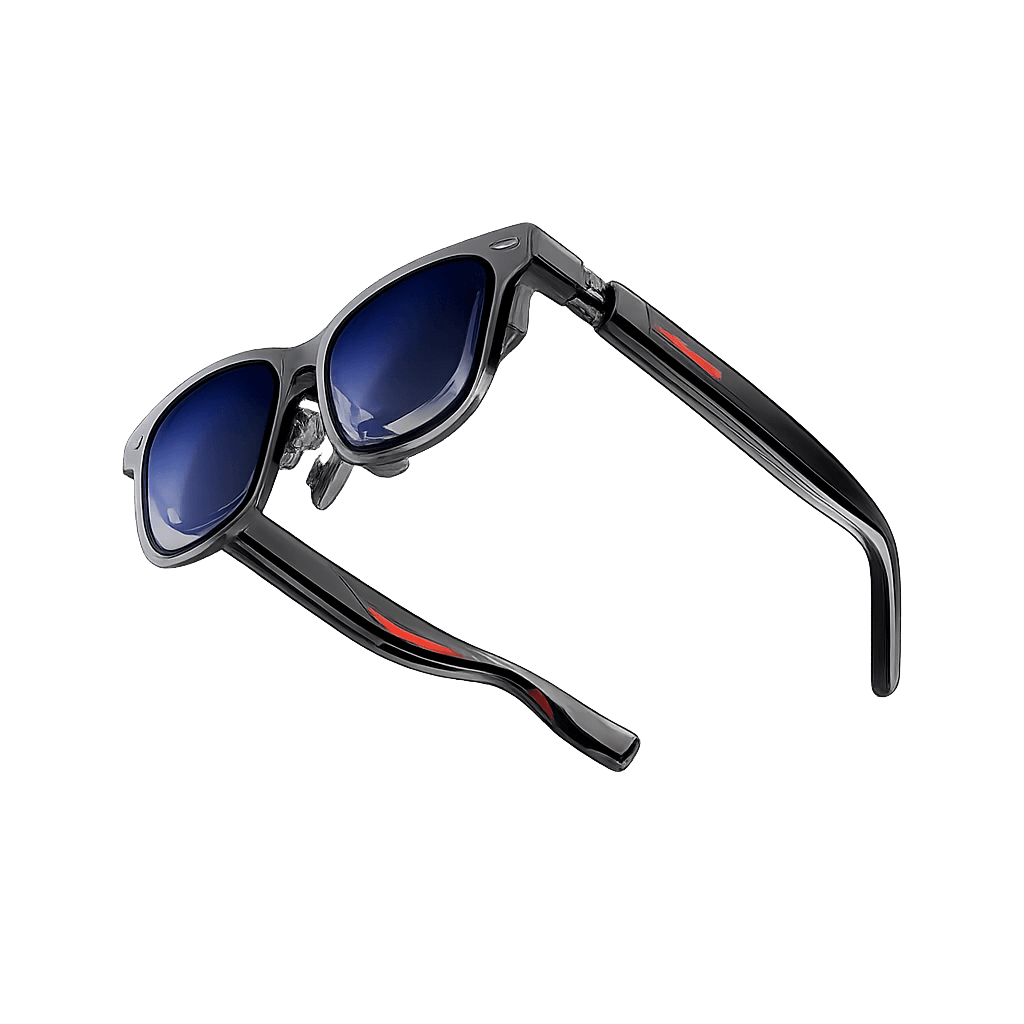
A Rokid Glass3 development environment lets a business team build Android applications for [Rokid AI Glasses Enterprise](https://ai.vr-expert.com/en/ai-glasses/rokid-ai-glasses) and test communication with an Android phone. Start with enterprise firmware, Android Studio, JDK 17, the Rokid Maven repository and the Glass3 data debug cable. The ordinary charging cable cannot install or debug the glasses application.
This Windows 11 workflow opens Rokid’s two official demo projects, checks their build configuration, installs each app and sends a sample work message to the glasses. It uses the enterprise SDK and a local communication test. Online speech and AI services are separate integrations. The instructions were checked against official documentation and demo source; a physical-device run was not performed.
For hardware context, see the Rokid AI Glasses Enterprise product page. Rokid documents this enterprise device architecture and runtime under the Glass3 Enterprise SDK. Confirm the delivered device and firmware with your supplier before treating another Rokid product as compatible.
Rokid Glass3 development requirements
Hardware: Windows 11 PC, Rokid Glass3 Enterprise (enterprise firmware), dedicated Android test phone (Android 13+ recommended), and the Glass3 data debug cable.
Software: Android Studio with Android SDK Platform 34 & Build-Tools 35.0.0.
Build Environment: JDK 17, AGP 8.4.2, Gradle 8.6 and Kotlin 2.2.0.
SDKs: Glasses SDK & Phone SDK 2.2.0-E.
Step 1 Prepare the enterprise hardware
· Confirm the system: Firmware is the glasses’ built-in system software. Ask your supplier for the glasses model, installed enterprise firmware version and SDK compatibility. Rokid’s FAQ says work builds usually contain e in the version. Use the enterprise demo with enterprise firmware. A product name alone does not establish compatibility.
· Check the cable: Obtain the Glass3 data debug cable explicitly. Connect it directly to the development computer when installing the demo. Charging successfully does not prove that USB data works.
· Prepare the test: Charge both devices and keep them near each other. Use a dedicated phone and the sample message in Step 10. Disconnect any other phone previously connected to these glasses before pairing.
Glass3 data debug cable shown in Rokid’s Quick Start. This is the cable required for the wired development path.
Ordinary Glass3 charging cable shown by Rokid. It cannot replace the data debug cable. Confirm the supplied cable’s function with the vendor.
Step 2 Install Android Studio and the Android SDK (If already installed, move to next step)
· Download the installer: Download and install Android Studio from https://developer.android.com/studio.
· Open the application: Open Android Studio. On first launch, select Do not import settings if offered, then use the Standard setup. Review the SDK licences, accept the ones approved for your company, and finish the component download.
· Install the required packages: From the welcome screen, click More Actions > SDK Manager. Under SDK Platforms, select Android 14 / API 34. Under SDK Tools, select Android SDK Platform-Tools. Enable Show Package Details, expand Android SDK Build-Tools and select 35.0.0. Worth noting the demo’s Android Gradle Plugin installs the 34.0.0 build tools it needs on the first sync. Click Apply, review the package list, then OK to install.
· Save the SDK location: Note your Android SDK Location path for ADB setup in Step 8.
Step 3 Download and open the two demo projects
· Get the source: In your browser, navigate to the official Glass3 enterprise demo repository (e.g., https://github.com/RokidSuuport/glass3_sdk_demo.git- worth noting that this is indeed the official Git repository although Support is misspelled) or your supplier-provided Git repository). Click the green Code button, then Download ZIP. In File Explorer > Downloads, right-click the ZIP and select Extract All > Extract. Keep the extracted folder in a company-approved development location.
· Open the phone project: In Android Studio’s welcome screen, click Open. Browse inside the extracted folder, select glass3sdkphonedemo and click OK. If a trust prompt appears, check that this is the official source you downloaded before trusting it. The repository’s outer folder is not the Android project.
· Open the glasses project: Choose File > Open, select the sibling glassdemo folder and choose New Window when asked. Keep both windows open. Each has its own Gradle configuration and an app module, the part that creates the installable application.
· Use the file view: In each window, open View > Tool Windows > Project. In the dropdown at the top of the left panel, choose Project. This exposes the actual folders and files used below. If the first sync reports an error, complete Steps 4 and 5 before retrying.
Step 4 Select JDK 17 for both projects
· Open Gradle settings: In the phone project window, choose File > Settings > Build, Execution, Deployment > Build Tools > Gradle. Find the Gradle JDK dropdown. This controls the Java version used to build the project, separately from the Java runtime that launches Android Studio.
· Select or download Java 17: Choose an installed JDK labelled 17. If none is listed, choose Download JDK, select Version 17, choose a vendor approved by IT and click Download. Select the downloaded JDK in Gradle JDK, then click Apply > OK. Repeat in the glasses project window.
· Keep the existing code targets: The demo’s sourceCompatibility, targetCompatibility and Kotlin jvmTarget use 1.8. These describe compiled code compatibility; they do not mean Gradle should run on JDK 8. Keep them unchanged for this demo. Google’s Java build guide distinguishes these settings.
Step 5 Check Maven dependencies and align the build tools
A Maven repository is a server where Gradle finds library packages, including Rokid’s SDK.
· Check the repository: In each project’s left panel, double-click settings.gradle. Find dependencyResolutionManagement > repositories and confirm the Rokid Maven URL below is present. Add only the missing line inside the existing block. Keep the demo’s other repositories for its other dependencies; ask IT to approve access if a company proxy blocks them.
// Inside settings.gradle > dependencyResolutionManagement
repositories {
google()
mavenCentral()
maven { url = uri("https://maven.rokid.com/repository/maven-public/") }
}
· Check the two SDK packages: Open app > build.gradle in each window. In dependencies, keep one active entry for the correct SDK. The snippets below are Groovy, the syntax used by this demo. Do not add the glasses SDK to the phone project or paste a second dependencies block. org.slf4j is a logging library group; the exclusion avoids duplicate logging classes.
// glassdemo/app/build.gradle > dependencies
implementation("com.rokid.security:glass3.open.sdk:2.2.0-E") {
exclude group: "org.slf4j"
}
// glass3sdkphonedemo/app/build.gradle > dependencies
implementation("com.rokid.security:phone.sdk:2.2.0-E") {
exclude group: "org.slf4j"
}
· Align AGP and Gradle: Kotlin is the programming language used by these demos. For the inspected snapshot, open gradle > libs.versions.toml in both projects. Under [versions], change only agp to 8.4.2 in case it’s not already; retain kotlin = "2.2.0". Then open gradle > wrapper > gradle-wrapper.properties and replace only distributionUrl with the line below. The wrapper downloads the chosen Gradle version. Google documents AGP 8.10’s Gradle and JDK pairing.
# gradle/libs.versions.toml > [versions]
agp = "8.4.2"
kotlin = "2.2.0"
# gradle/wrapper/gradle-wrapper.properties
distributionUrl=https\://services.gradle.org/distributions/gradle-8.11.1-bin.zip
· Sync and inspect the result: Save the edited files, then choose File > Sync Project with Gradle Files in both windows. Open View > Tool Windows > Build and check the sync output. Do not accept unrelated automatic upgrades. The demo already includes native-library packaging rules; keep them. A native library is compiled device code packaged with the APK.
Step 6 Configure a local business demo
· Disable online services for this test: In the phone project, open app > src > main > java > com > rokid > phone > ui > MainPhoneActivity.kt. At the top of MainPhoneActivity.kt, keep the existing NetServiceType import. If it is missing, add the following line alongside the other imports:
Kotlin
import com.rokid.security.phone.sdk.base.data.NetServiceType
Then Find banServiceList inside initSDK(). Replace its active declaration with the line below. Keep the existing empty UserAuthInfo fields and client IDs. The source documents this option for disabling network services; it does not disable the local Bluetooth test.
val banServiceList: List<NetServiceType> = arrayListOf(NetServiceType.ALL)
· Keep future credentials separate: AK is an access key and SK is its secret. For later authenticated services, request the enterprise service credentials from your Rokid sales or business contact. In UserAuthInfo, appId receives AK and secret receives SK. Use protected project configuration for test credentials and never commit real keys. This local first run does not need those online features.
· Add English initialization logs: In the phone project, open app > src > main > java > com > rokid > phone > ui > MainPhoneActivity.kt. In initSDK(), add an English log inside the success callback:
Kotlin
Log.d(TAG, “Phone SDK ready”)
In the glasses project, open app > src > main > java > com > rokid > glass > HomeActivity.kt. initSDK() calls GlassSdkUtils.initSdk() and then collects GlobalData.sdkInitState; inside that collector, directly after the line Log.d(TAG, “SDK 初始化成功”), add the English Log:“
Kotlin
Log.d(TAG, “Glasses SDK ready”)
(Note: If Android Studio highlights class references in red, press Alt + Enter to auto-import the required packages.)
· Avoid changing startup behaviour: In the glasses project, open app > src > main > java > com > rokid > glass > HomeActivity.kt. Inside onCreate(), comment out the following existing line by putting // at its start. That line configures automatic launch after reboot; it is unnecessary for a first test on a company device.
// DeviceUtil.setSystemProp("persist.vendor.boot.pkg", this.packageName)
· Make the receive test text only: In the same com > rokid > glass folder, open MessageReceiveActivity.kt. Replace only its onTextMessage function inside mMessageListener with the code below. The received text remains visible and logged, without invoking speech services. A callback is a function the SDK calls when an event arrives.
override fun onTextMessage(msg: String) {
log(msg)
}
Step 7 Build and run the phone application
· Enable phone USB debugging: On the test phone, open Settings and use its search box to find Build number. Open the matching device-information page and tap Build number seven times; enter the device PIN if requested. Return to Settings, search for Developer options, open it and enable USB debugging. Menu locations vary by phone manufacturer.
· Connect and authorise: Connect the phone to the computer with its USB data cable. On the phone’s Allow USB debugging? dialog, verify this is the development computer and tap Allow. In the phone project’s top toolbar, choose app as the run configuration and select the connected phone in the adjacent device dropdown.
· Run the app: Click the green Run triangle or choose Run > Run app. Android Studio builds, installs and opens the phone demo. The inspected app label might be Rokid Enterprise Demo or rokid白板, and the demo’s interface might likely be in Chinese. At the permission dialogs, allow the requested Nearby devices and Wi-Fi access needed for this test; older Android versions may request Location. If denied earlier, use Settings > Apps > the demo > Permissions to change the relevant permission.
· Check initialization: Open View > Tool Windows > Logcat, select the phone and enter package:com.rokid.phone in the filter field. Look for Phone SDK ready, meaning phone SDK initialization succeeded. Keep the app open. If the test phone’s policy blocks debugging or required permissions, have IT configure this dedicated development device before continuing.
Step 8 Connect and run the glasses application
Verify Glasses Developer Settings: On the Rokid Glass3, navigate to Settings > System > Developer Options and confirm that USB Debugging is toggled ON. If the options menu is locked or hidden on your enterprise build, contact your hardware distributor to flash/provision developer-enabled firmware before proceeding.
· Check ADB through the correct cable: Connect the powered glasses with the Glass3 data debug cable. In the glasses project, choose View > Tool Windows > Terminal. Type cd " followed by the SDK location saved in Step 2, then \platform-tools", and press Enter. In that folder, run the command below. The serial is the device identifier printed in the first column.
.\adb.exe devices -l
· Read the device state: Look for the glasses serial followed by device, not offline or unauthorized. If an authorization dialog appears on the glasses, approve this development computer. If nothing appears, check the cable and USB port first. Enterprise builds can restrict debugging; ask the supplier to provision the documented development access if it is blocked. Do not substitute consumer companion-app instructions.
· Install and launch: In the glasses project’s toolbar, select app, choose the glasses target, such as Rokid RG-glasses, and click Run. The app label is glassdemo. Open Logcat, select the glasses, and filter package:com.rokid.glesse. Look for Glasses SDK ready, the log added in Step 6 to confirm SDK initialization succeeded.
· Mirror the interface: scrcpy is an Android screen-viewing and control tool; wired use is documented by Rokid. Open the official scrcpy Windows instructions, download its Windows 64-bit ZIP and use Extract All in File Explorer. Open the extracted folder and double-click open_a_terminal_here.bat. Run adb devices, then the command below, replacing GLASSES_SERIAL with the glasses serial. The mirror window lets you click the glasses interface with the computer mouse.
scrcpy -s GLASSES_SERIAL --no-audio
Step 9 Pair the enterprise demos
· Open the phone connection screen: In Rokid Enterprise Demo, tap the + icon at the top right to open Discover Bluetooth. For the Chinese version, in the phone demo (rokid 白板), on the 设备 (Device) page, tap the + icon at the top right to open 发现蓝牙 (Discover Bluetooth). There is no bottom Device tab in the active layout for this source revision. It starts a scan; choose the Glass3_… entry matching your glasses. If the scan stalls, tap the refresh icon on that screen.
· Complete pairing: Approve any Android Bluetooth pairing dialog that appears and check the glasses for a connection request. Wait until the phone’s Device screen updates its connection indicator to show that Classic Bluetooth is connected. If the discovery or connection page remains open after pairing, tap the Android Back control to return to Device. Both devices need Bluetooth enabled, and the glasses must be free of another phone connection. Rokid’s Bluetooth troubleshooting page lists these checks.
· Keep the first test small: The demo can also negotiate Wi-Fi P2P and shows its connection separately. Bluetooth is sufficient for the text test below. If P2P is not connected, do not diagnose that as a failed Bluetooth connection. Large files and live media need a separate P2P validation.
Step 10 Send a work message and confirm the running demo
· Set the test message: In the phone project, open app > src > main > java > com > rokid > phone > SendMessageActivity.kt. Find binding.btSendTextBtn.setOnClickListener and replace that whole listener block with the code below.
(Note:In SendMessageActivity.kt, keep the existing PSecuritySDK import. If it is missing, add the following line at the top of the file, alongside the other imports: import com.rokid.security.phone.sdk.api.PSecuritySDK).
GlassSample is the receiving client ID already registered by the glasses demo; keep it unchanged on both sides.
binding.btSendTextBtn.setOnClickListener {
val message = "Work item 001 ready"
PSecuritySDK.getMessageService()
?.sendTextMessageByClassicBT(message, "GlassSample")
log(message)
}
· Run the changed phone app: In Android Studio’s phone project window, select the connected phone and click Run > Run app to rebuild and install the modified application. Wait for SDK initialization to succeed and confirm Bluetooth reconnects. Then navigate to Message Receive on the glasses using scrcpy. Click directly inside the active scrcpy desktop window to focus it. Because the glasses emulate hardware D-pad controls, use your computer keyboard's Right Arrow or Left Arrow to navigate the menu until Message Receive or until 消息接收 (Message Receive), the second menu item, is highlighted, then press Enter to open the activity. The demo maps these keys to menu selection in HomeActivity.kt. Leave this receive page visible; it registers the message listener used by this test.
· Send from the phone: On the phone’s Device or 设备 page, scroll to the Message Send or 消息发送 card and tap it. On the next page, tap Send text via Bluetooth or 蓝牙发送文本. This button sends the fixed string above; there is no text-entry field to fill in. Look for Work item 001 ready on the glasses receive page.
· Record the pass condition: In glasses Logcat, filter package:com.rokid.glesse tag:MessageActivity and confirm the same message arrived. The phone’s own send log alone does not prove receipt. Save the SDK versions, firmware build, source revision and build-tool changes with your result. Success means both apps run, Bluetooth connects and the glasses visibly receive the test message.
Common setup problems
· Glasses charge but are not detected: Use the data debug cable and repeat the ADB check in Step 8. The ordinary charging lead is the first thing to eliminate.
· Gradle cannot download a library: In Build, expand the error and note the exact package and server URL. Check Step 5’s repository entries and company proxy access. The demo includes additional repositories and dependencies beyond Rokid’s two SDKs; do not delete them indiscriminately or add a random mirror.
· Duplicate logging or native-library errors: Check for duplicate SDK entries and the org.slf4j exclusion. Keep the existing packagingOptions rules for libr2aud.so in the glasses app and libc++_shared.so in the phone app. A duplicate-library error means two dependencies packaged the same file.
· Pairing works but no message arrives: Keep the glasses receive page open and confirm GlassSample is unchanged. In Logcat, verify both initialization success messages before sending. If the device cannot be discovered, inspect phone Nearby devices permissions and disconnect any other phone first.
Conclusion
Setting up a Rokid Glass3 development environment starts with enterprise-compatible glasses and the correct data debug cable, then proceeds through Android Studio, JDK 17, Maven dependencies and a consistent build configuration. Running the phone and glasses demos and verifying a received work message establishes a practical baseline before adding business logic or online services. For businesses, this process can reduce avoidable setup delays, make pilots easier to reproduce and give developers a clearer foundation for applications that deliver useful information while employees keep their hands available.
Confirm the enterprise hardware, data debug cable and firmware support before purchasing a development kit or requesting a company pilot.