











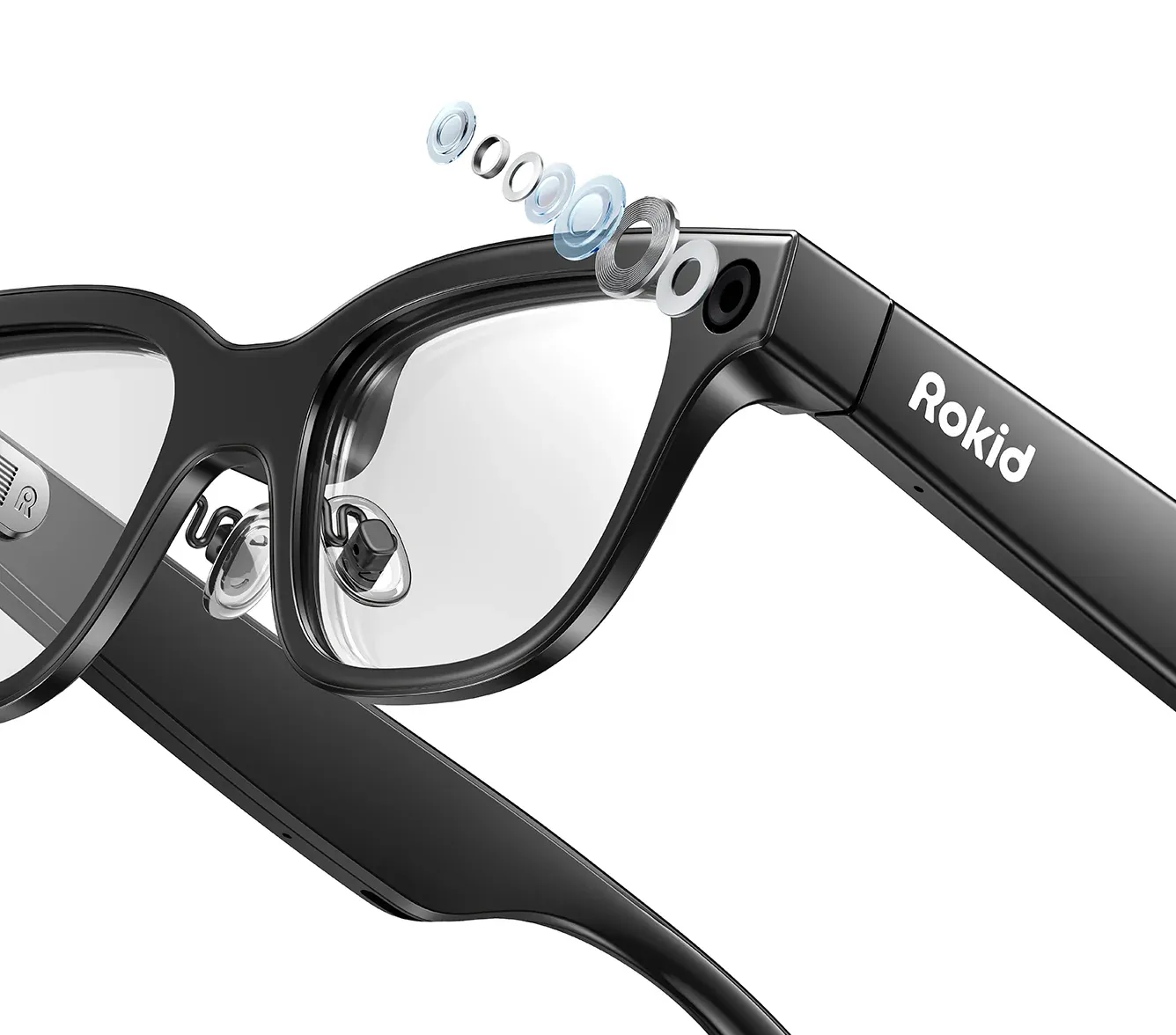
Executive summary
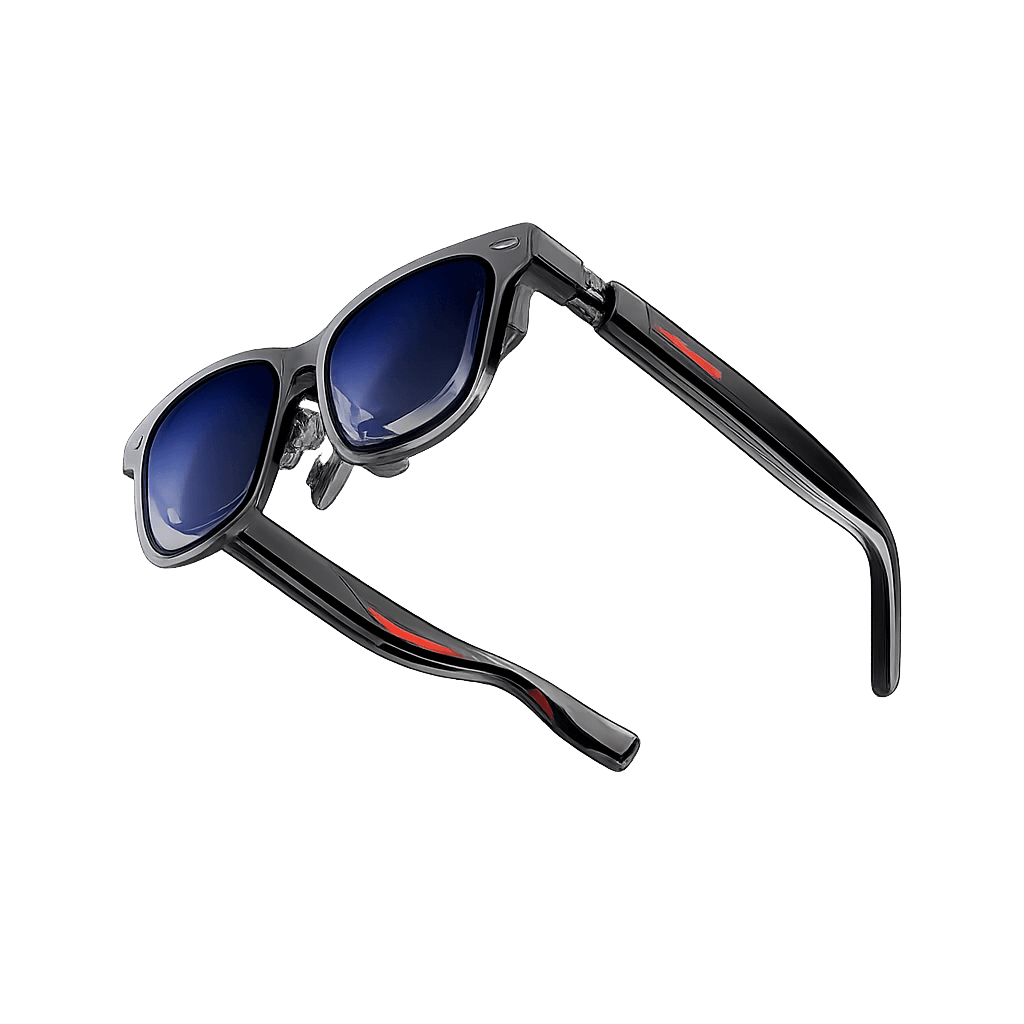
Rokid AI Glasses Enterprise can be developed into a purpose-built business device rather than used only with preconfigured applications. Rokid’s current Sprite Enterprise documentation exposes a Glasses SDK for applications running directly on Glass3, a Phone SDK for Android companion applications, and OpenAPI services for cloud-side integrations. Together, these layers support device connectivity, messaging, file transfer, camera and media capture, live video, voice functions, AI services, recognition, device state and enterprise workflows.
For a development team, the practical route is familiar: build native Android projects in Android Studio, add Rokid’s Maven repository and SDK dependencies, run Rokid’s official two-project demo, establish Bluetooth for discovery and control, switch to Wi-Fi P2P for large files and audio/video, then connect the workflow to the company’s backend. A standalone glasses app is also possible when the use case does not require a companion phone.
Beyond the SDK, the primary value comes from replacing a generic wearable experience with a controlled workflow. A technician can receive a work order, see the next instruction in the display, confirm a step by voice or hardware input, capture visual evidence and send the result to a CMMS, ERP or custom platform. That makes the glasses relevant for inspections, field service, guided work, logistics, documentation and other hands-free processes. The main caveats are Android-only native SDK support, version and OTA compatibility, API-key requirements for selected online services, and a compact 480 x 640 display that requires deliberate UI design.
What Rokid exposes to developers
Rokid separates the enterprise stack into a two-side SDK plus a separate OpenAPI platform. Understanding this split before writing code prevents a common mistake: trying to make the glasses do everything when a phone or backend is better suited to networking, authentication, storage or business-system integration.
Glasses application:
- Runs on: Rokid Glass3
- Typical responsibility: Renders the wearable UI and accesses glasses-side capabilities such as camera/media, device state, messages, voice, AI and recognition through the Glasses SDK.
Companion application:
- Runs on: Android phone
- Typical responsibility: Discovers and connects to Glass3, manages Bluetooth and Wi-Fi P2P, exchanges messages/files, receives media streams and can relay business data.
Cloud / business layer:
- Runs on: Your backend + Rokid OpenAPI where relevant
- Typical responsibility: Stores business data, authenticates users, connects ERP/CMMS/CRM systems and can use Rokid OpenAPI modules such as messaging or device APIs when provisioned.
Practical verdict: For custom enterprise software, the useful architecture is usually “thin wearable UI + reliable device services + phone/backend business logic.” Keeping the glasses experience focused reduces UI complexity and makes the project easier to maintain, while still preserving hands-free interaction where it matters.
Development stack at a glance
- Target hardware in public enterprise docs: Rokid Glass3
- Development model: Native Android application development
- Glasses SDK artifact: com.rokid.security:glass3.open.sdk
- Phone SDK artifact: com.rokid.security:phone.sdk
- Current Quick Start dependency shown: 2.2.0-E for both SDKs
- Newest visible changelog entry at time of research: V2.2.0-E, dated August 6, 2026, with recommended OTA 1.19.e006-20260806-150201 or later.
- Recommended tools: Android Studio 2022+, JDK 17+
- Demo environment: Android SDK 34, JDK 17, Android phone, Rokid Glass3
- Glasses display coordinate system: Fixed 480 x 640 portrait
- Primary local transports: Classic Bluetooth and Wi-Fi P2P
- Cloud authentication: Enterprise API Key for Rokid OpenAPI and selected online services
- Supported phone platform: Android; the public FAQ says iOS and native HarmonyOS are not supported by Glass3 SDK
What can you build with Rokid AI Glasses Enterprise?
The public SDK is broad enough to support more than a single demo application. The exact product you build depends on which capabilities you combine and how much logic you keep on the wearable.
Guided field service: display one instruction at a time, confirm completion, capture photos or video and return structured evidence to a work-order system.
Inspection and compliance: present checklists, use camera capture or recognition, attach time-stamped evidence and escalate exceptions.
Warehouse and logistics workflows: show pick or task information, exchange lightweight commands over Bluetooth and use specialized scanning integrations where required.
Remote visual assistance: receive a live video stream on the companion side or integrate a dedicated remote-collaboration path. Rokid removed RTC calling from the core Phone SDK in version 2.1.7-E, so real-time collaboration should be architected against Android and Web: Rokid's Remote Collaboration SDK or your own approved transport rather than assumed to be built into the base SDK.
Enterprise AI assistant: combine speech input, TTS, AI chat or company-side AI services with a workflow-specific UI instead of exposing users to a generic chatbot.
Evidence capture and documentation: trigger images, video or audio, transfer larger media over P2P and synchronize results with a backend.
Dedicated single-purpose wearable: launch the company application automatically after reboot and map supported hardware events to workflow actions, subject to target firmware validation.
Step-by-step: how to develop custom software for Rokid AI Glasses Enterprise
Step 1: Define the workflow before choosing the architecture
Start with the operational process, not the SDK list. Write down exactly what the worker must see, say, capture and confirm. Then decide which device should own each responsibility. A well-scoped wearable application usually shows concise information and captures input, while the phone or backend handles heavier business logic.
Standalone glasses app:
- Best fit: Simple local workflow, device-side capture, offline or limited-connectivity operation
- Advantages: Fewer components, direct wearable experience
- Trade-off: You must handle more storage/network logic on the glasses; some online functions still need credentials or connectivity
Glasses + Android phone:
- Best fit: Most enterprise pilots, live media, file transfer, remote control, business app companion
- Advantages: Strongest documented connectivity path; phone can handle authentication, networking and UI that does not belong in the lens
- Trade-off: Requires an Android phone and robust reconnection logic
Glasses + phone + backend:
- Best fit: ERP/CMMS/CRM integration, audit trail, centrally managed work orders, AI services
- Advantages: Best fit for scalable business workflows and data governance
- Trade-off: More integration, security and backend engineering required
Recommendation: For a first B2B proof of concept, use the glasses + Android phone + backend model unless the use case clearly benefits from a standalone wearable. It maps closely to Rokid’s documented two-device flow and gives the development team room to move networking, credentials and data storage away from the glasses.
Step 2: Get the correct hardware and access
Before installing Android Studio, confirm that the hardware is actually on the enterprise software path. Rokid’s FAQ says enterprise/work builds usually contain an “e” in the system version. The SDK documentation also distinguishes enterprise and consumer systems, so firmware identification is part of project setup, not an afterthought.
Rokid AI Glasses Enterprise (the Rokid Glasses hardware) running the enterprise system build / firmware (system version containing "e" at the end).
The Glass3 data debug cable. Rokid explicitly warns that the normal charging cable can power the glasses but cannot be used by Android Studio for debugging.
An Android phone if you are using the Phone SDK.
A development PC with Android Studio and JDK 17.
Enterprise account and API Key if the project will use Rokid OpenAPI or online capabilities that require authentication.
Access to the exact OTA version you plan to deploy across the pilot fleet.
Do not skip the cable check: Rokid lists the data debug cable as required because it allows Android Studio to recognize the glasses, install APKs and inspect logs. If the glasses charge but do not appear as a device, check the cable before debugging Gradle, ADB or the SDK.
Step 3: Prepare the Android development environment
Rokid’s Quick Start recommends Android Studio 2022 or later and JDK 17 or later, and states that Glass3 SDK supports Android 8.0 or later. The official demo guide currently uses Android SDK 34. Rokid’s FAQ separately recommends Android 7.0 / API 24 or later and says to confirm the Gradle configuration in the current SDK package and demo. For a real project, treat the demo’s Gradle files as the source of truth for the exact release you are integrating.
- Install Android Studio 2022 or newer.
- Install and select JDK 17 or newer for Gradle.
- Install the Android SDK version required by the current Rokid demo. The present demo guide lists SDK 34.
- Enable normal Android debugging on the development phone.
- Connect Glass3 using the data debug cable and confirm Android Studio sees a target similar to “Rokid RG-glasses.”
- Install Rokid’s screen-projection / mirroring tool if you want to inspect the wearable UI from the PC. Rokid strongly recommends projection during development.
Step 4: Run Rokid’s official demo before creating your own application
This is the most important practical step in the entire process. The official demo proves the development environment, SDK binaries, permissions, hardware links and version combination before your own code becomes another variable.
git clone https://gitee.com/as_pixar/glass3sdkdemo.git

# Glasses demo
cd glassdemo
./gradlew assembleDebug

# Phone demo
cd ../glass3sdkphonedemo
./gradlew assembleDebug
The repository contains two separate Android projects: one for the glasses and one for the Android phone. Rokid recommends running the phone-side demo first, then the glasses-side demo. After both are installed, scan for Glass3 from the phone demo and establish the connection.
- SDK initialization. Pass condition: Both projects start and report a valid SDK state.
- Bluetooth. Pass condition: The phone finds and connects to Glass3.
- Messaging. Pass condition: Text or control messages can move between phone and glasses.
- Small file transfer. Pass condition: A small file can be exchanged without errors.
- Wi-Fi P2P. Pass condition: A P2P channel can be established for high-bandwidth operations.
- Media. Pass condition: Photo, video or live preview can be triggered and received.
Why this matters commercially: A customer proof of concept becomes much easier to scope when the baseline device functions are validated first. You can then spend project time on the actual workflow, integration and user experience rather than diagnosing an unverified SDK setup.
Step 5: Create your own projects and add Rokid’s Maven repository
Once the demo works, create or open your own Android projects. Rokid publishes the SDK artifacts through its Maven repository. Add the repository alongside Google and Maven Central, then add the glasses dependency to the wearable app and the phone dependency to the companion app.
// settings.gradle - simplified example
dependencyResolutionManagement {
    repositories {
        google()
        mavenCentral()
        maven { url 'https://maven.rokid.com/repository/maven-public/' }
    }
}
// Glasses app
implementation('com.rokid.security:glass3.open.sdk:2.2.0-E') {
exclude group: "org.slf4j"
}
// Android phone app
implementation('com.rokid.security:phone.sdk:2.2.0-E') {
exclude group: "org.slf4j"
}Rokid’s current Quick Start shows version 2.2.0-E, with a recommended OTA of 1.19.e006-20260806-150201 or later. Enterprise teams should pin and test a known SDK + OTA combination instead of automatically updating components independently.
Version-control rule: Before a pilot or production release, record the glasses OTA build, Glasses SDK version, Phone SDK version, demo commit and any specialized SDK versions in one compatibility matrix. Re-run the baseline connection and media tests whenever one of those components changes.
Step 6: Declare only the Android permissions your workflow needs
Rokid’s Quick Start lists common permissions for network access, Wi-Fi, camera, microphone, storage, Bluetooth and nearby devices. On modern Android versions, declaring a permission in the manifest is not enough for dangerous permissions. Your phone and glasses apps must request the required permissions at runtime and handle denial cleanly.
- Bluetooth scan/connect: Device discovery, pairing, small messages and control
- Nearby Wi-Fi / Wi-Fi Direct: P2P connection for files, images, video and real-time streams
- Camera: Photo/video capture and visual recognition flows
- Microphone: Audio recording, ASR and voice interaction
- Network / Internet: Backend APIs, Rokid online services, cloud synchronization
- Storage: Media and transferred file handling, depending on target Android / SDK behavior
Production advice: Do not copy the entire demo manifest blindly. Permission minimization makes security review easier and reduces the chance that users reject a permission the workflow does not actually need.
Step 7: Initialize the Glasses SDK and register your app identity
The glasses application binds to Rokid’s security service, then registers a client identifier. The important architectural rule is that the same client ID is known by the companion phone application when the two sides exchange application-specific messages.
// Illustrative structure, simplified from Rokid's initialization flow
if (!GlassSdk.isReady()) {
    GlassSdk.bindSecurityService(context, object : IServiceConnectionCallback {
        override fun onServiceConnected() {
            GlassSdk.registerClient("FieldServiceApp", messageCallback)
        }
    })
}
After initialization, glasses-side capabilities are accessed through service entry points exposed by GlassSdk. The public API groups include common/device functions, classic Bluetooth, P2P, messaging, media, file handling, voice/AI, recognition and other services. Do not initialize every capability at startup. Obtain and activate only the services required for the current screen or workflow stage.
Health check: Use GlassSdk.isReady() as a simple diagnostic signal before calling capability services. If it is false, fix initialization or service binding before testing higher-level functions.
Step 8: Initialize the Android Phone SDK with matching client IDs
On the phone side, initialize the Rokid mobile engine and register the client IDs that the phone will communicate with. Rokid’s Phone SDK is the connection and control layer for device discovery, Bluetooth/P2P, messaging, files, media receiving, configuration synchronization and related operations.
// Application-level outline
val engineParam = EngineParam.Builder()
    .setClientIds(listOf("FieldServiceApp"))
    .setApiKeyCredentials(apiKeyCredentials)
    .build()
IMobileEngine.initSDK(engineParam)

// Diagnostic check
val ready = PSecuritySDK.getMobileEngineService().isInit()
If selected online capabilities require API Key Credentials, the demo contains placeholder authentication information that must be replaced by credentials obtained through Rokid’s business process. Keep cloud secrets out of source control and avoid embedding long-lived platform API keys in a distributable client application.
Step 9: Connect over Bluetooth first, then use P2P for bandwidth
Rokid documents two local transport patterns with different jobs. Classic Bluetooth is suitable for discovery, connection, control messages and small files. Wi-Fi P2P is the better channel for images, large files, video and real-time media. Using the wrong transport is an easy way to create an application that works in a demo but feels unreliable in the field.
Classic Bluetooth:
- Use it for: Discovery, pairing, control commands, compact JSON messages, small files
- Design role: Low-bandwidth control plane
Wi-Fi P2P:
- Use it for: Large files, images, video, audio/video streams, high-throughput synchronization
- Design role: High-bandwidth data plane
Direct glasses Wi-Fi:
- Use it for: Backend access from a glasses application when the device is connected to Wi-Fi
- Design role: Useful for selected standalone flows; still design offline and retry behavior
A robust enterprise app should treat connections as state machines rather than one-time events. Handle Bluetooth loss, P2P teardown, phone sleep, Wi-Fi changes and glasses reboot explicitly. The user should receive a simple status such as “reconnecting” or “sync pending,” not an Android exception or silent failure.
Step 10: Define a small application protocol for business messages
Rokid provides the transport and message services, but your application still needs a contract for what a business message means. Keep this contract compact, versioned and independent from the UI. JSON is a practical choice for early projects because it is easy to inspect, although the exact payload format is your application design rather than a Rokid requirement.
{
  "schema": 1,
  "type": "WORK_STEP",
  "workOrderId": "WO-10458",
  "step": 3,
  "title": "Check valve pressure",
  "requiresPhoto": true
}
On completion, the glasses might return a small status message that references the work-order ID and step number. The media file itself should travel through the P2P file/media path instead of being embedded in the control message. This separation keeps the command channel responsive and makes retries simpler.
Step 11: Design the glasses UI for 480 x 640, not like a phone app
The Glass3 display uses a fixed 480 x 640 portrait coordinate system. Rokid’s FAQ recommends placing primary content in the central 480 x 400 region, using the top 160 pixels and bottom 80 pixels for secondary information, and moving important content down because the top roughly 40 pixels may show optical reflection. The OS does not provide normal display rotation, so wide layouts must be designed inside the portrait canvas.
Show one task, instruction or decision at a time. Long dashboards are a poor fit for the lens.
Use a black background where possible. Rokid recommends it to reduce perceived flashing during startup or transitions.
Do not place critical text or buttons in the top ~40 px reflection area.
Keep state changes obvious without relying on complex color coding. Rokid recommends green as the primary visual style.
Provide a clear connection state and a clear “synced / pending” state for business data.
Keep interaction targets simple enough to operate with supported hardware input or voice without forcing precise touch-style navigation.
Business implication: The display is small, but that can be an advantage for procedural work. It encourages software teams to remove nonessential information and expose only the next action the worker needs.
Step 12: Add camera, photo, video and live-preview features
The Glasses SDK exposes media capabilities for photo, video, audio and preview. The Phone SDK can receive media streams from the glasses. Rokid’s FAQ lists a default video stream of 1080P at roughly 15 to 19 frames per second with about 300 ms phone playback latency, and notes that the output can be H.264 or decoded NV21 depending on the API and demo path. Treat those figures as current implementation guidance rather than a guaranteed SLA.
Use still capture for inspection evidence, proof of completion and later AI processing.
Use H.264 when the phone or backend mainly needs to forward or store the stream. Rokid’s 2.1.8-E changelog added control over automatic H.264-to-NV21 decoding so unnecessary decoding can be avoided.
Use NV21 when a phone-side computer-vision pipeline needs decoded frames.
Use Wi-Fi P2P for live preview and media transfer rather than classic Bluetooth.
If you need camera plus on-screen overlay in the recorded output, review Rokid’s current AR Mix / AR recording APIs and match them to the installed SDK version.
One practical detail from Rokid’s FAQ is important for evidence workflows: after a successful P2P upload, images on the glasses may be cleaned up by the system. Treat the successfully received phone or backend copy as the business source of truth and confirm upload completion before advancing the work order.
Step 13: Add voice, TTS and AI deliberately
Voice can be valuable when workers cannot use their hands, but it should be tied to explicit workflow actions. The glasses-side SDK documentation exposes ASR, TTS, offline command handling and AI chat capabilities. Currently, the FAQ says offline TTS needs SDK 2.2.0 or later, although the changelog lists the offline TTS service from 2.1.2; test it on your pinned version. Open-ended offline ASR is not currently supported by default. For offline speech-to-text, Rokid points developers toward private ASR/TTS services rather than claiming a built-in offline ASR path.
Offline command words:
- Good use: Short fixed commands such as “next,” “back,” “capture”
- Enterprise design note: Good for deterministic hands-free control
Online ASR:
- Good use: Free-form speech-to-text
- Enterprise design note: Requires network/service setup and should have fallback behavior
TTS / offline TTS:
- Good use: Read prompts, warnings or short confirmations
- Enterprise design note: Useful when the display should stay minimal
AI chat / private AI:
- Good use: Contextual assistance or interpretation
- Enterprise design note: Keep the model behind the workflow. Validate data handling, latency and answer boundaries.
Step 14: Connect the workflow to your backend securely
There are two separate backend questions: how your own application reaches your business systems, and whether you use Rokid OpenAPI. Your application can send data through the paired phone, or a glasses application can access the internet directly when Glass3 is connected to Wi-Fi. For company systems, standard backend APIs are normally the cleanest integration point because credentials, audit logs, data validation and business rules stay server-side.
Rokid OpenAPI is a separate platform layer. The official documentation requires an activated enterprise account and API Key. Requests authenticate with a Bearer token, created keys expire and the default validity is one month unless configured otherwise. Rokid explicitly warns not to expose API keys in public repositories or clients.
Security rule: Use a server-side proxy for Rokid platform credentials whenever the architecture allows it. A mobile or glasses APK can be inspected. Do not assume that hiding an API key in Kotlin or native code makes it secret.
Current Rokid OpenAPI modules include messaging and device APIs, among other enterprise functions (note that these messaging and device APIs can only be accessed if devices are registered in Rokid's Lingmou console). For example, the device API can query registered Glass units, while the message API can push a business message to a target device. Use these services only when they solve a real deployment requirement. A custom company backend remains the right place for ERP, CMMS, CRM, identity and workflow orchestration.
Step 15: Configure enterprise behavior such as auto-start and key handling
A wearable becomes more useful in operations when the user does not need to navigate a consumer-style launcher every morning. Rokid documents an auto-start mechanism that can launch a configured application after boot on supported enterprise systems. It also documents hardware-event customization and, in the 2.1.9-E changelog, event listener/interception APIs.
Use auto-start for dedicated inspection, security or industrial workflows where the glasses should open directly into the business application.
Delay SDK-dependent work briefly after boot and verify service readiness before starting the workflow.
Map supported key events to a small number of meaningful actions such as confirm, capture or cancel.
Validate every auto-start or interception feature against the target enterprise firmware because some system-level behavior is version-dependent.
Always preserve a support/recovery path. A locked workflow that cannot be exited by an administrator is an operational risk.
Step 16: Build offline, retry and recovery behavior
A demo often assumes perfect Bluetooth, Wi-Fi and cloud access. A field deployment cannot. Persist the minimum workflow state needed to survive a phone disconnect, P2P failure or temporary network outage. Each business action should be idempotent where possible so retrying does not create duplicate work-order events or media records.
Cache the current work-order ID, step ID and last confirmed action.
Queue unsent results with a visible “pending sync” state.
Use unique operation IDs so the backend can reject duplicates safely.
Reconnect Bluetooth first, then rebuild P2P only if high-bandwidth transfer is needed.
Never mark a media-dependent step complete until the target copy has been acknowledged.
Provide a user-safe fallback when online ASR or AI is unavailable. Fixed offline commands can still cover core navigation.
Step 17: Test on real hardware with an enterprise test matrix
Emulators are not enough for a glasses project because optics, thermal behavior, Bluetooth, P2P, camera, microphone and wearability all affect the software experience. Test the complete system on the exact enterprise OTA planned for the pilot.
- Boot and auto-start: Cold boot, app launch, SDK readiness, recovery if service binding is slow
- Bluetooth: First pairing, reconnect, phone sleep, out-of-range recovery
- P2P: Repeated connect/disconnect, large file, live stream, Wi-Fi changes
- Permissions: Fresh install, denied permission, later grant, Android version differences
- Media: Photo/video quality, file acknowledgment, failed upload retry, storage cleanup
- Voice: Noisy environment, no network, unsupported phrase, TTS interruption
- UI / optics: Readability, top reflection area, long text, status visibility, user fatigue
- Performance: Long session, CPU temperature, available memory, process survival
- Backend: Slow response, duplicate request, expired token, server unavailable
- Security: Credential handling, logging redaction, device loss, account revocation
Rokid’s FAQ specifically suggests monitoring memory and CPU temperature during performance triage and warns that very low available memory makes background-process termination more likely. That is another reason to keep the glasses app focused and move nonessential services elsewhere.
Step 18: Package the pilot and control the deployment baseline
During development, APKs can be installed through Android Studio using the Glass3 data debug cable. A production deployment needs a stricter release process. Rokid documents no MDM-style policy control (such as kiosk mode, remote wipe, or app policy). Instead, it documents device registration and status tracking through the Lingmou console and OpenAPI, while version 2.2.0-E allows APK installation via a QR-scan app. Coordinate the deployment mechanism, provisioning rights, enterprise firmware and update policy with Rokid or the distributor before committing to rollout architecture.
- Freeze the tested SDK and OTA versions for the pilot.
- Create signed release APKs for glasses and phone applications.
- Document client IDs, package names and backend environment configuration.
- Provision API keys and backend secrets through secure infrastructure, not source code.
- Define who can update the glasses, phone app and backend, and in what order.
- Run regression tests after every OTA or SDK change before updating the fleet.
- Create a support path for logs, device identity, connectivity diagnostics and rollback.
Example architecture: a custom field-service inspection app
The following is a practical design example assembled from Rokid’s documented capabilities. It is not an off-the-shelf Rokid workflow. It shows how the developer stack can turn the glasses into a dedicated business endpoint.
- Start. Technical action: Glasses app auto-starts and checks SDK readiness. Business value: Worker starts directly in the company workflow.
- Assign task. Technical action: Phone/backend sends work-order summary as a compact message. Business value: No manual lookup on a phone is required.
- Guide. Technical action: Glasses show one instruction in the central display area. Business value: Hands stay available for the task.
- Confirm. Technical action: Worker says a fixed command or uses a supported hardware event. Business value: Fast, deterministic interaction.
- Capture evidence. Technical action: Glasses take a photo or short clip. Business value: Visual proof is attached to the correct step.
- Transfer. Technical action: Media moves over P2P; a small status message confirms the upload. Business value: Large data stays off the low-bandwidth control channel.
- Synchronize. Technical action: Phone or backend posts the result to the CMMS/ERP API. Business value: Existing business systems remain the system of record.
- Exception. Technical action: If needed, the phone receives a live stream or the app triggers the approved remote-assistance path. Business value: A supervisor can see what the worker sees.
- Complete. Technical action: Backend acknowledges completion and returns the next task. Business value: The user receives a clear end state and the audit trail is complete.
Why custom software changes the business case for Rokid AI Glasses Enterprise
The primary enterprise value stems from shaping the device around an existing operational process or redesigning that process for hands-free work.
Purpose-built UI: remove consumer menus and show only the information required at the current job step.
Business-system integration: connect captured evidence and worker actions to existing ERP, CMMS, CRM or custom platforms.
Hands-free data capture: use camera, voice and wearable input without repeatedly returning to a phone or tablet.
Controlled connectivity: use Bluetooth for commands and P2P for high-bandwidth data instead of forcing every function through one channel.
Custom AI boundaries: use AI where it adds value, while keeping workflow rules, permissions and data governance under company control.
Dedicated device behavior: auto-start and event handling can reduce friction for single-purpose deployments when supported by the enterprise firmware.
Expandable architecture: start with a local proof of concept, then add backend integration, platform APIs, remote collaboration or specialized SDKs as the workflow matures.
The purchasing argument: For organizations that need a standard, fixed app experience, custom development may be unnecessary. For organizations that want AI glasses to become part of a controlled operational workflow, the documented Glass3 SDK is the reason the hardware becomes more interesting. The company is buying an adaptable endpoint, not only a wearable display or camera.
Limitations and engineering risks to plan for
- Android-focused SDK: The public Glass3 SDK targets native Android. Rokid’s FAQ says iOS and native HarmonyOS are not supported. A uni-app integration is possible only by building your own bridge to the native Android SDK.
- Compact display: The 480 x 640 portrait canvas is suitable for concise prompts, not dense enterprise dashboards. Good workflow design is mandatory.
- SDK / changelog mismatch: Validate SDK artifacts, demo and OTA together, taking into account version differences between the Chinese and English changelogs.
- Online service dependency: Selected ASR, AI and OpenAPI functions require network access, enterprise credentials or service provisioning.
- No open-ended offline ASR in current FAQ: Offline TTS and fixed offline command functions can support resilient interaction, but free-form offline speech-to-text is not currently documented as built in.
- Transport complexity: Bluetooth and P2P solve different problems. Reconnection, permissions and state synchronization need production-quality engineering.
- Core RTC removed: Rokid removed RTC calling from the base Phone SDK in 2.1.7-E. Remote collaboration should use Rokid's Remote Collaboration SDK or a separately engineered solution.
- Deployment details require validation: Public SDK docs are strong on development, but production fleet management and provisioning via the Lingmou console or QR-scan app should be confirmed for the customer’s environment before scale-up.
Pros and cons for custom enterprise development
Pros:
- Native Android development model
- Public Maven artifacts
- Official glasses + phone demo
- Bluetooth and P2P
- Messaging/files/media
- Camera and live preview
- Voice/AI/recognition services
- Direct Wi-Fi possible
- Enterprise OpenAPI
- Auto-start and event customization paths.
Cons:
- Android-only native SDK support
- Compact fixed display
- Version/OTA coordination
- Selected online features require enterprise access
- Offline ASR limitation
- Production provisioning/fleet-management details need project-specific confirmation.
Final verdict
Rokid AI Glasses Enterprise is worth considering when the company’s goal is to build a dedicated hands-free workflow rather than deploy a generic consumer application. The current Glass3 enterprise stack gives Android developers a documented path to build on the glasses, pair them with an Android phone, move control data over Bluetooth, transfer media over Wi-Fi P2P and connect the workflow to backend systems or selected Rokid OpenAPI services.
The strongest use cases are guided inspections, field service, evidence capture, procedural work and other tasks where the worker benefits from seeing one instruction at a time while keeping both hands available. The main limitation is not a lack of APIs. It is the engineering discipline required around the small display, connectivity state, permissions, SDK/OTA compatibility and online-service dependencies.
For a business buyer, the key evaluation question is: “Can we map our workflow to the documented developer stack, and can we support the application throughout its lifecycle?” If the answer is yes, custom software provides the path to turn Rokid Glass3 from general-purpose AI glasses into a purpose-built operational device.
For companies evaluating Rokid AI Glasses Enterprise for inspections, field service, logistics, guided work or custom AI workflows, VR Expert can help assess the hardware, define a proof of concept and validate the deployment path. Visit the Rokid AI Glasses Enterprise product page to review the device, availability and purchasing options. For custom-development scoping or rollout advice, contact VR Expert.