









Device Enrollment
Register supported devices and organize them by team, location or project.
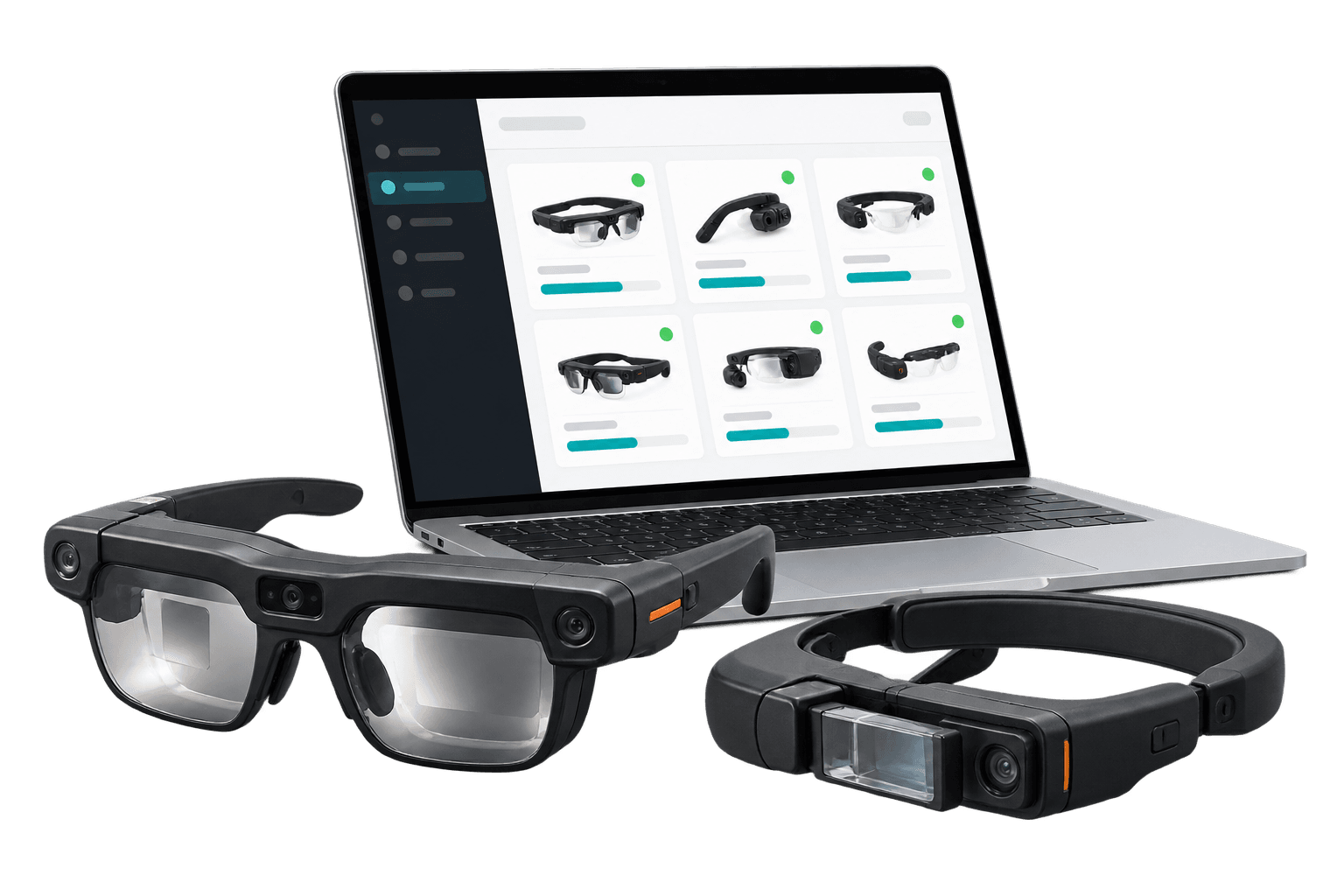
Compare mobile device management (MDM) software for supported AI glasses, smart glasses and AR devices. Explore ArborXR and ManageXR to deploy apps, configure settings and monitor your fleet from one place.
Device Enrollment
Register supported devices and organize them by team, location or project.
App Deployment
Install and update work apps remotely across individual devices or groups.
Access Control
Limit access to approved apps with supported kiosk or lock task modes.
Fleet Monitoring
Check device status, battery levels and app installations from a central dashboard.
Managing smart glasses across teams and locations takes more than handing out hardware. Mobile device management gives IT a central place to enroll supported devices, deploy work apps and maintain consistent settings. Organize the fleet around your sites or departments, then check device status and app installations without collecting each unit. This helps keep shared devices ready for the next user and reduces repeated setup work as your deployment grows.
Use MDM during a pilot to establish a repeatable setup, then apply it to a wider rollout. Administrators can distribute compatible apps and files remotely, while access controls help keep devices focused on approved tasks. The available functions vary by hardware and license. For connected display glasses, the managed device may be the companion phone or computing unit that runs the apps, so check how your chosen glasses fit into the deployment.
ArborXR and ManageXR offer device and content management for supported XR hardware. Compare the exact models you want to deploy, the apps your staff need and the controls your IT team requires. Check enrollment, app updates, access restrictions and remote viewing separately. A platform may support a device without offering every feature on it, and planned support should not be treated as current compatibility.
VR Expert AI can help you compare MDM licenses and compatible glasses for your organization. Share your device models, fleet size and intended use so we can discuss hardware, software and setup support together. Start with a small group of devices to confirm your workflow before scaling. Check the license term, customer type and included features on each product page, then request a quote for the number of managed devices you need.
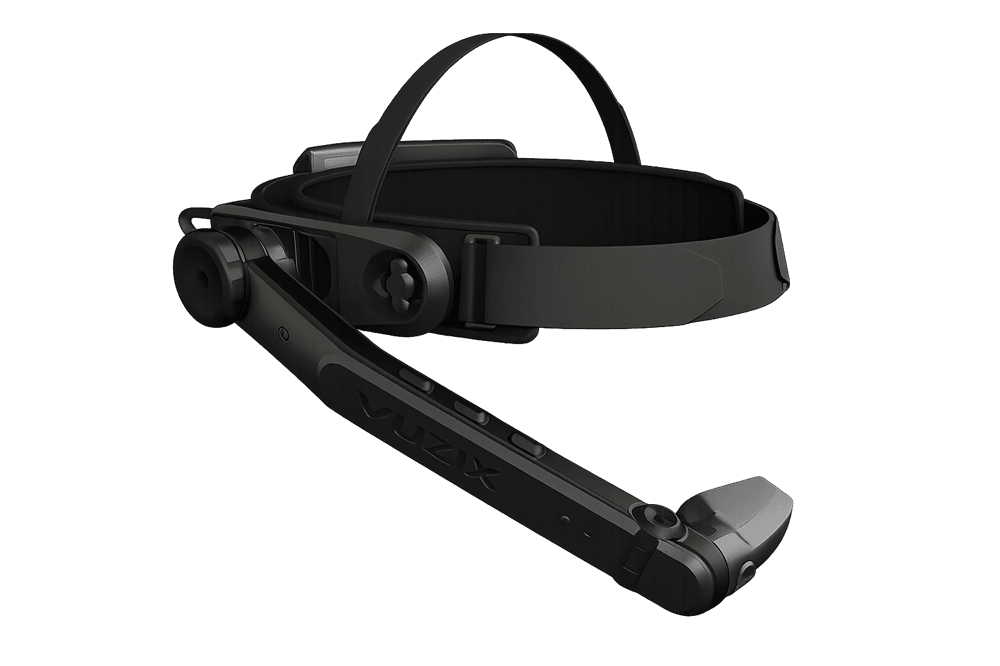
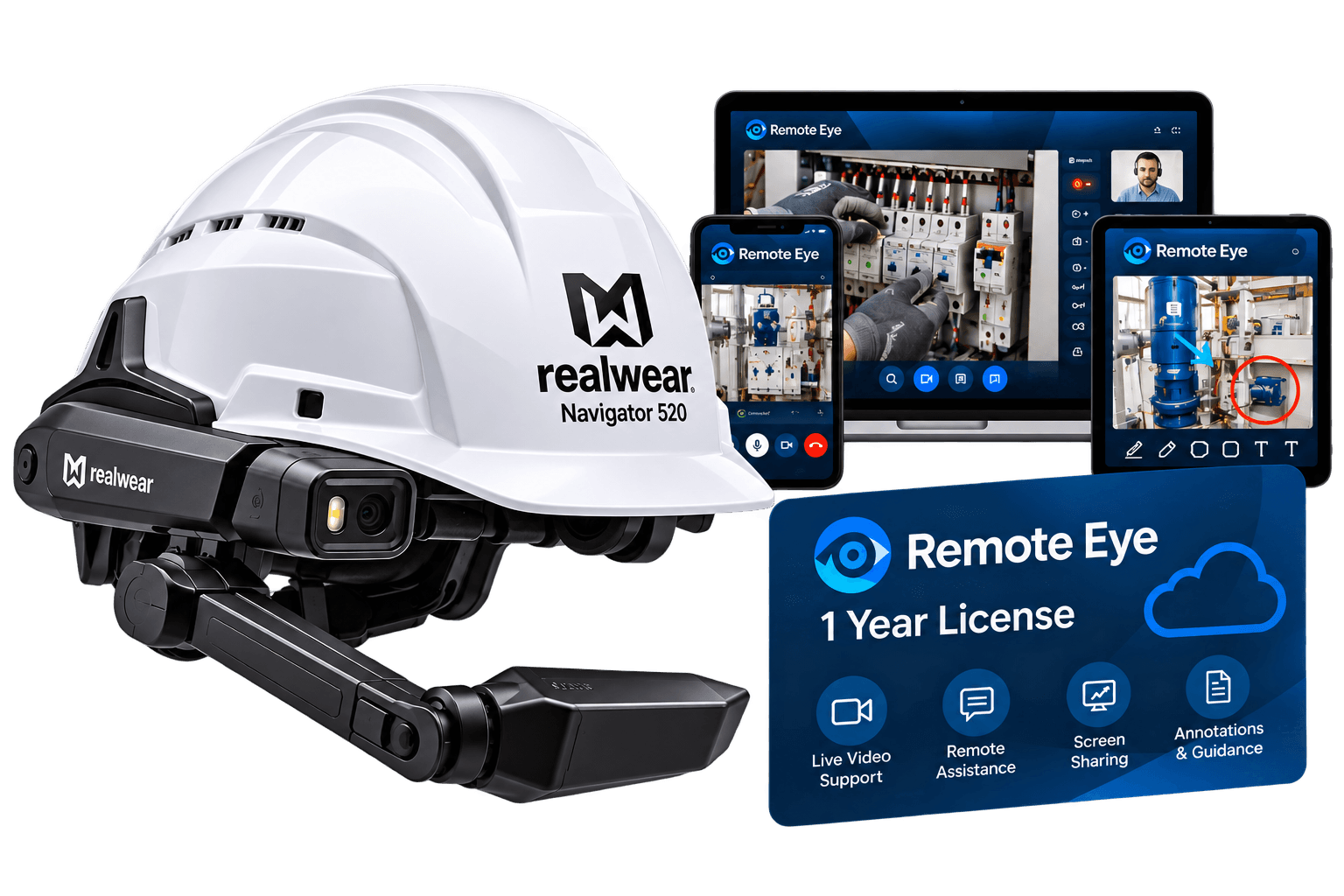
Both platforms list Vuzix M400 and RealWear Navigator 500. ArborXR also lists Vuzix LX1, RealWear Navigator 520 and Arc 3. Confirm the current device and feature lists before choosing a license.
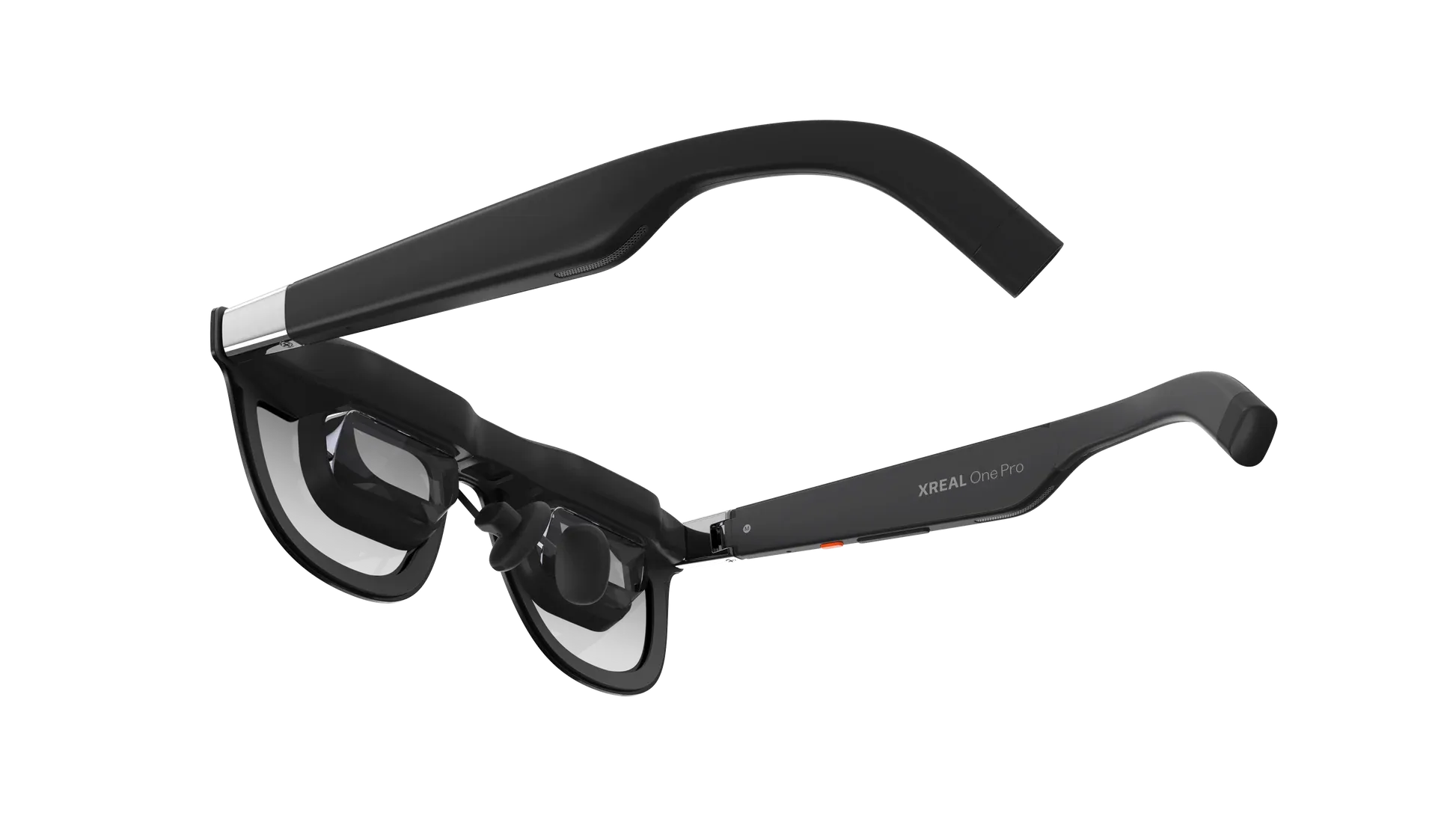
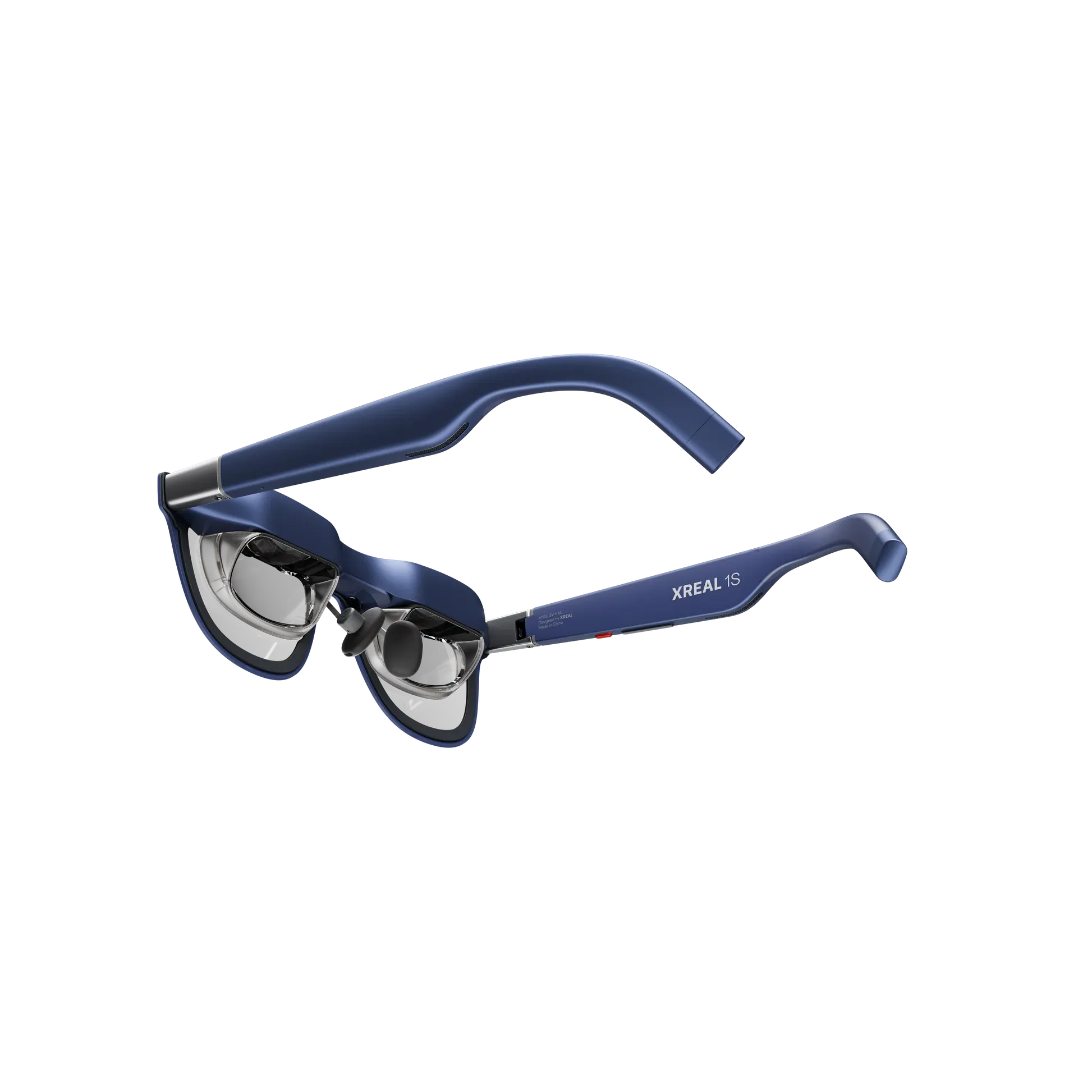
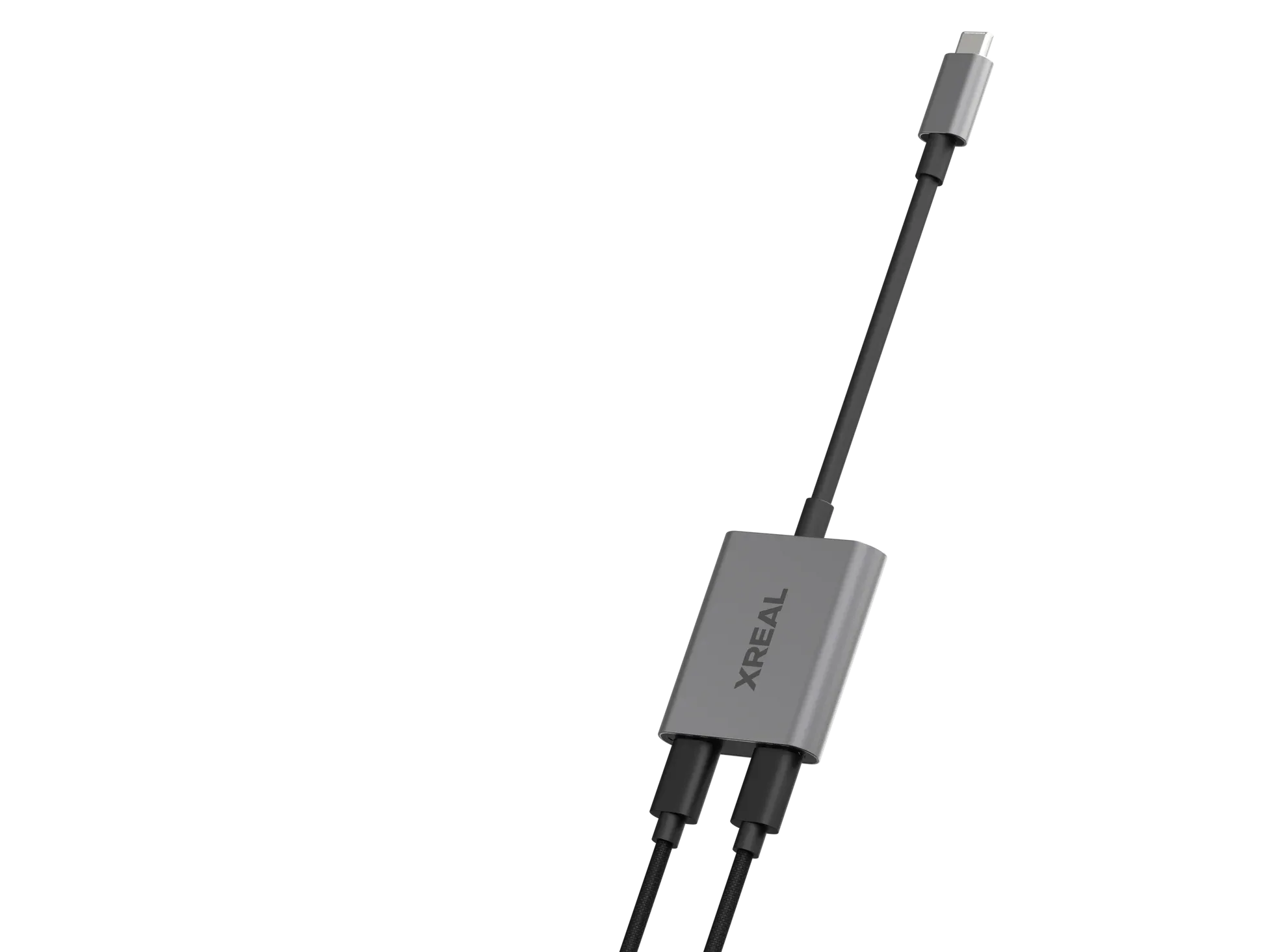
ManageXR lists XREAL Beam Pro as supported with limitations. Beam Pro is the managed device in that setup. XREAL One, One Pro and Project Aura are listed as planned. Do not assume direct management of the glasses.
No. Confirm support for the exact model, operating system and deployment method. Some glasses rely on a managed companion device. A model listed on a vendor roadmap is not necessarily supported today.
No. MDM manages devices and software. AI assistants and remote support apps provide the workflow employees use. MDM may deploy those apps and offer its own troubleshooting tools.
MDM stands for mobile device management. It gives administrators a central console to configure supported devices, deploy apps and check fleet status. Available controls depend on the hardware, operating system and platform.
Kiosk mode keeps a device focused on an approved app or controlled experience. Some enterprise glasses use lock task mode. Support varies, and a platform's VR home screen is not automatically available on glasses.
Yes. Our team can help assess device compatibility, license options and the setup support needed for your rollout. Contact us with your hardware models, fleet size and intended use to discuss the next steps.
Yes. VR Expert AI can discuss compatible glasses, MDM licenses and setup support together. Specify your device models, applications and rollout requirements so the quote reflects the services you need.
Yes. Share the platform, glasses models, number of managed devices and required license term with VR Expert AI. We can discuss the available license options and provide a quote for your deployment.
ArborXR and ManageXR generally charge per managed device. Check the license term and customer type on each product card. Education pricing requires eligibility, and licenses for the apps you deploy may be separate.
Start with your exact hardware model, then compare the controls available on that model, the license tier and your IT workflow. Test the required apps and settings on a small group of devices before rollout.
MDM can help when several people share devices or apps need regular updates, even in a small pilot. Use the pilot to establish a consistent setup and decide which management functions you need before adding devices.
Yes, on supported devices after enrollment. Administrators can distribute compatible apps and files from the management console. Devices need a network connection to receive changes. Scheduling depends on the platform and plan.
Remote viewing depends on the hardware and plan. ManageXR Premium includes screen streaming, while ArborXR Essential includes Remote Assistance. Confirm the functions available on your glasses before relying on them for support.
Yes, supported devices can be organized and managed centrally across locations. Use groups, tags or configurations to organize the fleet and apply the appropriate content and settings. Remote changes require connected devices.