












Executive summary
Vuzix LX1 Android app development can start with the business app your team already maintains. The LX1 runs a modified Android 15 system, and Vuzix documents support for apps with a minimum Android API level of 35 or below. Reuse your business logic and company system connections, then adapt the screen layout, navigation and device dependencies. A successful installation is only the first check.
This port guide covers layout for a monocular display, button navigation and what breaks. Developers will open an existing Android Studio project, connect a real LX1, install a test build, improve the interface and prepare a signed business release. Plan early for missing Google services and test the complete worker journey, including sign-in, scanning and recovery after losing Wi-Fi.
For hardware planning, see the Vuzix LX1 product page at VR Expert.
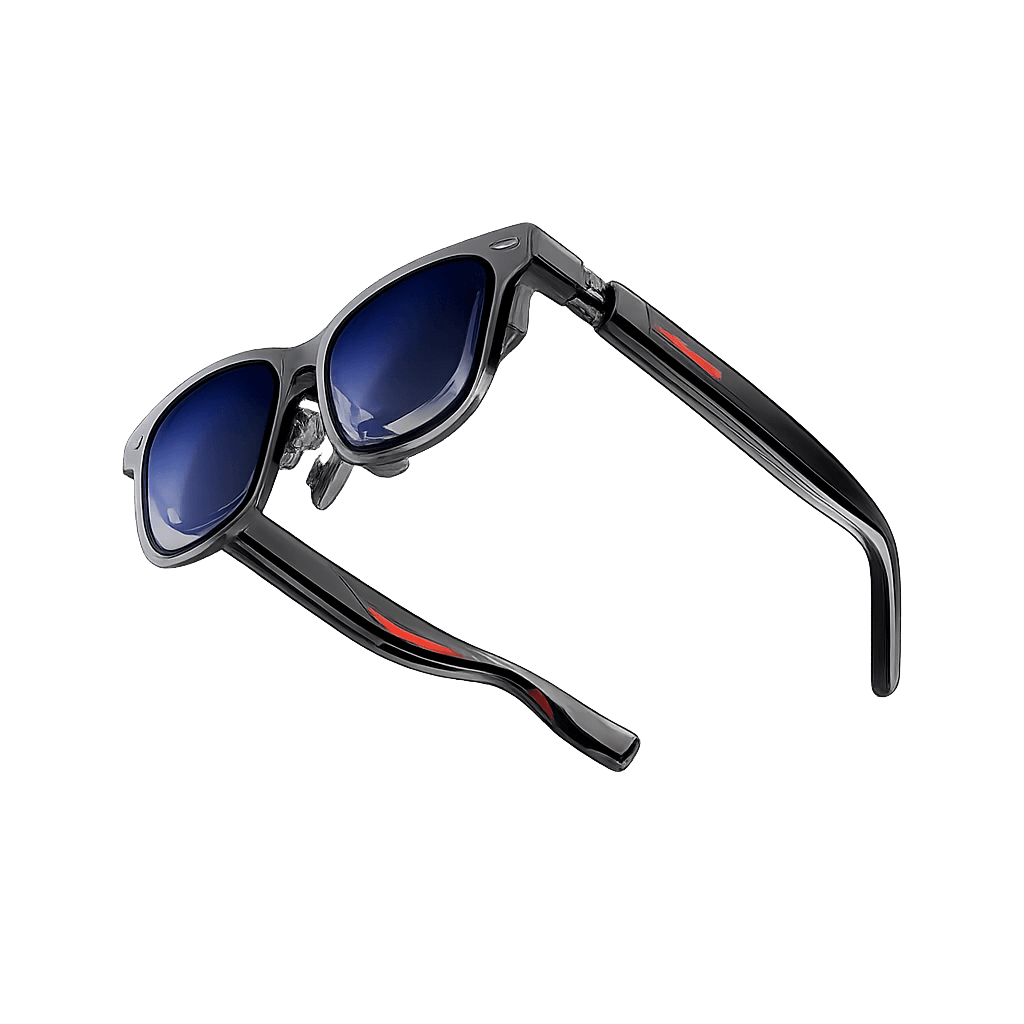
Conceptual illustration, not a device screenshot.
Introduction
The Vuzix LX1 is a standalone Android wearable computer for warehouse, industrial and field workflows. A monocular display is a screen viewed with one eye. Its full-color OLED display presents app content beside the worker's normal view; it's an occluded display, meaning the screen itself isn't transparent. Users can wear it over either eye.
Vuzix LX1 software uses familiar Android tools and optional Vuzix libraries for voice, barcode scanning and interface components. Porting means adapting existing software to another device. For a warehouse picking app, that could mean keeping order lookup and stock updates while turning a dense phone screen into one instruction, one confirmation and a clear exception route. These are design recommendations, not measured results from an LX1 trial.
Vuzix LX1 software and version facts
Installation and management:
- USB through ADB or Vuzix View
- Vuzix App Store
- MDM options from multiple partners.
- Operating system: Modified Android 15; API level 35. Minimum SDK must be 35 or lower.
- Display: 980 × 550 full-color OLED; landscape or reverse landscape for either eye.
- Hardware: Qualcomm QCS4490, 6 GB RAM and 128 GB storage.
- Input: Four control buttons in total; three navigation buttons have short-press and long-press actions, plus voice control.
- Google services: No Google Play Store or full GMS support. Don't assume phone dependencies will work.
- Published firmware baseline: Vuzix lists v15.2.0, released 12-08-2026, with Speech SDK 1.98.0 and Barcode SDK 2.0.0 updates.
Firmware is the device's installed system software. The published release is a reference point, not proof that every company device runs that build. Record the installed build during the following steps.
Step 1 Open the existing business app project
Android Studio is the development application used to edit, build and debug Android apps. Gradle is the build system that turns the project into an installable package.
· Open the source project. Launch Android Studio, select Open and choose the folder containing settings.gradle or settings.gradle.kts. Wait for Gradle sync to finish. If you only have an APK, obtain the source project and permission to modify it from its owner.
· Find the relevant files. In the Project panel on the left, select Android view. Open app > manifests > AndroidManifest.xml and Gradle Scripts > build.gradle.kts (Module :app), or its build.gradle equivalent.
· Choose one worker task. Start with a complete business flow, such as opening a pick task, scanning an item and confirming the quantity. Keep backend integration and validation rules intact while you adapt the screens.
Step 2 Prepare the LX1 and its business network
An SSID is the name of a Wi-Fi network. Use a test device and an IT-approved network that can reach your company's test systems.
· Record the installed system. On the LX1, open Settings and locate its device information or About section. Record the Android version and build shown there; menu labels can vary by firmware. Compare the build with the Vuzix release notes.
· Generate a Wi-Fi code. On your computer, open vuzix.com/wifiQR. Enter the approved network details in the page's fields and generate the QR code. Vuzix says generation happens locally in the browser. For an enterprise network with certificates or special authentication, have IT use its supported provisioning method.
· Join the network. On the LX1 launcher, open Camera, select scanner, point it at the code and select Join. Alternatively, open Settings > Network & Internet > Wi-Fi, enable Wi-Fi, choose the network and enter its password.
Step 3 Connect Android Studio to the LX1
ADB, short for Android Debug Bridge, is a tool that lets a development computer install apps and read device diagnostics. An APK is Android's installable app package.
· Install the computer tools. In Android Studio, open Tools > SDK Manager. Select SDK Tools, enable Android SDK Platform-Tools and click Apply. Note the Android SDK Location shown in this window; ADB is in its platform-tools folder.
· Enable the LX1 connection. On the glasses, open Settings > Connected Devices > Allow ADB and enable it. Connect a data-capable USB cable. If the device doesn't appear, also enable USB file transfer in Connected Devices, as Vuzix instructs. Follow the LX1 USB power requirements; its file-copy procedure specifies disconnecting the battery and using a USB-C port or a high-power USB 3.1 port on the computer.
· Verify authorization. Open Android Studio's Terminal tab. Run adb devices from the platform-tools folder, or add that folder to your computer's PATH, the list of locations searched for commands. Accept a debugging authorization prompt on the LX1 if one appears. The device should be listed with the status device.
adb devices adb shell getprop ro.build.version.release adb shell getprop ro.build.version.sdk adb shell getprop ro.build.display.id adb shell wm size adb shell wm density adb shell getprop ro.product.cpu.abilist
Run these commands with only the test LX1 connected. If several devices are connected, insert -s SERIAL after adb, using the serial number returned by adb devices. Density converts physical pixels into Android layout units. ABI refers to the processor format used by native libraries; compare the reported list with any .so libraries included in your APK.
Note the reported density; the LX1 is expected to report 240 dpi (hdpi), which adb shell wm density confirms. Convert with dp = pixels × 160 / dpi: at 240 dpi, the 980 × 550 pixel display gives a design space of about 653 × 367 dp. Design your layouts to fit that area rather than the raw pixel dimensions.
Step 4 Install an unchanged baseline and find failures
Logcat is Android Studio's panel for app and device messages. A baseline is the original build used for comparison with later changes.
· Run the existing app. In Android Studio's top toolbar, select the app run configuration and choose the connected LX1 in the device selector. Click Run. When the app opens, try the worker task you selected in Step 1. Android Studio installs the development build for you.
· Capture failures. Open View > Tool Windows > Logcat, select the LX1 and filter by your app package. Record crashes, unreachable controls, clipped text, sign-in problems and unsupported services before you make any edits.
· Install a supplied test APK if needed. In Terminal, use the command below with the actual APK path. The -r option updates an installed app while retaining its data, provided the package and signing certificate match. Don't uninstall an app holding unsynced work just to get around a signature error.
adb install -r "/absolute/path/to/business-app.apk"
Vuzix View is a desktop application that mirrors the glasses and can install APKs. To use it as an alternative, download it from Vuzix Support, enable Allow ADB, connect the LX1, select it in the connected device list, press View and drag the APK onto its mirrored interface. Use the physical buttons for the usability test, even if desktop interaction helps during debugging.
Step 5 Design the layout for a monocular display
dp is Android's unit for layout size; sp is its unit for text that respects text-size settings. An Activity is an Android app screen, and the manifest declares app components and permissions.
· Fix orientation. Return to app > manifests > AndroidManifest.xml. Find each worker Activity. Remove any forced portrait orientation. If a landscape restriction is needed, use sensorLandscape on that Activity so the interface can rotate for either eye. Preserve its other attributes and intent filters.
<activity android:name=".PickingActivity" android:screenOrientation="sensorLandscape" />
· Simplify the task screen. Open app > res > layout and select the XML file for the current worker screen. For a Compose app, open the Kotlin file containing that screen instead. Compose is Android's toolkit for building interfaces in Kotlin. Show the current location, item, quantity and next action. Move long tables and detailed settings to a separate screen.
· Size for the actual window. Use the dimensions and density from Step 3. The documented 980 × 550 resolution is in physical pixels, not a 980 dp design canvas. Start with readable text, strong contrast and a few controls; judge the result while wearing the device.
· Protect visible content. Insets are the areas occupied by system bars or other screen features. If you're targeting API 35, review Android 15's edge-to-edge rules and apply insets where needed so buttons and instructions remain visible. Test dialogs, keyboards and permission prompts as well as the main screen.
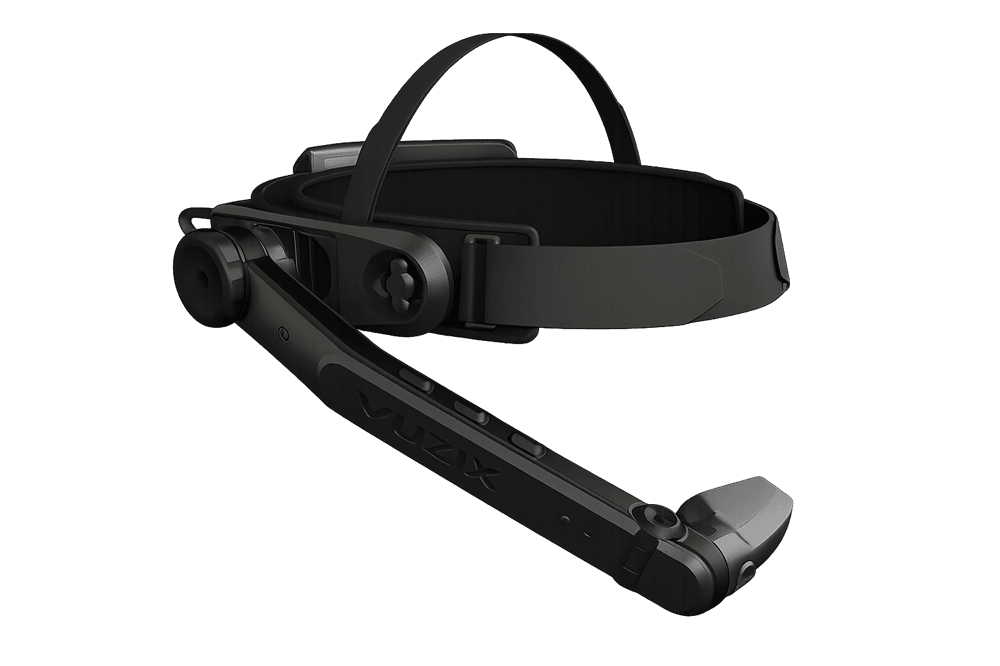
Conceptual illustration, not a device screenshot.
Step 6 Make every action reachable with buttons
Focus is the visible selection that shows which control will respond to Select. A KeyEvent is Android's message describing a button press. The LX1 navigation buttons send the following documented events.
Foremost:
- Short press: Right or next lower control; DPAD_RIGHT
- Long press: Context menu; MENU
Middle:
- Short press: Left or previous upper control; DPAD_LEFT
- Long press: Home; HOME
Rearmost:
- Short press: Select focused control; DPAD_CENTER
- Long press: Back; BACK
· Define the focus route. In the screen's layout XML, make interactive controls focusable and set nextFocusLeft and nextFocusRight. Even a vertical form needs these routes, because the LX1's short navigation presses send left and right. Don't leave labels or decorative containers in the route.
· Add a visible selected state. Create app > res > drawable > lx1_action_background.xml and paste in the selector below. A selector is a resource that changes appearance based on a control's state. This example uses an outline, so focus is visible without relying on color alone.
<selector xmlns:android="http://schemas.android.com/apk/res/android"> <item android:state_focused="true"> <shape> <solid android:color="#12354A" /> <stroke android:width="3dp" android:color="#FFFFFF" /> <corners android:radius="6dp" /> </shape> </item> <item> <shape> <solid android:color="#242424" /> <corners android:radius="6dp" /> </shape> </item> </selector>
· Connect two actions. In your existing screen layout, place these buttons inside its container. This is a Views example; keep your current Compose architecture if the app uses Compose. Adapt the IDs and text to your workflow. The XML below expects the drawable you just created.
<Button android:id="@+id/confirmButton" android:layout_width="match_parent" android:layout_height="wrap_content" android:focusable="true" android:nextFocusLeft="@id/exceptionButton" android:nextFocusRight="@id/exceptionButton" android:background="@drawable/lx1_action_background" android:backgroundTint="@null" android:textColor="#FFFFFF" android:text="Confirm quantity"> <requestFocus /> </Button> <Button android:id="@+id/exceptionButton" android:layout_width="match_parent" android:layout_height="wrap_content" android:focusable="true" android:nextFocusLeft="@id/confirmButton" android:nextFocusRight="@id/confirmButton" android:background="@drawable/lx1_action_background" android:backgroundTint="@null" android:textColor="#FFFFFF" android:text="Report shortage" />
· Use the existing business handlers. In the Activity, after setContentView, connect these buttons to your existing confirmation and shortage functions with setOnClickListener. Don't intercept all key events: standard focused buttons can handle selection. Restore focus to the appropriate action after a dialog or task change.
// In your Activity, after setContentView: findViewById<Button>(R.id.confirmButton).setOnClickListener { confirmQuantity() // Your existing validated business action } findViewById<Button>(R.id.exceptionButton).setOnClickListener { reportShortage() // Your existing exception workflow }
Import android.widget.Button. Replace the two function names with the actual handlers in your project; they aren't provided Android APIs.
· Verify the entire route. Rerun the app on the LX1. Use only the navigation buttons to sign in, reach each action, select it and return with Back. Repeat after opening a dialog and after switching the device to the other eye. For Compose, implement equivalent focus routes using focusRequester and focusProperties.
Step 7 Remove phone dependencies the LX1 can't satisfy
GMS stands for Google Mobile Services, Google's proprietary Android services. An API is a software interface used to access a feature. microG is a compatibility implementation for some Google service interfaces; its presence doesn't guarantee full Google service support.
· Audit dependencies. Open the module's dependencies block and any libs.versions.toml version catalog. Search for com.google.android.gms, Firebase, Google sign-in, maps, licensing and service-delivered machine learning. Test each dependency used by the worker flow. Vuzix states that the LX1 doesn't support full GMS, although firmware v15.2.0 lists a microG GmsCore update.
· Replace required integrations where necessary. Use your company's supported sign-in method, server APIs and managed configuration. Vuzix's current LX1 development overview still says to use Google Play Services Client Library 9.8.0 or earlier for Cloud Messaging and Maps. Treat that as a legacy note (Google Cloud Messaging was deprecated in 2018 and shut down in 2019) rather than a current enterprise solution; ask Vuzix and the dependency owner to confirm the specific interface.
· Review device requirements. In AndroidManifest.xml, inspect the uses-feature declarations and permissions for touchscreen, telephony and location. Make hardware optional only when the app has a working fallback. A declaration doesn't create missing hardware. Test camera and microphone permission denial without losing the task.
· Keep inputs suitable for the job. Replace repeated text typing with approved scan input, a short selectable list or managed settings. For sign-in, keep authentication with your enterprise identity system; a scanned identifier alone shouldn't authorize a worker.
Step 8 Add barcode scanning or voice only when needed
An SDK is a toolkit for accessing a software or device feature. The Vuzix Barcode SDK launches the built-in scanner and returns a result; the Vuzix Speech SDK adds custom spoken commands; HUD Resources and HUD ActionMenu provide optional interface components.
· Choose the barcode route. For occasional login or configuration scans, start with the official Vuzix Barcode SDK repository and its linked Javadocs. Use version 2.0.0 or later interfaces for the LX1. The embedded and continuous modes of the older SDK 1.x aren't supported on the LX1. For continuous warehouse scanning with your own preview, integrate a camera API and a suitable decoding engine.
· Bundle a decoding model if you use ML Kit. ML Kit is Google's machine learning toolkit. Its barcode model can be packaged inside your app, avoiding the Google Play Services model-download route. In app/build.gradle.kts > dependencies, add the documented bundled dependency below, then click Sync Now. Don't add both the bundled and unbundled variants. This dependency isn't a complete scanner: connect camera frames and scan results using the official sample.
implementation("com.google.mlkit:barcode-scanning:17.3.0")
· Add task-specific voice commands. Open Vuzix Support > Developer Resources and follow Working with the Vuzix Speech SDK. Confirm a library version compatible with your device firmware, add its repository and module dependency, sync the project, then register commands such as Confirm quantity and Report shortage using the documented API. Route recognized commands through the same validation handlers as the buttons.
· Test the release build too. If you're adding Vuzix SDKs, check their current shrinking rules and run the signed, optimized build. Older documentation includes jcenter and android.enableR8=false instructions; don't paste those into a modern build without confirming they apply. Test noise, language, duplicate commands and scans of the wrong item.
What breaks when an Android phone app moves to the LX1
Can't reach a control:
- Likely cause: Touch-only gestures or missing focus routes
- Practical fix: Provide focusable actions and explicit left/right routes.
Text or dialogs are cut off:
- Likely cause: Phone layout, portrait lock or missing insets
- Practical fix: Simplify the screen, support both landscape orientations and apply insets.
Login, maps or notifications fail:
- Likely cause: Dependency assumes full Google services
- Practical fix: Validate the exact API and replace unsupported integrations.
Scanner migration fails:
- Likely cause: Old Vuzix SDK 1.x mode or model-download dependency
- Practical fix: Use supported 2.x interfaces or a bundled engine.
Installation or native library loading fails:
- Likely cause: Incompatible minSdk, signing key or native ABI
- Practical fix: Inspect the installation error and match the tested platform and certificate.
Work disappears or repeats:
- Likely cause: State not restored or a request sent twice
- Practical fix: Persist pending work and use server-side duplicate protection.
Background work stops:
- Likely cause: Android version rules or the worker leaving the app
- Practical fix: Review Android 15 behavior and test actual lifecycle transitions.
These are risks to test, not a claim that every app will fail. Android 15 also changes foreground service behavior. A foreground service is a long-running app operation with a visible notification. Review both Android's changes for all apps and those triggered by your target API level, particularly for uploads, remote assistance and unattended synchronization.
Step 9 Test the business workflow on the device
· Repeat the real task. Test both eye positions, buttons, approved voice commands, barcode formats, permission prompts and session expiry. Mirror the screen with Vuzix View for observation, but have the worker operate the actual glasses.
· Exercise recovery. Drop Wi-Fi during confirmation, reconnect, reopen the app and check the company system. Pending transactions should survive, and completed transactions shouldn't be duplicated. Test Home and Back separately, along with a device restart and shift handover.
· Measure the pilot. Compare completion time, input errors, recovery time and support requests with your existing process. Test scanning and video workloads across the expected shift conditions. Report observed results before promising any productivity or battery improvement.
Testing scope: this article is based on official documentation, not hands-on verification of an LX1 or your app. Code examples are starting points for integration and require project-specific review.
Step 10 Sign the APK and prepare business deployment
App signing attaches a certificate that identifies the app publisher. MDM, or mobile device management, lets IT provision, configure and update business devices centrally.
· Create the release package. In Android Studio, open Build > Generate Signed Bundle / APK. Select APK, click Next and choose the app module. Enter your approved keystore path, key alias and passwords. Use the existing signing identity for an update. Choose the release variant and output folder, then click Create or Finish, depending on your Studio version.
· Test the signed APK. Install it on the test LX1, repeat the core task and then test an upgrade over the previous signed build. Confirm data retention, camera and microphone access, scans, voice and server connectivity. Success with a debug build doesn't prove release build compatibility.
· Hand off to IT. Provide the APK, package ID, version code, supported firmware, permissions, network endpoints and configuration requirements. Vuzix advertises MDM availability from multiple partners; confirm your provider's specific LX1 support, enrollment method and private app installation process. Don't assume Managed Google Play is available.
· Roll out in stages. Deploy to a small group of workers, review the measured results and expand once the update and recovery paths work. Keep the previous signed package and define a data-compatible recovery plan. Disable development access on production devices in line with IT policy.
Benefits and limits for businesses
· Benefits. Reusing existing Android business logic can reduce duplicated development work. A focused workflow can make order confirmation, inspection and exception handling easier while workers keep their hands free. Validate the benefit through the pilot.
· Limits. Touch-heavy screens, Google-dependent integrations and outdated device SDK assumptions can require substantial changes. Fleet support, firmware updates and release testing remain part of the implementation effort.
For platform context, see VR Expert's Vuzix LX1 software and platform overview.
Conclusion
Bringing an existing Android app to the Vuzix LX1 starts with checking Android and service dependencies, connecting a test device and installing a baseline. Adapt the layout for the monocular display, make every action reachable with buttons, add scanning or voice where the job benefits and test the signed release before managed deployment. For businesses, this approach preserves existing system integration while creating a workflow suited to workers using smart glasses. A measured pilot shows whether the adaptation reduces errors and saves time.
Discuss an LX1 pilot and your deployment requirements with VR Expert's business hardware team.