

















Executive summary
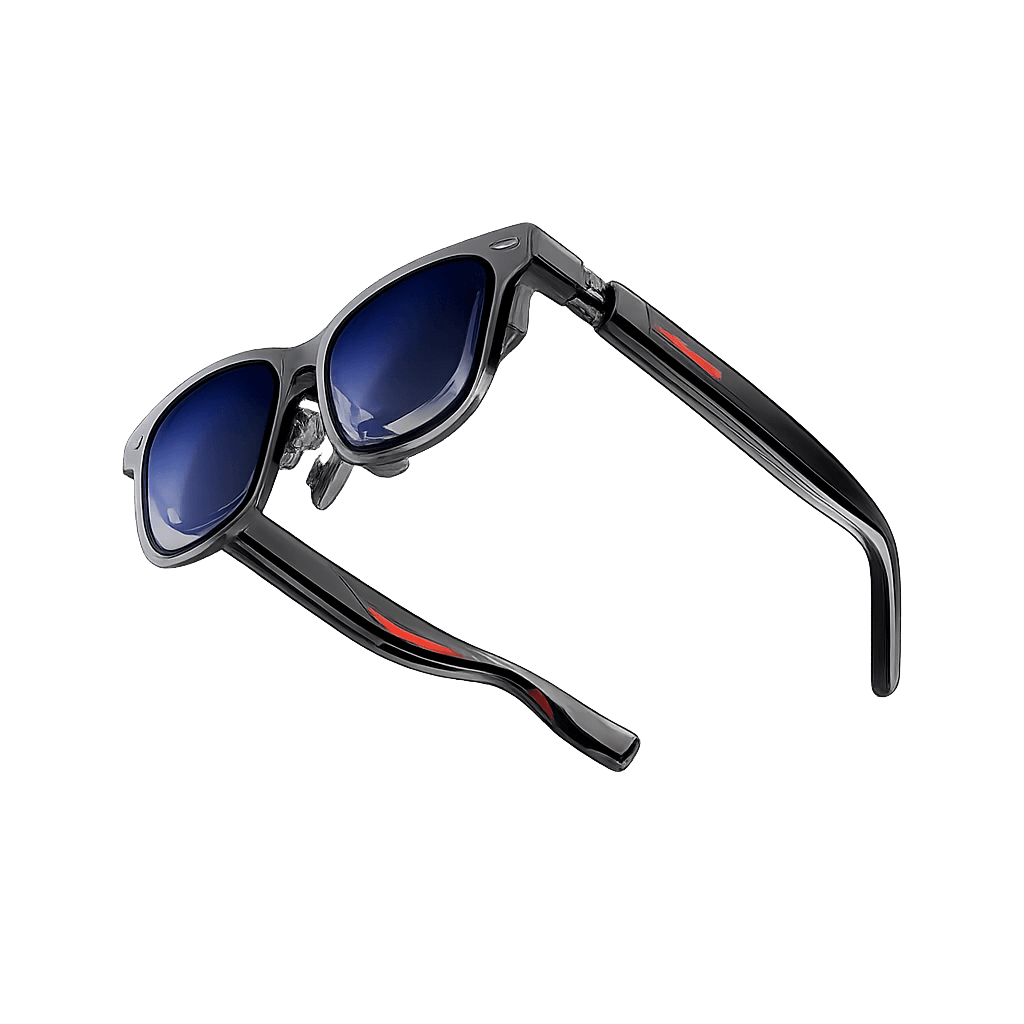
A company doesn't need an Android developer to create many useful workflows for the RealWear Arc 3. Ari supports custom skills that you can create in plain language through Ari Cloud and Ari Chat. You describe what the worker should be able to ask for, what information Ari should collect, what order the workflow should follow and what result it should produce. Ari then turns that description into a reusable skill.
The practical workflow is simple: open Ari Cloud in a browser, go to Skills, create a new skill, describe the task in everyday language, review the generated instructions, add a connector only if the skill needs Outlook, Teams or another service, save it and test it on the Arc 3. Skills created in Ari Cloud sync to devices signed into the same Ari account, so there's no APK to build or install manually.
This makes Ari skills especially useful for companies that want to digitize checklists, shift handovers, inspections, fault reporting, standard operating procedures or guided frontline tasks without maintaining a custom application.
A short introduction to Ari and Ari skills
Ari is the voice-first AI layer used with the RealWear Arc 3. Workers can speak naturally to ask questions, control the device, open apps and use connected services. Ari Cloud is the browser-based dashboard where users manage skills, connectors, memory, past chats and account settings; a Devices view is listed as coming soon. Company-wide device and user management takes place in the separate Ari Business Portal.
An Ari skill is a reusable set of instructions for a task. Instead of explaining the same procedure every time, you teach Ari the workflow once. The skill can then guide the worker through that process whenever it's requested.
Read this article to learn more about Ari: “How to Set Up Ari on RealWear Arc 3: Connectors, Skills and Languages.”
What you need before creating a skill
· A RealWear Arc 3 signed into Ari with the same account you'll use in Ari Cloud.
· A computer with a modern browser. Creating skills is easiest on a desktop or laptop.
· Access to Ari Cloud at cloud.ari-os.com.
· One clearly defined workflow to build first. Start with something small, such as a fault report, inspection checklist or shift handover.
· A connected service, but only if the workflow must access or update another system, such as Outlook, Teams or a company tool.
· Company approval for any data, connector or external service the skill will use.
No developer required: Custom Ari skills are included in Ari's current Core, Pro and Ultra plans. RealWear describes skills as no-code and says they can be created and managed from the browser.
How to create a custom Ari skill without writing code
Step 1: Open Ari Cloud in your browser
Skill creation starts in the browser, not on the Arc 3 itself. This gives you a larger screen to write, review and test the workflow before a frontline worker uses it.
1. Open Ari Cloud. On a computer, go to cloud.ari-os.com.
2. Sign in. Use the same Ari account that's connected to the RealWear Arc 3.
3. Check the account. Make sure the Arc 3 is signed into Ari with the same account before you build the workflow. Ari Cloud doesn't have a device list yet; a Devices view is coming soon.
Step 2: Open the Skills area
Ari Cloud brings devices, skills, connectors and other account tools together in one browser dashboard. Open the Skills section from the main Ari Cloud navigation. This is where you can review existing skills and create new ones.
1. Select Skills. Open the Skills page in Ari Cloud.
2. Choose to create a skill. Start a new custom skill or open the built-in skill builder.
3. Use the guided builder. You don't need to create files, write code or open a developer tool.
Step 3: Decide exactly what the skill should do
Before you type anything into the builder, write the workflow in one sentence. The best first skills have one clear purpose and a clear end point.
Simple example: “When a worker reports a machine fault, ask for the equipment ID, location, problem and severity. Repeat the information for confirmation before creating the final report.”
For a useful skill, define five things:
· Trigger: What should the worker say or ask to start the skill?
· Information: What details must Ari collect?
· Order: Which question or action should come first, second and third?
· Confirmation: What should Ari confirm before an important action?
· Result: What should the skill produce at the end?
Step 4: Describe the workflow to Ari in plain language
Open the skill builder and describe the process as if you were explaining it to a new employee. Ari's public documentation describes this as a conversational process: you explain what you want, and Ari builds the skill with you.
1. Write the purpose. State the task in one clear sentence.
2. Add the questions or actions. Tell Ari what information to ask for and in what order.
3. Add the rules. Explain when Ari should confirm, stop, repeat or ask for missing information.
4. Define the final result. Say what Ari should do when the workflow is complete.
Avoid technical wording if the workflow itself is simple. “Ask for the machine ID, then ask what happened” usually works better than trying to describe the process like software logic.
Step 5: Review the skill Ari creates
Don't save the first version without reading it. AI-generated workflows can misunderstand a step, skip a condition or make an assumption that a human operator wouldn't.
1. Read the trigger. Check that the worker can start the skill using natural wording.
2. Check every required detail. Make sure the skill asks for all the information needed to complete the task.
3. Check the order. Confirm that the questions and actions follow the real business process.
4. Add confirmations. Sensitive or irreversible actions shouldn't happen without clear confirmation from the user.
5. Simplify the wording. Frontline workflows should be short enough to use while the worker is doing the actual job.
Step 6: Add a connector only if the skill needs another service
A skill can work as a guided workflow without any connector. Add a connector only when Ari needs information from another application or needs to perform an action in it.
- A checklist or guided procedure only: You may not need a connector.
- Outlook email or calendar information: Connect the relevant Microsoft service in Ari Cloud.
- Teams messages or contacts: Enable the supported Teams / contact connector.
- A company-specific system: Use an available integration or approved company connector, if supported.
Ari's current platform supports a growing connector directory, including services such as Outlook, Calendar, Contacts and Teams. Organizations can control which integrations are allowed, so IT approval may be required.
Step 7: Save the skill and let it sync
Once the workflow is correct, save the skill in Ari Cloud. Ari states that skills created in the browser sync to signed-in devices, so the skill can become available on the connected Arc 3 without building or sideloading an application.
1. Save the skill. Give it a clear business name, such as “Report a machine fault” or “Start shift handover.”
2. Check that you're using the correct account. The Arc 3 and Ari Cloud should use the same Ari account or company deployment.
3. Allow the device to sync. Keep the Arc 3 online before the first test.
Step 8: Test the skill on the RealWear Arc 3
Run the final test on the glasses, in the environment where the worker will actually use the workflow.
1. Start Ari. On the Arc 3, say “Hey Ari” or use the configured method for starting Ari.
2. Ask for the skill naturally. For example: “Report a machine fault.”
3. Answer the questions. Follow the workflow exactly as a frontline worker would.
4. Check the confirmation. Make sure Ari repeats or confirms important information before the final action.
5. Check the result. Confirm that the skill ends with the expected output or connected action.
6. Repeat with a second user. A workflow that's obvious to its creator may still be unclear to another employee.
Step 9: Refine the skill after real use
No-code doesn't mean no testing. Use the first pilot to identify where employees hesitate, answer in unexpected ways or trigger the wrong action.
· Shorten questions that workers repeatedly ask Ari to repeat.
· Add examples when a field or choice is unclear.
· Make required information explicit.
· Add a confirmation step before sending, creating, deleting or changing business data.
· Test different accents, languages and background-noise conditions where relevant.
Because skills are managed in the browser, companies can update the workflow without rebuilding and redistributing an Android application.
Example: build a machine fault-reporting skill
A fault-reporting skill is a good first project because the workflow is structured, easy to test and useful across maintenance teams.
- Skill name: Report a machine fault
- Trigger: “Report a fault” or a similar natural request
- Ask for: Equipment ID, location, problem and severity
- Order: Equipment → location → problem → severity
- Confirmation: Repeat the four details and ask the worker to confirm
- Final result: Create a structured fault summary, or send it through an approved connector if one is configured
A plain-language instruction for the builder could be: “Create a skill for reporting equipment faults. Ask for the equipment ID, location, problem and severity one at a time. If any detail is missing, ask again. At the end, repeat all details and ask the worker to confirm before completing the report.”
Tips for better Ari skills
· Start with one workflow, not an entire department's process.
· Write the skill for the worker, not for the person who designed the process.
· Ask one question at a time where possible.
· Use clear completion criteria so Ari knows when the task is finished.
· Confirm important information before it's sent or used.
· Keep company terminology consistent with the words employees already use.
· Test in the real environment, including noise, PPE and weak network conditions.
· Review privacy and company policy before connecting email, Teams or other business data.
Security and GDPR considerations
Skills can involve company data, connected services and AI-generated output. RealWear's current Ari terms state that users remain responsible for reviewing AI output and for ensuring that the data they provide is lawful and permitted by company policy. When a skill uses personal data, sensitive information or Microsoft 365 connectors, organizations should review their internal data-processing rules and applicable GDPR requirements before rollout.
Conclusion: create an Ari skill in a few simple steps
Creating an Ari skill for the RealWear Arc 3 doesn't have to start with a software development project. For a company without a development team, Ari Cloud offers a practical no-code way to turn repeatable work processes into voice-guided workflows.
Here's the process:
1. Open Ari Cloud and sign in with the account used on the Arc 3.
2. Open Skills and start a new custom skill.
3. Describe the task in plain language: trigger, questions, order, confirmation and result.
4. Review the generated workflow and simplify it.
5. Add a connector only if the workflow needs another service.
6. Save the skill and let it sync to the Arc 3.
7. Start Ari on the glasses, run the skill and test it with real workers.
8. Refine the wording and rules before a wider rollout.
The main advantage is speed: a company can test whether a workflow is useful before investing in custom Android development. For checklists, handovers, inspections and structured frontline processes, this no-code approach will often be the better place to start.
Want to test a no-code Ari workflow on the RealWear Arc 3? At VR Expert, we can help companies evaluate the hardware, prepare a pilot and define a practical first workflow before moving to a larger deployment or custom development.