


















Executive summary
VITURE SpaceWalker adds a multiple-screen workspace to a compatible Windows PC or Mac connected to VITURE BEAST glasses. Your business applications keep running on the computer, and SpaceWalker provides the display workspace where you arrange them. Start with an approved laptop, the correct cable and two extended screens, then test your normal work before adding a third screen.
BEAST works without SpaceWalker as a display for a compatible connected device and includes native screen controls. It still needs a host computer or another supported video source. SpaceWalker supplies the multiple-desktop workspace; a firmware update alone doesn't install that workspace. This guide focuses on existing business applications, readable text and a repeatable company pilot, with developer notes where they affect deployment.
For the physical fit and connection, start with VR Expert’s VITURE BEAST setup guide. The workflow below covers the desktop software. It's based on published documentation, not hands-on testing.
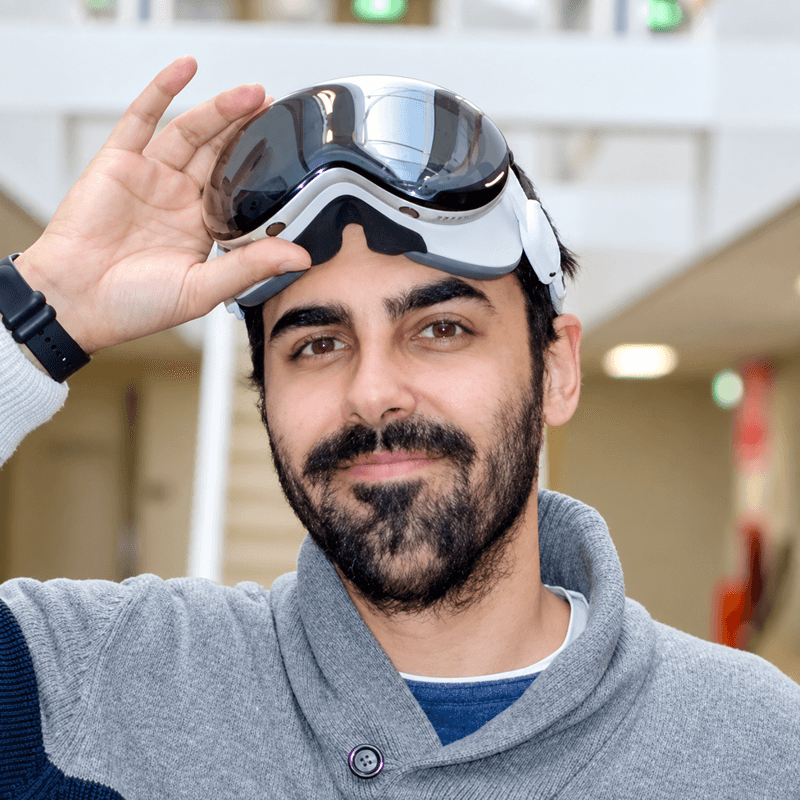
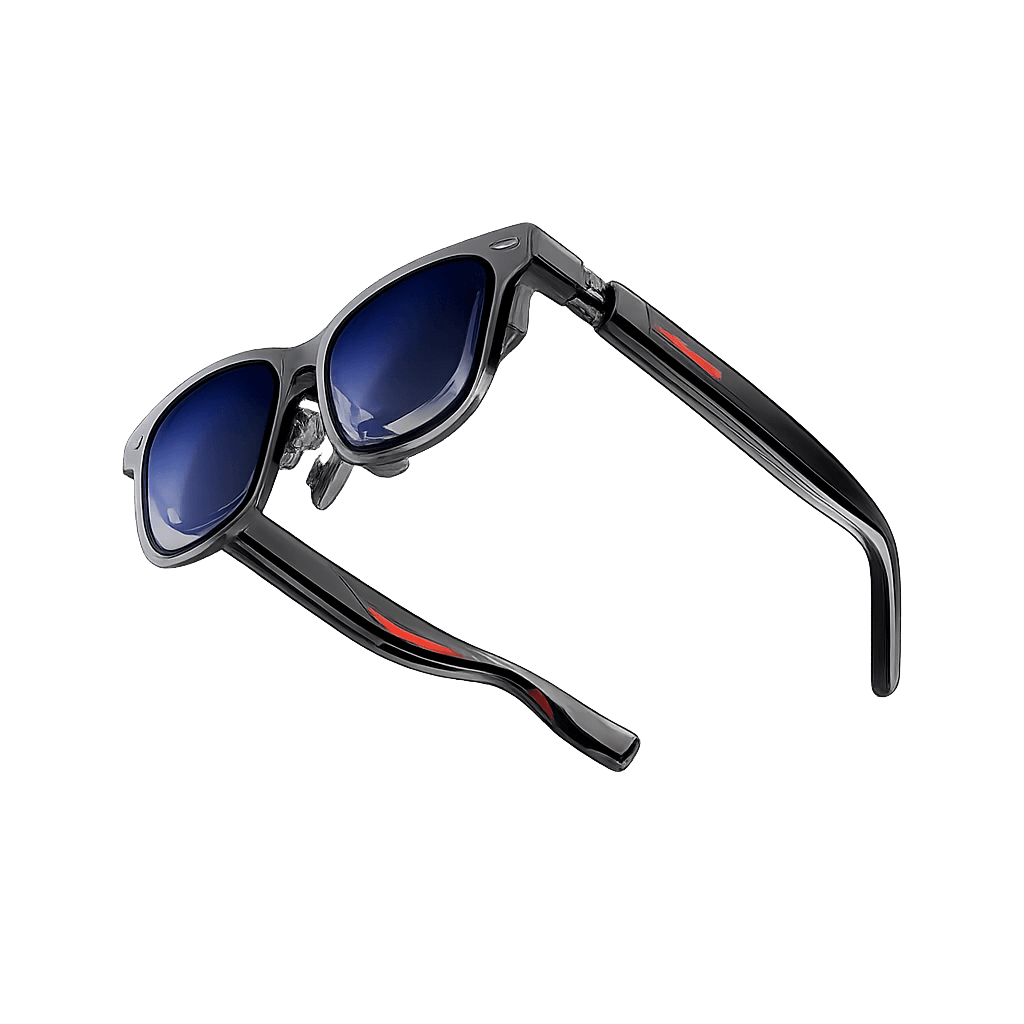
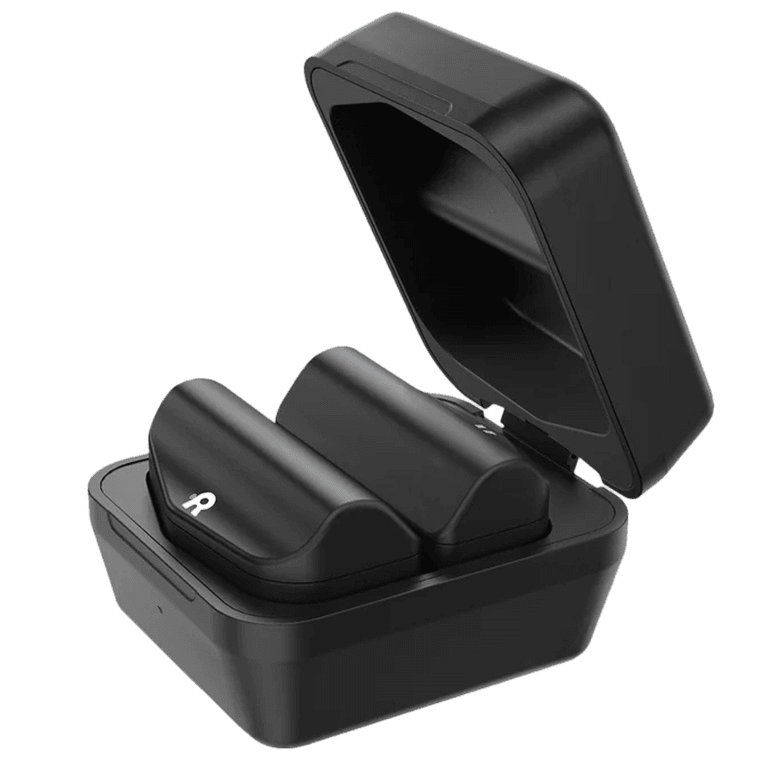
Figure 1: VITURE BEAST glasses need a connected host. Product image credit: VITURE.
What VITURE SpaceWalker does for business work
A developer can place an editor beside documentation. Another employee can compare a document with a browser. These suggested arrangements may reduce window switching; test whether readable text and reliable performance actually improve the task.
Software is an application installed on the host computer. Firmware is the built-in software that controls the glasses. BEAST’s native UltraWide mode changes its display presentation, while SpaceWalker’s multiple-screen layouts organize the computer workspace. Updating either component may improve compatibility, but they're separate update tasks.
SpaceWalker also has mobile versions. This guide uses the desktop versions for everyday company applications.
VITURE BEAST and computer requirements
Single Display:
- Suggested business use: Focus on one application
- Workspace arrangement: One virtual display
Ultrawide Panoramic:
- Suggested business use: Keep several windows visible
- Workspace arrangement: One wide virtual display
2 Displays Side by Side:
- Suggested business use: Compare work and reference material
- Workspace arrangement: Two adjacent virtual displays
3 Displays Side by Side:
- Suggested business use: Keep an editor and work tools available
- Workspace arrangement: Three adjacent virtual displays
BEAST supports Single Display, Ultrawide Panoramic, 2 Displays Side by Side and 3 Displays Side by Side. Its SpaceWalker tracking baseline is 3DoF. Stacked layouts and the portrait-landscape-portrait Code Mode layout aren't available on BEAST. Code Mode is the name of a screen arrangement; developers can use their existing editor in BEAST’s supported layouts.
- Windows: Use a validated Windows 11 x64 PC. VITURE lists 16 GB RAM, an i7-13620H or equivalent, GTX 1060 or RX 580 graphics or better recommended, and a USB-C port with DP Alt Mode.
- Mac: Use Apple silicon and a supported macOS release. SpaceWalker 1.2.3 and later requires macOS 13 or later, version 1.6 and later excludes Intel, and BEAST support arrived in 1.8.0 (December 28, 2025), so an Intel Mac can't run BEAST with SpaceWalker at all.
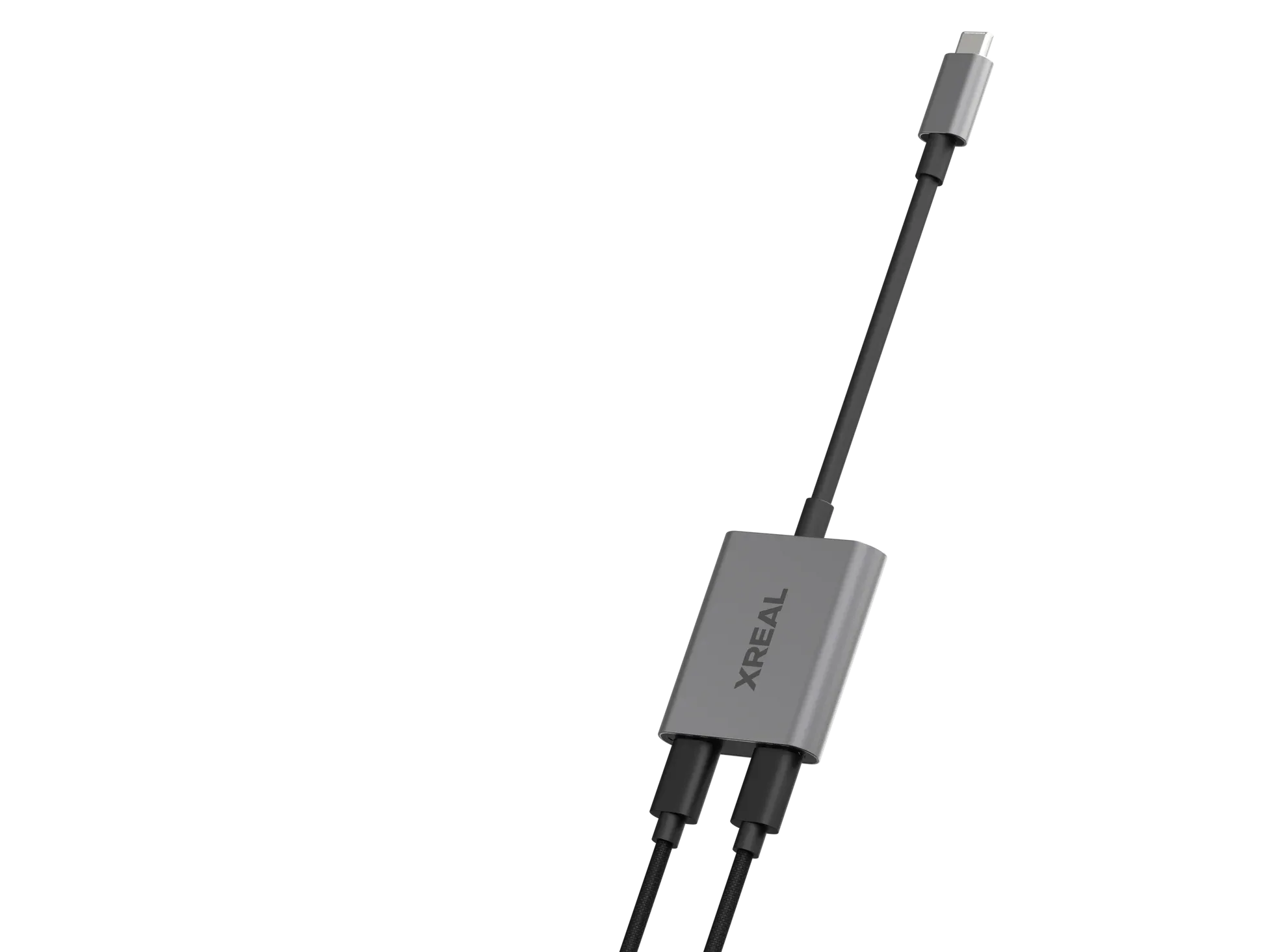
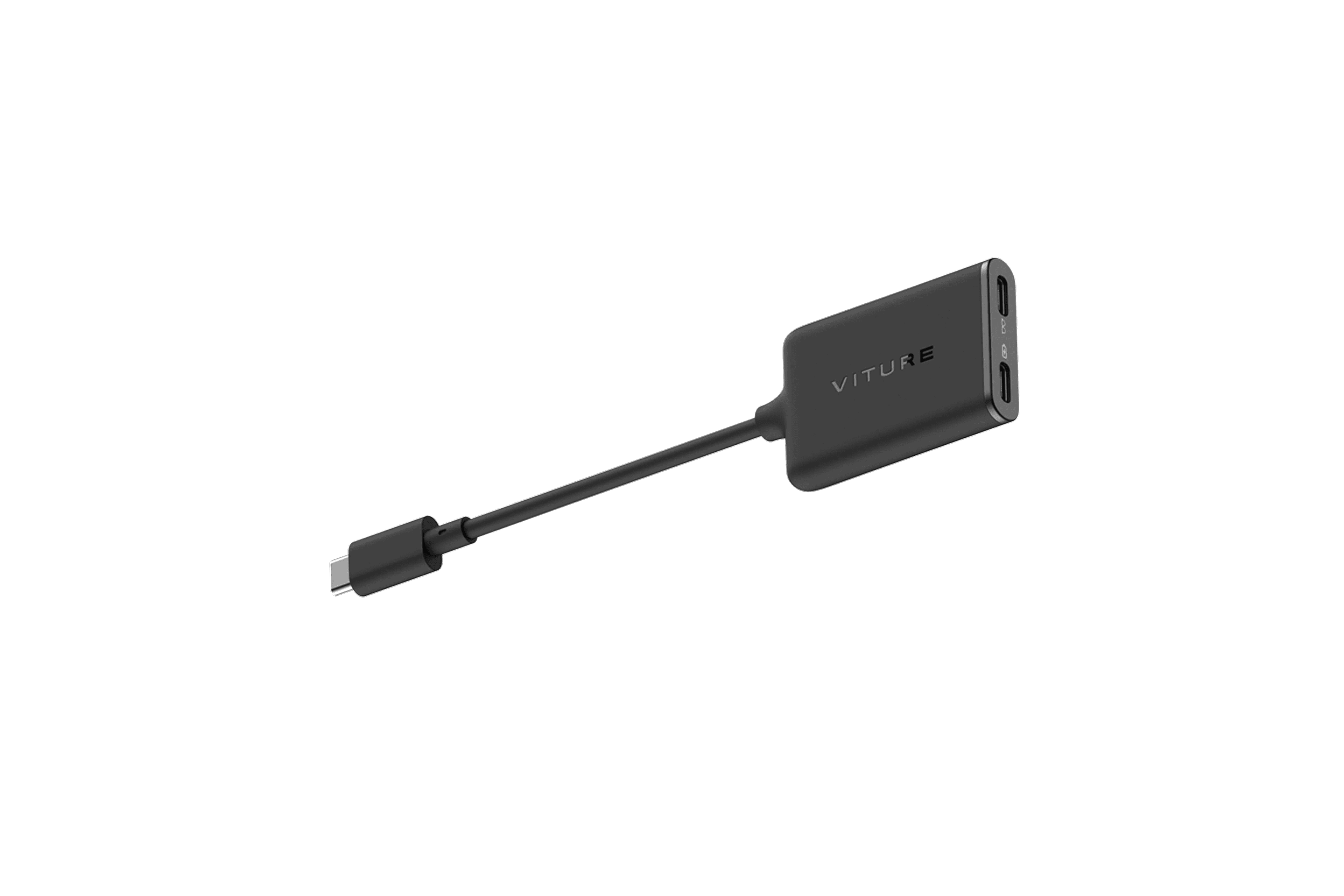
- Cable: Start with the original cable and a direct, compatible USB-C connection that carries video, power and USB data.
VITURE also lists Windows 10, whose standard support ended on October 14, 2025. Follow your company's operating system policy. Current Windows ARM64 extended-display instructions change security protections, so choose the validated x64 route for this pilot.
How to set up VITURE SpaceWalker for business
Complete these steps in order. Where a step splits by platform, follow the Windows or Mac instruction. You'll need company approval for any installations or permissions that your device policy restricts.
Step 1: Check the workstation
· Windows: Right-click the Windows logo on the taskbar and select Settings. Click System in the left sidebar, scroll down and click About. Under Device specifications, read Processor, Installed RAM and System type. These are existing computer details, not fields to fill in. Check for 16 GB RAM or more and an x64-based processor. Write the values in your setup notes, and ask IT to check the processor, graphics and port against the requirements above.
· Mac: Click the Apple logo at the top left of the screen, then About This Mac. In the information window, find Chip and macOS. Write down the chip name and macOS version in your setup notes. A chip named Apple M1, M2, M3 or another Apple M-series model means Apple silicon. If the window lists an Intel processor instead, use a different approved Mac for the current SpaceWalker route. You don't need to type anything into this window.
· Work applications: Choose two approved applications and a non-sensitive sample task. Keep the laptop keyboard and pointer available; the glasses don't replace your input devices.
Step 2: Install the desktop application
· Download: Open VITURE’s Download Center in your computer's browser. Find SpaceWalker for Windows or SpaceWalker for Mac and choose the matching download, not a mobile app.
· Install: On Windows, press Windows + E to open File Explorer, click Downloads in the left sidebar and double-click SpaceWalker-Installer.exe. This opens the setup window. Click Next on the welcome page, then Install when it appears. Wait for the installation to complete and click Finish. On Mac, open Finder in the Dock > Downloads in the sidebar, double-click the downloaded .dmg file and drag the SpaceWalker icon into Applications in the window that opens. If your computer requires an administrator password or blocks the installation, ask your company’s IT support to install SpaceWalker on this computer. Send them the official download link, operating system and glasses model, and continue once IT confirms the installation.
· Open SpaceWalker: On Windows, click the Windows logo, type SpaceWalker in the search box and click the app result. On Mac, click Finder > Applications and double-click SpaceWalker. Confirm that the app opens, then quit it before the firmware update in Step 3.
Step 3: Update and calibrate VITURE BEAST
· Open the updater: Quit SpaceWalker, connect VITURE BEAST with the original cable, then open Chrome. Click its address bar, enter https://www.viture.com/firmware/update and press Enter to open the update page.
· Connect and update: Under Choose your XR Glasses, select VITURE BEAST and click Connect. Choose the detected device in Chrome’s device picker. In Firmware Version, choose the company-approved release, then click Update. Wait for Update Successful before disconnecting.
· Automatic calibration: Reconnect BEAST to power and keep the glasses still for 10 seconds before putting them on. BEAST calibrates automatically; the web calibration page doesn't support it.
Step 4: Connect and launch the workspace
· Connect directly: Attach the cable to your glasses and to the verified computer port. If you see a picture but the software doesn't detect the glasses, video may be working while USB data isn't; go back to the cable and port check.
· Windows: Reopen SpaceWalker and click Launch when the connection is ready. Confirm that VITURE BEAST and Connected status appear at the top of the control panel.
· Mac: Reopen SpaceWalker. The first time the glasses connect, macOS may show a display dialog, possibly twice: choose Extended Display and check Set as Default. If the glasses show a black screen reading “Choose to mirror from the menu” instead, click the SpaceWalker menu bar icon and select VITURE as the extended display. Continue to Step 5 to grant the required permission before troubleshooting a missing workspace.
Step 5: Allow screen access on Mac
· Open the permission: On Mac, choose Apple menu > System Settings > Privacy & Security > Screen & System Audio Recording. Earlier macOS versions call this Screen Recording.
· Enable SpaceWalker: Find SpaceWalker in the app list and enable screen access. If macOS asks you to quit and reopen it, do so. If policy locks the control, send the request to IT.
· Return to the app: Open SpaceWalker again. Windows users can skip this Mac-only step. Approve the application you installed, and check the VITURE entry that macOS lists here (Immersive 3D or SpaceWalker).
Step 6: Select an extended two-screen layout
· Windows controls: In the layout dropdown at the top left, select 2 Displays Side by Side. In the neighboring dropdown, choose Extend Desktop.
· Mac controls: Click the SpaceWalker icon in the top menu bar. Select 2 Displays Side by Side, then reopen that menu and select Extend Desktop.
· Confirm the result: Place different sample windows across the available workspace. If the same content repeats, recheck Mirror versus Extend. Start with two screens, and add a third only if it benefits the task.
The Mac menu example below identifies the controls. Some labels change between releases, so use the four BEAST layouts listed above. The image comes from VITURE’s published guide.
Figure 2: VITURE Academy Mac menu example. For BEAST, select Single Display, Ultrawide Panoramic, or two or three displays side by side.
Step 7: Open your business apps and place the windows
· Open the first application: Use a browser your company already permits, such as Chrome. On Windows, click the Windows logo on the taskbar, type Chrome in the search box and click Google Chrome. On Mac, click Finder in the Dock (the row of app icons at the bottom of the screen), choose Applications in the sidebar and double-click Google Chrome. When its window opens, click the address bar at the top, type your company’s work-service URL and press Enter. Complete the company sign-in on that website. If Chrome isn't installed, open your company’s existing browser by name instead.
· Open the second application: Launch the approved editor or document application on the same computer. Use its File > Open command or usual project selector to open the sample work. You don't upload a project to SpaceWalker.
· Place each window: Use windowed mode and drag the title bar toward the neighboring desktop. On Windows, Settings > System > Display > Identify helps you match the display numbers; if their order is wrong, rearrange the display tiles, then click Apply.
· Check input: Click the destination application before typing. Test text selection, scrolling and a saved edit. Keep work-service URLs and account credentials inside the relevant business application, not in the SpaceWalker controls.
Step 8: Adjust the view and validate the work session
· Center and read: Return to SpaceWalker’s Windows control panel and click Recenter Displays. Drag Screen Distance to adjust the viewing distance, and try the two BEAST-only controls: Screen Size (Small to Ultra Large) and Visual Lock (beta, which uses the glasses’ camera to steady the screens). On Mac, click the SpaceWalker icon in the top menu bar and choose Recenter the Displays, then Move Displays Closer or Move Displays Further as needed. BEAST also handles both on the glasses: hold R1 to recenter, and hold R- to enter Screen Distance adjustment, then press R+ or R- (1 m to 5.5 m in 0.5 m steps). To enlarge text, click the Chrome window you opened in Step 7. Click the three-dot menu at its top right, find Zoom and click + until the page is readable. Click − to reduce it. This changes the browser page size, while SpaceWalker’s controls change the screen view. Other work apps have their own text or zoom controls.
· Test the task: Compare the two documents, or use your editor and reference page for a normal work session. Check small text, pointer accuracy and comfort. More screens are only useful if they improve the task.
· Check collaboration: In your company's meeting app, use the screen-share picker to select only the window you need to share. Confirm what the recipient sees with a colleague before sharing sensitive material; the virtual layout isn't a privacy guarantee.
· Record the pilot: Save files in their usual approved locations. Record the computer, cable, app and firmware versions, layout and any issues. Quit SpaceWalker and check that the laptop returns to a usable display arrangement.
Troubleshooting the first business session
· Picture but no connection: Go back to Step 1. Test the original cable directly in the verified port and confirm that it supports both USB data and video.
· Same content everywhere: Go back to Step 6, select Extend Desktop, then test with two different windows.
· Mac permission missing: Repeat Step 5, reopen SpaceWalker and check for company permission restrictions.
· Workspace drifts: Recenter, then repeat BEAST’s automatic calibration from Step 3 if necessary.
· Text or movement is uncomfortable: Try one screen and larger application text. Stop if the discomfort continues.
Conclusion
VITURE SpaceWalker gives businesses a portable multiple-screen workspace on VITURE BEAST while work apps stay on a compatible computer. Check the host and cable, install the desktop app, update the firmware and allow automatic calibration, grant screen access on Mac, and select an extended layout before opening your work tools. BEAST remains usable without SpaceWalker; the app adds the multiple-desktop workflow. A measured pilot can help businesses reduce window switching and offer a more flexible workspace, with purchasing decisions based on readability, reliability and actual task results.