










Executive summary
RealWear Navigator 520 voice navigation depends on screen elements the worker can see and say. Don't simply shrink a phone layout for the headset; show the available actions clearly and let WearHF map spoken commands to supported controls.
RealWear recommends reducing long text entry, complex settings and crowded screens. Use one task per screen, concise instructions, legible text and distinct visible labels. Apply the same principles to a canvas app or a native Android application.
Development teams have two business-ready routes. Use native Android with WearHF when the workflow needs custom device behavior, offline handling or integration with company systems. Use Microsoft Power Apps when your organization already manages the workflow in Power Platform and the RealWear player supports the app features you need. The native route below includes XML and Java examples; the Power Apps route is an optional low-code alternative.
Core rule: A voice interface is not a normal mobile screen with speech added afterward. The screen itself should tell the worker what can be said.
What is the RealWear Navigator 520?
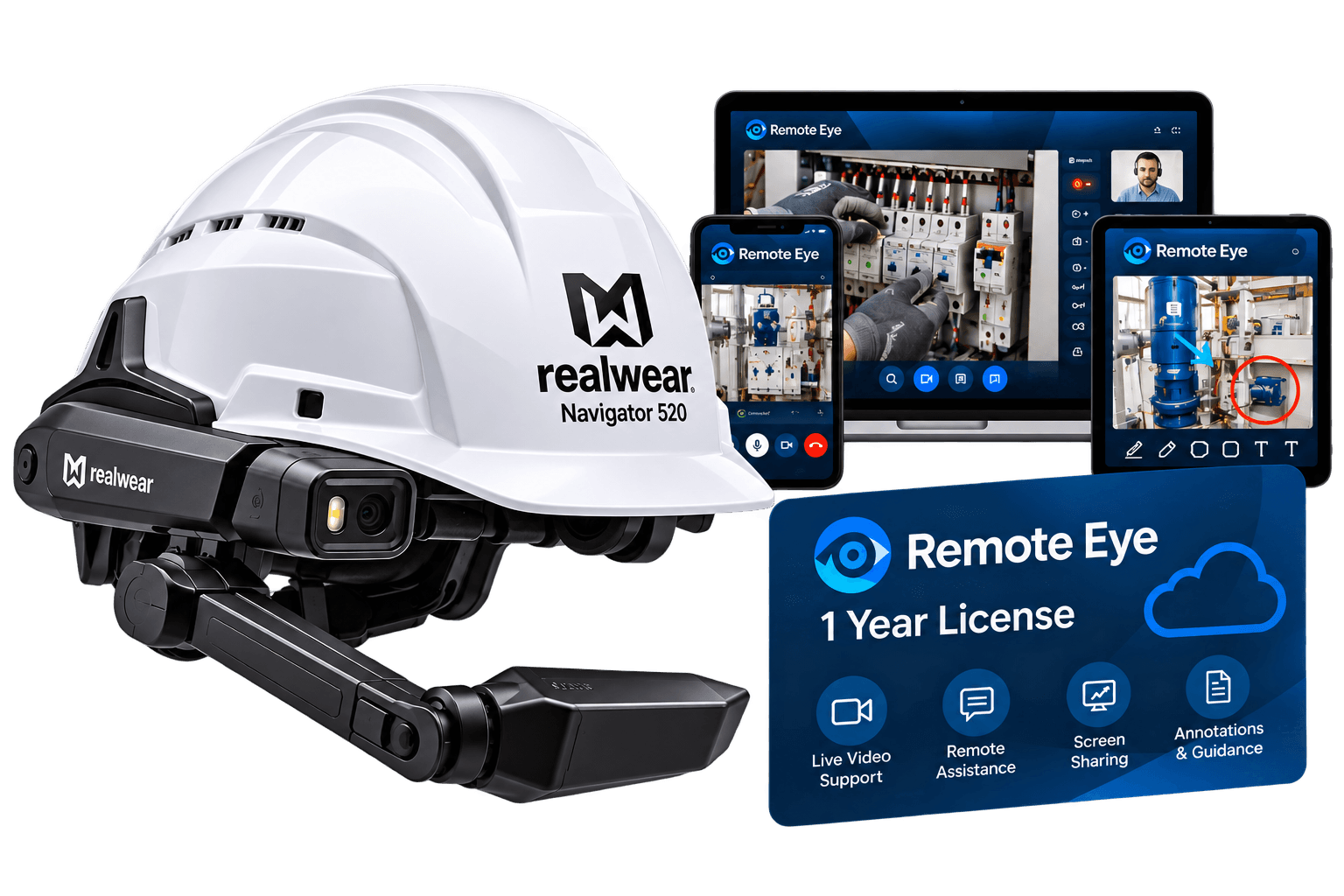
The Navigator 520 is a rugged, hands-free Android device for industrial work such as maintenance, inspection and field service. RealWear lists its display as 1280 × 720 pixels and its Navigator 520 software as Ari OS (Android 13) with WearHF. Since the Ari OS 2.0 maintenance release of September 17, 2026 (firmware 3.0), updated devices run Android 16, so check which build your fleet has. Confirm the firmware and display configuration on the device fleet before release.
RealWear maps the default 720p Navigator 520 display to an 854 × 480 dp Android layout area at 240 dpi. Use dp for layout dimensions and sp for text instead of hard-coded physical pixels. Keep the screen simple, because the display occupies only part of the worker’s field of view.
Choose an enterprise implementation route
Use native Android when you need custom behavior, integration or release control. Use Power Apps when your company already has a Power Platform environment and the app can stay within its supported canvas-app capabilities.
Microsoft Power Apps:
- Where you design: Power Apps Studio in a web browser
- Best for: Companies with an approved Power Platform tenant that need a low-code business workflow.
Native Android app:
- Where you design: Android Studio + WearHF/WearML
- Best for: Development teams that need custom Android behavior, company-system integration or control over the managed release.
Both routes require an organization-approved identity, access to the correct business environment and permissions for every connected data source. Test on the managed Navigator 520 fleet, not only in a desktop preview.
Native Android route: build a voice-first screen
An Android View is a standard screen control such as a Button or TextView. WearHF runs on the device and can activate supported clickable controls from their visible labels, so a basic screen doesn't need a separate speech SDK.
Step 1: Create the Android project.
- In Android Studio, choose New Project > Phone and Tablet > Empty Views Activity, then select Java and Views/XML.
- Use your organization’s reverse-domain package name (for example, com.company.fieldworkflow). Set minSdk for the oldest Android version in the supported fleet, then let Gradle sync.
- Install Android SDK Platform-Tools from SDK Manager so adb is available for headset testing.
Build compatibility: minSdk controls which Android versions can install the app. Navigator 520 fleets run Android 13 (API 33) on firmware 2.x or Android 16 on firmware 3.0, so minSdk 33 covers a 520-only fleet; use a lower value if older devices are supported, and test on both builds if the fleet is mixed. Set compileSdk and targetSdk to versions approved by your organization, then verify the app and its dependencies on a managed headset before rollout.
Step 2: Define the screen.
- In Android Studio’s Project panel, open app > src > main > res > layout > activity_main.xml.
- Replace the generated layout with this example. It uses dp for spacing and sp for text, has two explicit business actions and keeps the spoken labels visible:
<?xml version="1.0" encoding="utf-8"?> <LinearLayout xmlns:android="http://schemas.android.com/apk/res/android" android:layout_width="match_parent" android:layout_height="match_parent" android:orientation="vertical" android:padding="24dp">
<TextView android:id="@+id/screenTitle" android:layout_width="match_parent" android:layout_height="wrap_content" android:text="INSPECTION" android:textSize="24sp" />
<TextView android:id="@+id/instructionText" android:layout_width="match_parent" android:layout_height="wrap_content" android:layout_marginTop="12dp" android:text="Confirm the equipment status." android:textSize="20sp" />
<Button android:id="@+id/confirmButton" android:layout_width="match_parent" android:layout_height="wrap_content" android:layout_marginTop="20dp" android:minHeight="56dp" android:text="CONFIRM STATUS" />
<Button android:id="@+id/reportButton" android:layout_width="match_parent" android:layout_height="wrap_content" android:layout_marginTop="8dp" android:minHeight="56dp" android:text="REPORT ISSUE" />
<TextView android:id="@+id/statusText" android:layout_width="match_parent" android:layout_height="wrap_content" android:layout_marginTop="12dp" android:text="Waiting for selection" android:textSize="16sp" /> </LinearLayout>
Step 3: Connect each button to app behavior.
- In the Project panel, open app > java > your package > MainActivity.java.
- Replace the generated activity with this example, keep its package declaration aligned with the Gradle namespace and use the view IDs from the XML. The example updates local status text; replace the comments with your company’s validated workflow and service calls:
package com.company.fieldworkflow;
import android.app.Activity; import android.os.Bundle; import android.widget.Button; import android.widget.TextView;
public class MainActivity extends Activity { @Override protected void onCreate(Bundle savedInstanceState) { super.onCreate(savedInstanceState); setContentView(R.layout.activity_main);
Button confirmButton = findViewById(R.id.confirmButton); Button reportButton = findViewById(R.id.reportButton); TextView statusText = findViewById(R.id.statusText);
confirmButton.setOnClickListener(view -> { // Call the approved inspection workflow here. statusText.setText("Status: confirmation recorded"); });
reportButton.setOnClickListener(view -> { // Validate and submit the issue through the company service. statusText.setText("Status: issue reported"); }); } }
Step 4: Add a custom spoken phrase only when the visible label isn't enough.
- In activity_main.xml, place this attribute on the existing CONFIRM STATUS Button. The Android contentDescription field also affects accessibility. Verify the spoken command and accessibility output on the target device, and localize the command for every supported workforce language:
<Button android:id="@+id/confirmButton" android:text="CONFIRM STATUS" android:contentDescription="hf_commands:CONFIRM STATUS, MARK COMPLETE" android:layout_width="match_parent" android:layout_height="wrap_content" />
Step 5: Build and test on a Navigator 520.
- On an organization-managed test headset, say MY SETTINGS, then ADVANCED SETTINGS, then ABOUT DEVICE; say PAGE DOWN until Build Number is visible, then say BUILD NUMBER about seven times until the headset shows “You are now a developer!”.
- Go back to SYSTEM > DEVELOPER OPTIONS and enable USB debugging, if company policy permits.
- Connect a data-capable USB-C cable and approve the prompt.
- Run adb devices -l and confirm the device status is device.
- In Android Studio, select the headset and choose Run > Run app. Test spoken labels, click behavior, error states, display fit and expected workplace noise.
adb devices -l # Confirm that the Navigator 520 appears with status: device
Step 6: Deploy the internal APK through enterprise device management.
- In Ari Business Cloud, open Apps > Enterprise, add the app, enter its name and version details, upload the signed release APK and select Publish. Then assign it to the appropriate managed device or device group.
- Alternatively, use your organization’s approved EMM/MDM, such as Microsoft Intune. RealWear notes that enterprise-uploaded apps may not be optimized for Ari OS and that versions must be updated manually; verify compatibility before fleet rollout. Keep ADB installs for development and testing.
Optional low-code route: Microsoft Power Apps for business workflows
Step 1: Create a canvas app in the company environment
Before you start, confirm that your organization has an approved Power Platform environment, maker access, the necessary licenses and approved business connectors. Create and test the app in that work environment; don't use a personal Microsoft account or personal data source.
Create the screen on a computer in Power Apps Studio, then publish it to the company environment and deploy the RealWear player through enterprise device management.
1. Open Power Apps at make.powerapps.com and sign in with your organization’s work or school account. Select the approved environment that contains the business app and data.
2. In the left navigation, select Create, then Create from blank. Choose a canvas app and select the Responsive or Tablet layout that matches your design and deployment plan.
3. Power Apps opens the canvas in Power Apps Studio. Before adding controls, confirm that the environment, licensing and approved business connectors meet your organization’s requirements.
Step 2: Set up the screen for the Navigator 520
For a fixed Navigator layout, set a landscape tablet canvas and preview the app at the device aspect ratio. If the app must adapt to several device sizes, use responsive containers and test each supported layout instead of forcing a fixed design to stretch.
1. Open Settings. Inside Power Apps Studio, open Settings, then Display.
2. Choose Landscape for the managed headset fleet. RealWear’s Power Apps tutorial uses landscape orientation for headset layouts.
3. For a fixed canvas, leave Scale to fit on so the design scales to the available display. For a responsive canvas, turn it off only when the controls use responsive layout rules and have been tested at each target size.
4. Keep Lock aspect ratio on for a fixed-layout app to prevent distortion. If you use a responsive layout, use auto-layout containers and test for overlap or clipping.
5. Keep Lock orientation on only if all deployed devices use landscape. Save the settings, then return to the canvas.
Display note: Navigator 520 has a 1280 × 720 physical display, but RealWear recommends that Android developers use density-independent units rather than designing to raw pixels. The device presents an 854 × 480 dp design space at its default density.
Step 3: Build one screen for one work task
Start from the operational decision the worker must make. Don't copy a desktop dashboard onto the headset.
1. Choose one job for this screen, such as checking an inspection result and deciding whether to continue or report an issue.
2. Move secondary data, settings and approvals to a different screen or to an authorized back-office workflow.
3. Keep only the controls needed for this decision. Give each control a distinct label that matches the phrase WearHF should recognize.
Screen test: A good voice screen answers three questions immediately: Where am I? What information matters now? What can I say next?
Step 4: Add large, visible text first
RealWear’s Power Apps guidance recommends text no smaller than 16sp, with 20sp or larger where practical. Use concise instructions, visible action labels and sufficient spacing; verify legibility on the headset rather than relying on the desktop canvas alone.
1. Add the screen title. In Power Apps Studio, go to Insert > Text and place it at the top of the screen. Use a short title such as INSPECTION STEP 3 or MACHINE STATUS.
2. Add only the instruction required for the current work decision. Split longer procedures across screens.
3. Make action labels larger and more prominent than supporting text. Use the same wording in the label and the spoken command.
· Avoid long paragraphs when a short instruction will do.
· Use whitespace between controls.
· Don't shrink text just to fit more information onto one screen.
Step 5: Use text buttons, not icon-only controls
A voice user needs to know what to say. An icon may look familiar on a phone, but it doesn't automatically tell the worker which spoken phrase will activate it.
1. Insert a button. In Power Apps Studio, use Insert and add a Button control.
2. Give it a visible action label. Examples include CONTINUE, REPORT ISSUE or OPEN CHECKLIST.
3. Keep the spoken phrase and visible label aligned. The user should be able to say what they see.
To wire a simple screen transition, select the CONTINUE button. In the property picker beside the formula bar, choose OnSelect and enter this Power Fx formula. Replace scrNext with the actual name of the next screen; use your organization’s approved connector and error handling for any data-changing action:
Navigate(scrNext, ScreenTransition.None)
You can still use an icon as a visual aid, but keep the text label next to it. The label is what makes the voice action understandable.
In Power Apps Studio, select each Button and set Text = "REPORT ISSUE" and AccessibleLabel = "REPORT ISSUE" (replace the example with that button’s action). Set Tooltip only when extra help is useful; don't use it as a hidden voice command. Microsoft documents AccessibleLabel as screen-reader text, and RealWear doesn't document it or Tooltip as a guaranteed voice alias, so verify the spoken label on the deployed player.
If an icon, custom component or other control can't be selected by voice, expose the same action through a visible standard Button and put the action formula on that button’s OnSelect property. Test it on the headset. RealWear’s documented fallback is to say MY CONTROLS, then MOUSE; move the cursor with head movement and say MOUSE CLICK. Treat cursor control as a fallback, not the primary path for a frequent action.
Step 6: Choose voice commands that are easy to recognize
RealWear recommends voice commands with two or more syllables because they are easier for the recognizer to distinguish reliably.
- GO: CONTINUE
- YES: CONFIRM
- NO: CANCEL STEP
- NEXT: NEXT STEP
- OPEN: OPEN CHECKLIST
This isn't a strict ban on short words. It's a practical reliability rule: longer and more distinctive phrases give the speech system more information to match.
Step 7: Design text input for voice, not typing
Selecting a TextInput opens the RealWear speech keyboard; dictation is an explicit input mode, not a continuous speech-to-text stream. For a short note, select the field, say DICTATION, wait for the countdown, speak, then say OK when dictation completes to accept and close the text window. For character entry, say VOICE KEYBOARD and enter phonetic characters, then say ACCEPT. Don't dictate passwords or sensitive identifiers; use the secure keyboard or an organization-approved sign-in method. Dictation may require network access, so test the target language and connection on the managed device. Prefer fixed-choice controls when the task can be modeled that way.
· Use a short dictated note instead of a long form.
· Use selectable categories for common answers such as LOW, MEDIUM and HIGH.
Use barcode or QR capture only when the selected scanner control or integration is supported by the RealWear player and approved for your company’s data workflow. Test it on the actual device.
· Ask for information across several simple screens rather than in one dense form.
Step 8: Keep important controls inside the safe area
Keep titles, instructions and main actions away from the outer edges. RealWear warns that edge elements can compete with other visual information and become harder to use.
1. Keep the main content centered. Don't place the primary action directly against the edge.
2. Leave spacing around buttons. The worker should be able to identify separate actions immediately.
3. Preview in both light and dark conditions. Simple contrast works better than decorative effects.
Step 9: Publish and share the app inside your organization
Save and publish the canvas app in the approved Power Platform environment. Then share it with the intended work users or an organization security group. App access alone isn't enough: users also need the required permissions for connected Dataverse tables, flows and other approved business data sources.
1. Select Save in Power Apps Studio and give the app a clear business name.
2. Select Publish, then confirm the version intended for the pilot. Publish again after later edits so testers receive the current version.
3. In the Power Apps Apps list, select the app and choose Share. Grant run access to the approved Microsoft Entra ID users or security group, assign least-privilege data permissions and confirm the required Power Apps licenses with your administrator.
Step 10: Deploy the Power Apps player to managed Navigator devices
Your company’s Power Apps canvas app runs inside the RealWear Power Apps player. Deploy the player to the managed headset fleet; the screen itself is still authored in Power Apps Studio.
1. In Ari Business Cloud, open the RealWear App Marketplace, find the Microsoft Power Apps listing and select Install. Choose the approved test device or device group. For an Intune-managed fleet, follow RealWear’s current enterprise APK deployment instructions instead.
2. When installation completes, open the Navigator Home screen, say MY PROGRAMS, then open Power Apps.
3. Sign in with the organization work or school account that has access to the published app and its data sources. Confirm any required licensing prompt with your Power Platform administrator.
4. Open the published app from the player and verify that the intended version, screens and business data are available.
RealWear says WearML is unavailable inside Power Apps after login. Therefore, use visible labels, test each voice-selectable control and don't assume native Android WearHF directives can be added to the canvas screen.
Step 11: Validate the workflow on the real device
Don't approve a screen based on the Power Apps Studio preview alone. Test on the target Navigator 520 firmware and your organization’s deployment configuration.
1. Check that the user can tell where they are and what actions are available without touching the display.
2. Speak each visible label exactly as written and confirm that the correct business action occurs.
3. Test with the expected PPE, movement, network conditions and workplace noise. Verify slow, offline and failed data operations.
4. Ask another intended worker to complete the task. Fix labels or navigation that cause hesitation, then repeat the test after publishing the next version.
5. Record the app version, device firmware, test results and known limitations before your organization approves a wider rollout.
Practical layout rules for Navigator 520
• Use one screen for one work task. Show the current step, only the information needed now and the next available action.
• Prefer a few large, text-labeled controls over icon-only buttons or dense menus. RealWear recommends multi-syllable commands because they are easier to distinguish.
• For native Android, use dp for widths, heights and spacing, and sp for text. The default Navigator 520 canvas maps to 854 × 480 dp; don't lay out controls in raw 1280 × 720 physical pixels.
• Keep critical labels and actions away from display edges. Use simple contrast and test in the expected lighting, PPE and movement conditions.
• Avoid long paragraphs and free-text forms. Use short instructions, structured choices, approved dictation or validated scanning integrations.
• For native buttons, keep the visible label and spoken command aligned. Add a WearHF directive only when the default label behavior doesn't meet the workflow's needs.
Number of actions:
- Avoid: A crowded screen with many buttons
- Better approach: Only the actions needed for the current step
Text size:
- Avoid: Small text to fit more content
- Better approach: 16sp minimum; around 20sp or larger where practical
Commands:
- Avoid: GO, YES, NO
- Better approach: CONTINUE, CONFIRM, CANCEL STEP
Buttons:
- Avoid: Icon only
- Better approach: Visible text label, optionally with an icon
Instructions:
- Avoid: Long paragraph
- Better approach: One short instruction or several short lines
Data entry:
- Avoid: Large form with many fields
- Better approach: One question at a time, dictation, fixed choices or scanning
Navigation:
- Avoid: Hidden menu actions
- Better approach: Visible NEXT STEP, GO BACK or OPEN CHECKLIST actions
Color:
- Avoid: Many saturated colors and gradients
- Better approach: Simple palette with clear text contrast
Testing:
- Avoid: Desktop preview only
- Better approach: Test on the Navigator 520 in the actual workplace
Why complex screens fail with voice navigation
A technically correct screen can still slow down a hands-free workflow. Too much information or too many choices make it harder to identify the next command. RealWear recommends minimizing long text input and complex settings, and validating the finished design on the actual headset.
Practical takeaway: RealWear's own rule effectively comes down to this: simplify the workflow before you optimize the voice commands.
Conclusion: design the voice path into the screen
Design each Navigator 520 screen around one clear work task. Use concise instructions, legible text and visible labels that match the spoken command. For native Android, build with dp/sp layouts, connect standard button click listeners to validated business logic and use WearHF directives only when fixed labels aren't sufficient. For a Power Apps workflow, use your organization’s approved tenant, licenses, data permissions and managed RealWear player. Test on the actual device and firmware before deploying to the wider fleet.
Building a hands-free workflow for RealWear Navigator 520? VR Expert can help you evaluate the device, prepare a pilot and test whether an existing application, Microsoft Power Apps or a custom Android solution is the right fit.