











Executive summary
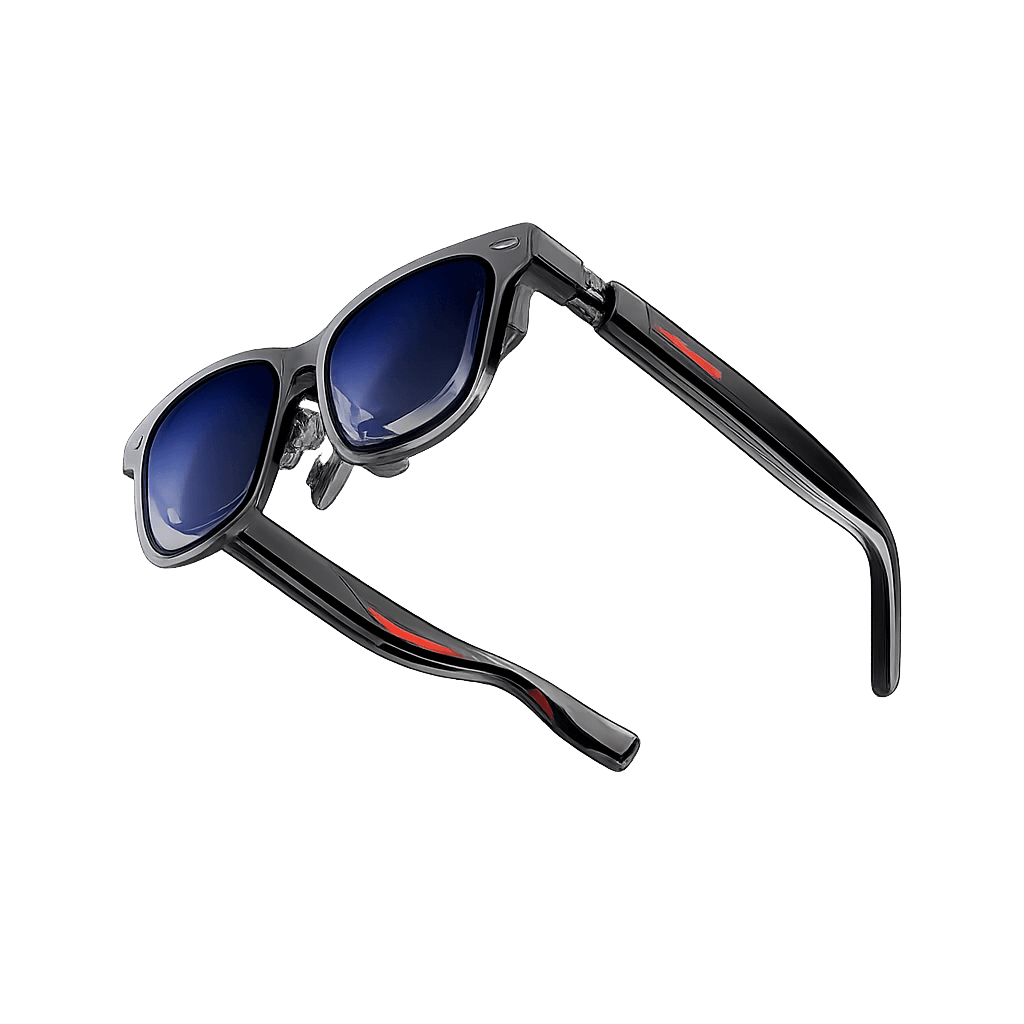
[Even Realities G2](https://ai.vr-expert.com/en/ai-glasses/even-realities-g2) plugins let developers create custom applications for the glasses instead of relying only on the standard features.
Using Even Hub, a development team can build a web-based application, preview it in the simulator, define interactions such as presses and swipes, and then test the same workflow on physical G2 glasses through the Even Realities App.
For businesses, this opens the door to purpose-built workflows such as guided maintenance steps, meeting prompts, task confirmations, CRM information, internal knowledge access and other lightweight applications that place useful information directly in the wearer's field of view.
The key is to design for short, glanceable interactions rather than copying a phone or desktop interface onto smart glasses.
If your organisation is evaluating the hardware before starting development, see the Even Realities G2 product page for specifications, pricing, availability and business deployment support.
What is an Even Realities G2 plugin?
An Even Realities G2 plugin is a custom application built around a specific need or workflow. You decide what the plugin should do, what information it should show and how the user interacts with it.
For example, a company could create a maintenance plugin that shows the next task, equipment status and a simple confirmation step directly on the glasses.
In practical terms, Even Hub turns the G2 into a platform for custom software. Even Realities describes Even Hub apps as web applications built with HTML, CSS and JavaScript or TypeScript, connected to the glasses through the Even Hub SDK.
Your code runs inside the Even Realities app on the phone; the glasses draw what the SDK sends them and pass back presses and swipes over Bluetooth. Official Even Hub documentation
What you need before you start
- Code editor: Used to open and edit the plugin project. Visual Studio Code is a straightforward option for beginners.
- Even Realities account: Used in the mobile app and Even Hub developer environment.
- Even Realities App: Pairs the G2 with the phone and provides the developer area used for local testing.
- Node.js: Required to run the Even Hub development tools on your computer.
- Even Hub SDK: Connects your application to the G2 display and input events. It is the npm package @evenrealities/even_hub_sdk, installed in each project; the official templates already include it.
- Even Hub Simulator: A desktop window (npm package @evenrealities/evenhub-simulator) that draws the 576 x 288 glasses canvas and takes press, double-press, swipe and long-press input, so you can iterate without wearing the glasses.
- Even Hub CLI: The npm package @evenrealities/evenhub-cli. It has three commands: evenhub init creates the app.json manifest, evenhub qr generates the QR code for testing on the glasses, and evenhub pack packages the app as an .ehpk file.
- Physical [Even Realities G2](https://ai.vr-expert.com/en/ai-glasses/even-realities-g2): Not required for the first simulator stages, but necessary for proper on-device testing before deployment.
How to build your first Even Realities G2 plugin
Step 1: Install a code editor
The first thing you need is a code editor. This is where you open, view and change the files that make up your G2 plugin.
Visual Studio Code is a practical starting point because it is free and works on Windows, macOS and Linux.
Step 2: Decide what the plugin should do
Start with one clear function. Your first plugin should solve a small problem rather than trying to become a complete platform.
The goal is to confirm that the workflow actually works well on smart glasses before you invest time in additional features.
· Define the user and the exact moment when the glasses should help.
· Choose the minimum information that must appear in the display.
· Define the action the user should take next.
· Decide what success looks like, for example completing a task without checking a phone.
Step 3: Set up Even Hub and the development tools
Even Hub is the development platform used to build, test and publish applications for the G2. The core workflow uses the SDK, Simulator and CLI. Open Even Hub
3.1 Set up your Even Realities account
· Install the Even Realities App on your smartphone.
· Create an Even Realities account or sign in to your existing account.
· Pair the G2 glasses with the phone. If the glasses are new, complete the setup process and install the latest firmware offered by the app before beginning development.
3.2 Prepare your computer
The Even Hub development tools require Node.js (the foundation that lets the Even Hub tools run on the computer).
- Install Node.js on your Windows, macOS or Linux computer (Recommend: Node 20 LTS or Node 22 and newer). Check with node -v and npm -v.
- Open the terminal and run:
npm install -g @evenrealities/evenhub-cli @evenrealities/evenhub-simulatorThis installs the Even Hub CLI (commands evenhub or eh) and the Simulator.
The SDK is added per project, not globally; the templates in 3.4 already include it, and for a project you build by hand you run npm install @evenrealities/even_hub_sdk@latest inside the project folder.
You only need to install the development tools once. The same environment can then be reused for future G2 plugin projects.
3.3 Enable the developer functions
· Sign in to the Even Hub developer website using the same Even Realities account that you use in the mobile app.
There is no developer toggle anywhere: signing in to the web hub marks your account as a developer.
· Completely close the Even Realities App on your phone and open it again.
· Open the Even Hub area of the app and confirm that the developer functions are available, including the QR scanner used for local testing.
Official reference: Even Hub support article
3.4 Start with an official starter project
For a first plugin, start from an official Even Hub starter project rather than creating the entire project structure yourself.
This reduces setup mistakes and lets you focus on the interface and workflow.
- Pick one of Even's four templates: minimal (learning the SDK), text-heavy (reading apps and long content), asr (voice notes and voice control) or image (glanceable images).
- For a first plugin, take minimal.
- In the terminal, create the project from the template and start it:
npx degit even-realities/evenhub-templates/minimal my-first-plugin cd my-first-plugin npm installnpm run dev- Open the project folder in your code editor.
Every template is a Vite and TypeScript project with the SDK installed, an app.json manifest and a src/main.ts that connects to the glasses before anything else runs.
- In app.json, set package_id (reverse domain style, lowercase letters and digits only), name (up to 20 characters, and it may not contain the word Even), description and permissions.
- Replace public/icon.png with your own 24 x 24 greyscale icon.
Step 4: Design specifically for the G2
The Even Hub SDK builds the glasses screen from containers: rectangular areas placed at pixel positions on a 576 x 288 canvas, each holding text, a scrollable list or a greyscale image.
Nothing is rendered as HTML on the glasses; the phone runs your web code and the glasses draw only what the SDK sends.
Some limits to design around:
one font at one size,
16 shades of green,
at most 8 text or list containers plus 4 image containers per page,
roughly 400 to 500 characters per full screen,
lists of up to 20 items of 64 characters,
images up to 288 x 144 px.
For a first plugin, one text container that fills the canvas, as in Even's minimal template, is enough.
Replace the example content with the information your workflow needs, decide where it should appear, and check that each screen can be understood at a glance.
Step 5: Preview the plugin in the Even Hub Simulator
Once the first screen is ready, start the project with npm run dev (it serves at http://localhost:5173) and open it in the Simulator with evenhub-simulator http://localhost:5173.
The Simulator draws the 576 x 288 glasses canvas in a desktop window and lets you send presses, double presses, swipes and long presses from its buttons or keyboard shortcuts, so you can iterate quickly before moving to the glasses.
It is not a hardware emulator: speed, Bluetooth timing and device quirks only show up on the real G2.
· Check whether the text fits correctly.
· Check whether the information is easy to understand at a glance.
· Remove unnecessary text or interface elements.
· Check that the visual hierarchy makes the next action obvious.
Step 6: Decide how the user controls the plugin
Next, define how G2 input controls your plugin.
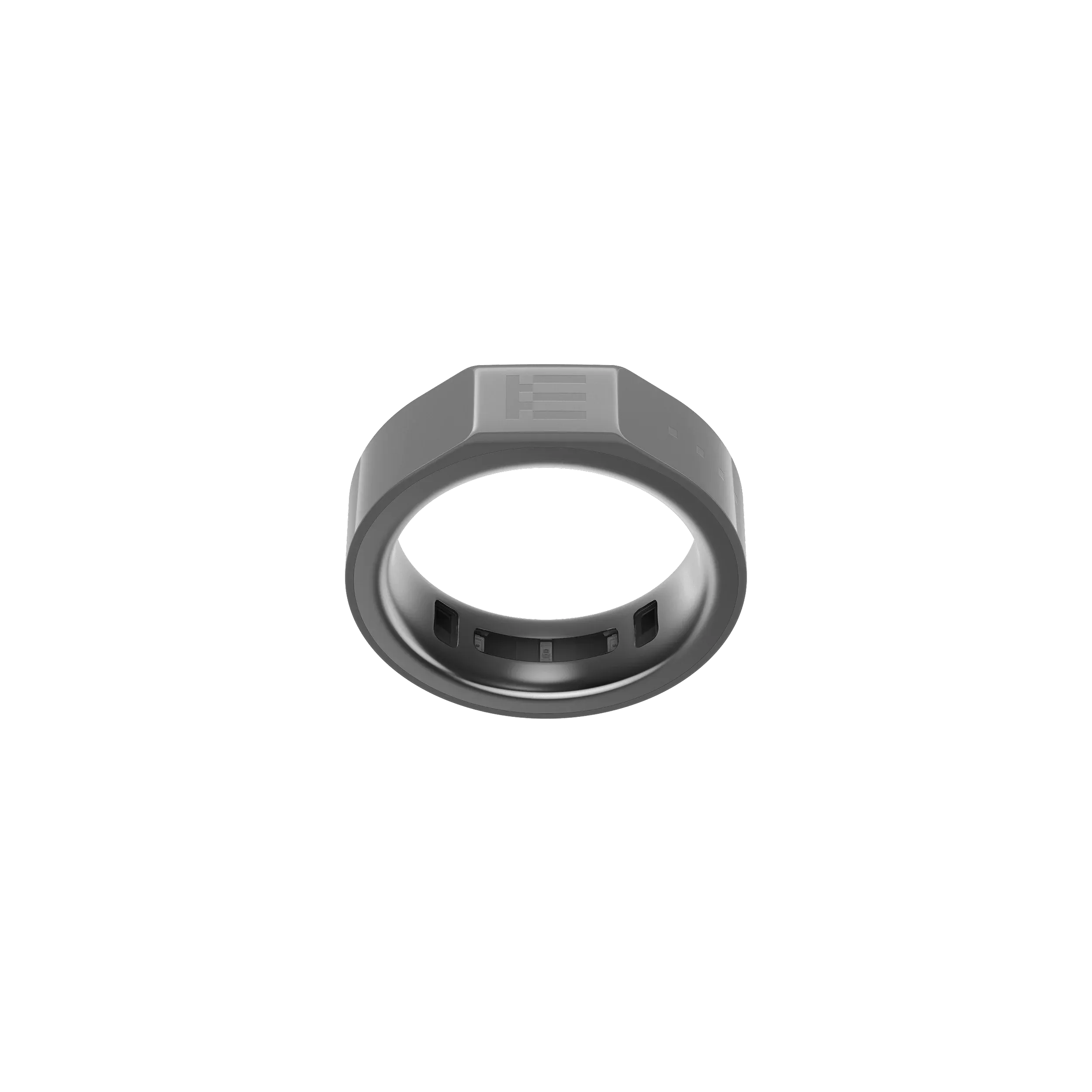
The SDK delivers six events from the temple touchpads, and from the optional R1 ring with its own source so you can tell the two apart: press, double press, swipe up, swipe down, long press and long-press release.
Two rules shape the design.
Only one container per page receives input (the one with isEventCapture set to 1), so build each screen around a single active element.
And two gestures are partly spoken for: a double press on your first screen must call bridge.shutDownPageContainer(1) to show the system exit dialog, and tap-then-long-press opens the glasses' own contextual menu, so treat long press as an extra rather than the only way to reach a feature.
· Open the plugin project in your code editor.
· Find the bridge.onEvenHubEvent handler in src/main.ts (the templates include one).
· Assign each supported gesture to one specific action.
· Test the interaction in the Simulator before moving to the glasses.
Step 7: Put the plugin onto the real G2
Once the Simulator version behaves correctly, test the same application on physical G2 glasses.
Your smartphone and development computer need to be on the same Wi-Fi network.
Office networks and many home routers isolate devices from each other; if the phone scans the code but nothing loads, switch both to the phone's hotspot, and allow incoming connections on port 5173 in the computer's firewall.
- Start the project on the development computer with npm run dev.
- Find the computer's address on the local network (ipconfig on Windows, ifconfig on macOS or Linux; use the inet address, not 127.0.0.1).
- Generate the QR code:
evenhub qr --url "http://<your-lan-ip>:5173"In the Even Realities App, open the Even Hub tab, tap Scan QR in the developer section and point the camera at the code in the terminal.
- The plugin appears on the glasses within a second and reloads on every save.
This session ends when the phone locks or the app goes to the background; scan again to resume.
Step 8: Test the complete experience on the glasses
Use a private or beta build for this rather than the QR session: package the plugin with evenhub pack, upload the .ehpk in the developer portal and install it from Me > Apps > Private builds (your own glasses) or through a Beta group (colleagues).
A beta build behaves exactly like a released plugin, including what happens when the phone locks, which the QR session cannot show.
The purpose of this stage is to find problems that are difficult to notice on a computer screen.
· Check text length and readability while moving naturally.
· Confirm that presses and swipes behave as expected.
· Check smartphone connectivity and Bluetooth behaviour.
· Check whether information appears at the correct moment in the workflow.
· Give the plugin to someone who was not involved in development and see whether they can understand it without detailed instructions.
What makes a good Even Realities G2 plugin?
A strong G2 plugin provides a small amount of useful information at exactly the moment the user needs it. It should reduce the need to stop, take out a phone or move attention to another display.
Adding more functions does not automatically improve the experience. The G2 is strongest when the interface stays lightweight and supports the user without becoming the main focus of attention.
· Keep each screen focused on one task or decision.
· Prefer short, glanceable text over long instructions.
· Use a small number of predictable interactions.
· Test the workflow on the physical glasses early.
· Design around the real working environment, not only the simulator.
Common mistakes to avoid
One common mistake is putting too much information on the G2 display. Long instructions should normally be split into several smaller screens or simplified to show only what is required for the current action.
Another mistake is building too many functions before confirming that the basic workflow actually works. A first plugin should prove one idea well before it becomes more complicated.
Simulator testing alone is also not enough. Something that looks correct on a computer can feel very different when viewed through the G2. Always test the complete workflow on real glasses and pay particular attention to text length, gesture behaviour, connectivity and timing.
Final recommendation
For companies considering custom software on the Even Realities G2, the best starting point is a narrow proof of concept. Choose one workflow, build the smallest useful plugin, validate it in the Simulator and then test it on the real glasses with actual users.
Plan distribution early: Even Hub has no private enterprise channel yet.
A plugin reaches colleagues' glasses through a Beta group, an e-mail list you manage in the developer portal, and anything released to the store is listed publicly and worldwide.
This gives the team evidence about usability and business value before expanding the application.
If your organisation is still evaluating the device, visit the Even Realities G2 product page for current pricing, specifications and deployment support. VR Expert AI can also help businesses compare AI glasses, plan pilot projects and source devices for testing or rollout.