











What is an Even Realities G2 plugin?
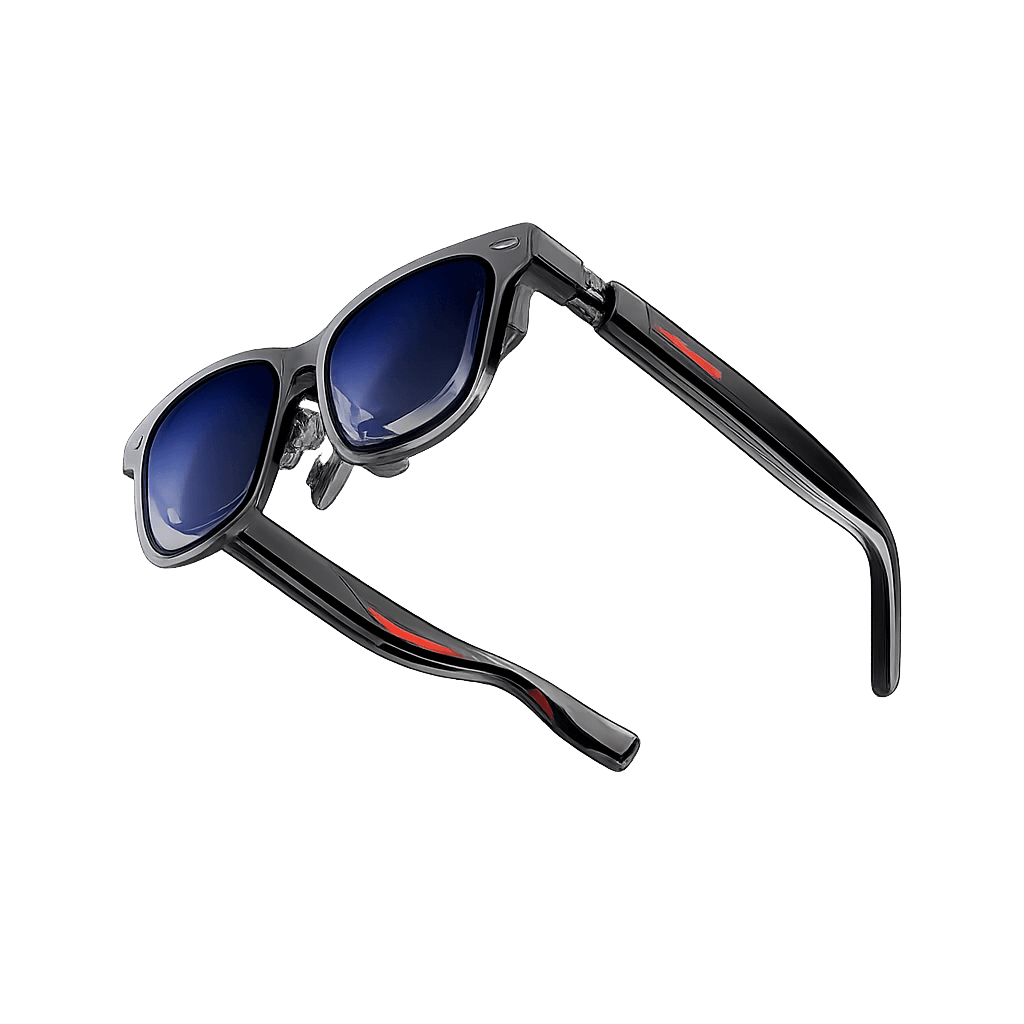
An Even Realities G2 plugin is essentially a custom application that you can build around a specific need or workflow. You decide what the plugin should do, what information it should show and how the user interacts with it. For example, a company could create a maintenance plugin that shows the next task, equipment status and a simple confirmation step directly on the glasses. In simple terms, a plugin lets you create your own G2 application for a specific purpose instead of relying only on the functions that come with the glasses.
How to build your first Even Realities G2 plugin
Step 1: Install a code editor
The first thing you need is a code editor. This is the program where you will open, view and change all the files that make up your G2 plugin.
A straightforward option for beginners is Visual Studio Code, which is free and works on Windows, macOS and Linux. Most developers already have a preferred code editor, but if you are starting from nothing, install one before setting up the Even Hub development tools.
Step 2: Decide what your plugin should do
Start with one clear function. Your first plugin should solve a small problem rather than trying to become a complicated platform. You need to understand whether the idea actually works well on smart glasses before investing time in additional functions.
Once the basic experience works properly, you can start adding live information, additional screens or more interactions.
Step 3: Set up Even Hub and the development tools
Before creating the plugin, you need to prepare the Even Hub development environment. There are three main tools you will use.
The Even Hub SDK connects your application to the G2. It allows the plugin to tell the glasses what to display and receive input when the user presses or swipes on the G2.
The Even Hub Simulator creates a virtual representation of the G2 display on your computer. Instead of putting the glasses on every time you change something, you can immediately preview the interface.
The Even Hub CLI, or Command Line Interface, is used to manage practical parts of the development process. It helps prepare the plugin, generate the QR code used for testing on physical glasses and package the finished application.
2.1. Set up your Even Realities account
First, install the Even Realities App on your smartphone and create or sign into your Even Realities account.
Pair your G2 glasses with the phone. If the glasses are new, complete the setup process and install the latest firmware offered by the app before beginning development.
Keeping both the app and G2 firmware updated helps avoid compatibility and connection problems during development.
2.2. Enable Developer Mode
Next, sign into the Even Hub developer website using the same Even Realities account you use in the mobile app.
After signing in, completely close the Even Realities App on your phone and open it again. The Even Hub area of the app should now provide access to the developer functions, including the QR scanner used later for local testing.
2.3. Prepare your computer
The Even Hub development tools require Node.js (the foundation that lets the Even Hub tools run on computer). Install Node.js on your Windows, macOS or Linux computer. Even Realities currently recommends Node 20 LTS or Node 22 and newer. Node.js also provides the package manager used to install the Even Hub CLI and Even Hub Simulator.
You only need to install these development tools once. They can then be used for future Even Realities G2 plugin projects.
2.4. Start with an official starter template
For your first plugin, the easiest option is to start with one of Even Realities' official starter projects rather than creating the complete project structure yourself
The starter project already contains the basic Even Hub SDK connection and a working example. Download the template, install the dependencies requested by the project and open it in your coding programme (Step 1).
Instead of rebuilding the display system from scratch, you can now focus on changing the example application into your own plugin.
Step 4: Design specifically for the G2
The Even Hub SDK lets you create different display areas, called containers, for content such as text, lists or images. For your first plugin, keep the display simple. Replace the example content with the information you want to show, decide where it should appear on the G2 screen and make sure the layout fits comfortably.
Step 5: Preview the plugin in the Even Hub Simulator
Once the first screen has been created, run the plugin locally on your computer.
Open this local version with the Even Hub Simulator. The Simulator creates a virtual version of the G2 display and shows what your plugin should look like on the glasses.
Check whether the text fits correctly, whether it is easy to read and whether the screen contains too much information.
This is the quickest part of the testing process because you can change the plugin and see the result without repeatedly putting on the glasses.
Step 6: Decide how the user controls the plugin
Open your G2 plugin project in a code editor such as Visual Studio Code. Inside the project, the SDK listens for the interactions coming from the G2, such as a press, double press, swipe up or swipe down.
You then decide what each gesture should do in your plugin and add that rule to the interaction part of the project. After assigning the gestures, test them first in the Even Hub Simulator and then on the real G2 to make sure they work naturally.
Step 7: Put the plugin onto the real G2
Once the Simulator version looks correct, test the same application on physical glasses.
Your smartphone and development computer need to be able to communicate over the same local network. The Even Hub CLI then creates a QR code that points the Even Realities App to the locally running plugin.
Open the developer section inside the Even Realities App and scan the QR code. The phone loads the plugin from your computer. The Even Hub SDK then communicates with the paired G2 over Bluetooth and sends the interface to the glasses.
The process is therefore: Plugin on your computer → Even Realities App → G2
Note: If the QR code scans but the application does not load, check whether your computer's firewall is blocking the connection. Wi-Fi networks with device or client isolation can also prevent the smartphone from reaching your development computer.
Step 8: Test the complete experience on the glasses
Now use the plugin while actually wearing the G2.
Check whether the information sits naturally in your field of view, whether there is too much text or the gestures you selected feel intuitive when using the glasses rather than a computer.
The real-device test is also where you can identify problems related to smartphone connectivity, Bluetooth or the timing of information.
Give the plugin to someone who was not involved in developing it. Avoid explaining every interaction beforehand to see if the interface is probably simple enough.
What makes a good Even Realities G2 plugin?
A strong G2 plugin provides a small amount of useful information at exactly the moment the user needs it.
It should reduce the need to stop what the user is doing, take out a phone or move their attention to another display.
Adding more functions does not automatically improve the application. The G2's strength is its ability to provide lightweight information without becoming the main focus of the user's attention.
The most useful design question is therefore: What is the one thing the user needs to know right now?
Common mistakes to avoid
One common mistake is putting too much information on the G2 display. Long instructions should normally be divided into several smaller screens or simplified to show only the information required for the current action.
Another mistake is trying to create too many functions before confirming that the basic workflow actually works. Your first plugin should prove one idea well before it becomes more complicated.
Simulator testing alone is also not enough. Something that looks correct on a computer may feel completely different when viewed through the G2.
Always test the finished workflow on real glasses. Pay particular attention to text length, gesture behaviour, Bluetooth connectivity and how naturally the application fits into what the user is doing.