











Executive summary
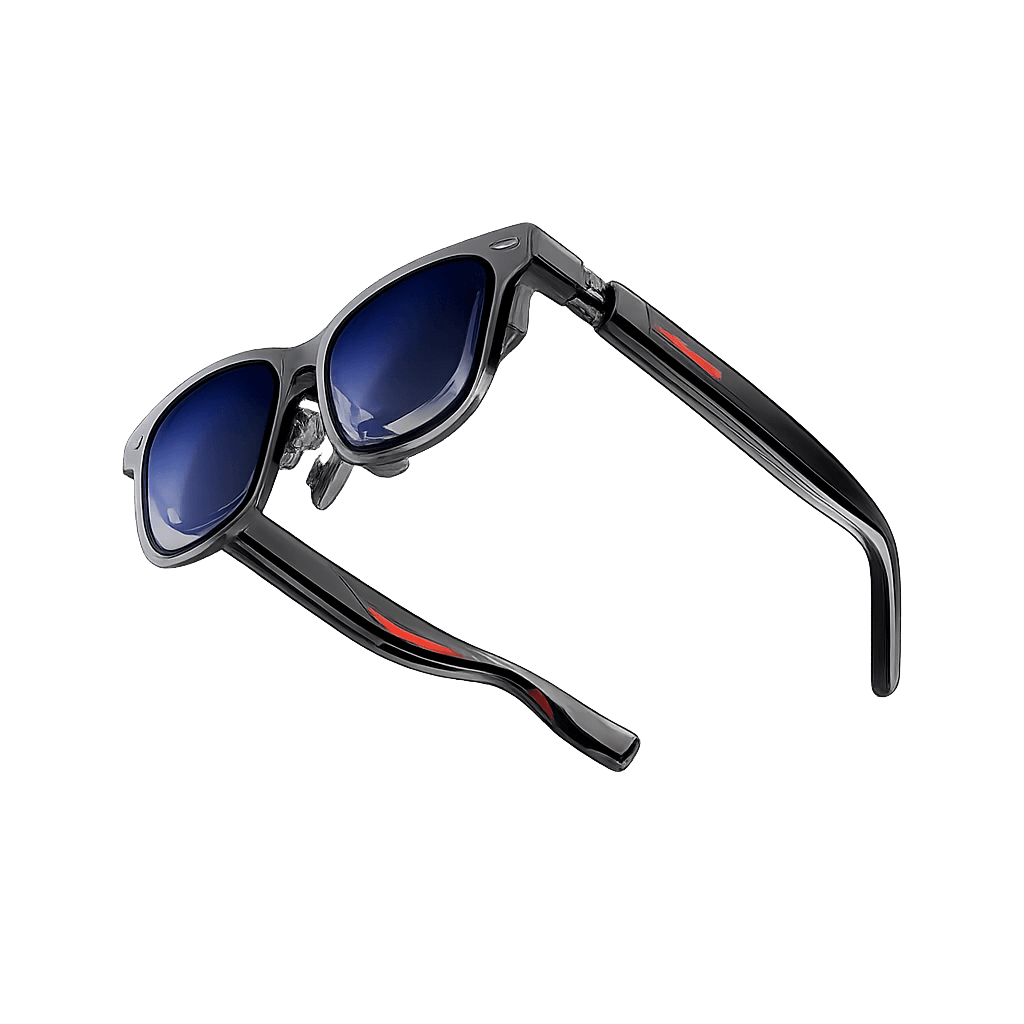
Rokid AI Glasses app development for business starts with Rokid’s Sprite Enterprise SDK documentation and its Android demo. The enterprise FAQ points enterprise firmware to Rokid AI Enterprise or the enterprise demo. Android Studio is your coding workspace; the Glasses SDK exposes device capabilities, and the Phone SDK supports the paired Android application.
Compatibility comes first. These public instructions target Rokid Glass3 Enterprise. A sales label such as “Rokid Enterprise RV101” doesn’t by itself establish SDK compatibility. Get written confirmation for your exact hardware, firmware, region and commercial SDK rights before you follow the integration steps. If Rokid supplies a different enterprise SDK for your device, use that package and its matching samples.
This tutorial extends the official enterprise demo to capture one photo, show a status and test dictated notes. It’s a development prototype. Uploading a business record and managing a fleet require your company’s backend and a separately confirmed enterprise distribution method.
Enterprise SDK documentation: Open official source
Why build a custom app for Rokid AI Glasses
A custom application can connect field inspections, maintenance or warehouse checks to the information your company actually needs. A short display prompt tells the worker what to do, the camera captures evidence, and speech input can reduce typing during suitable tasks.
The useful result is a reliable business record with the correct asset or work-order ID and a clear saved status. Build the smallest capture-and-review workflow first, then connect it to your operational system once hardware behavior and data handling have been tested.
Choose the enterprise components
Android Studio, JDK and Gradle:
- Role: Edit, compile and debug Android projects.
- Business requirement: Use a managed developer workstation and the approved project toolchain.
Sprite Enterprise Glasses SDK:
- Role: Camera, speech, display-related application logic and device services.
- Business requirement: Requires supported enterprise hardware and firmware; confirm commercial terms.
Sprite Enterprise Phone SDK:
- Role: Pairing, messaging and media exchange with an Android phone.
- Business requirement: Use when your architecture includes a company-managed phone.
Rokid AI Enterprise or enterprise demo:
- Role: Enterprise connection and development testing.
- Business requirement: Get the appropriate build and accounts through the enterprise channel.
Company backend:
- Role: Authentication and storage of business records.
- Business requirement: Use approved endpoints, access controls and retention rules.
What you need before you start
Prepare the supported enterprise glasses, a Glass3 data debug cable, an Android test phone, Android Studio, JDK 17, Git and the SDK demo. Git downloads the source code, Gradle builds it, and an APK is the Android installation file. Use the versions in the approved demo configuration. Rokid’s Quick Start and FAQ list different minimum Android versions, so confirm the requirement against the package you were supplied rather than choosing the lower value.
Step 1: confirm the enterprise device and access
• Record the target. On the glasses, open Settings and record the model, system version and serial number. Ask Rokid to confirm that this build supports the Sprite Enterprise SDK and the camera and speech services required here.
• Get the enterprise package. Request Rokid AI Enterprise or the enterprise demo, the matching SDK release and business credentials from your supplier or Rokid contact. Confirm your commercial development and deployment rights; a public download alone doesn’t settle licensing.
• Prepare the connection. Charge the devices and connect the glasses to the workstation with the data debug cable. Follow the enterprise onboarding instructions supplied for your build to prepare the managed phone and glasses.
• Agree on the data flow. Decide where photos and dictated notes may be processed and stored. Use a company test environment and non-sensitive test material while you validate the demo.
Enterprise system and app requirements: Open official source
Step 2: open and run the enterprise Android demo
• Download the source. In a terminal on the developer workstation, run the command below. Save the checkout in your team’s usual development folder and record its commit with git rev-parse HEAD.
git clone https://github.com/RokidSuuport/glass3_sdk_demo.git
• Open the projects. In Android Studio, choose File > Open and select glass3_sdk_demo/glassdemo. Open glass3sdkphonedemo separately for the phone. Wait for Gradle sync, then select JDK 17 in Settings > Build, Execution, Deployment > Build Tools > Gradle.
• Check the dependencies. In the Project pane, open settings.gradle and app/build.gradle in each project. Keep the demo’s working configuration. For a separate Groovy-based project, merge these repository and dependency entries into the existing blocks; don’t create duplicate blocks. The published Quick Start lists 2.2.0-E, but use the version approved for your firmware.
// settings.gradle, inside dependencyResolutionManagement {
repositories { maven { url 'https://maven.rokid.com/repository/maven-public/' }
}
}
// Glasses app: app/build.gradle, inside dependencies dependencies {
implementation('com.rokid.security:glass3.open.sdk:2.2.0-E') {
exclude group: 'org.slf4j'
}
}
// Phone app only: app/build.gradle, inside dependencies dependencies {
implementation('com.rokid.security:phone.sdk:2.2.0-E') {
exclude group: 'org.slf4j'
}
}
• Configure and launch. In the phone project, open MainPhoneActivity and find UserAuthInfo. Supply the business-issued AK and SK through approved local configuration, outside version control. Before you run the glasses demo, open HomeActivity.initSDK() and replace the sample call setCameraLedEnable(false) with setCameraLedEnable(true). Reboot as the device firmware requires. Run the phone app first, then select the glasses device in Android Studio and run glassdemo. Connect from the phone demo and verify SDK initialization and a text message before you make any edits.
• Adjust the setup. The repository URL downloads the sample, not an installer. The two dependencies belong to different applications. Change versions together, and only after checking Rokid’s compatibility guidance; keep the demo’s initialization helpers and required imports.
Demo setup and source paths: Open official source
SDK repository and dependencies: Open official source
Step 3: make the first capture control clear
• Find the screen. In the glassdemo project, open app/src/main/java/com/rokid/glass/SdkMediaActivity.kt. Its layout file is at app/src/main/res/layout/activity_test_media.xml. This is an existing native Android screen with camera controls, not a web page.
• Edit one button first. In that XML file, find the existing AppCompatButton element with the ID android:id="@+id/btPhoto480P". Keep its original ID and layout constraints so the existing Kotlin view binding (binding.btPhoto480P) keeps working without breaking references.
• The original demo layout sets the button to 50dp wide and 36dp high with a 10sp label, which will truncate the new text. Change only the attributes shown below and leave the rest of the element as it is (the background, text color, margins and the two app: layout_constraint lines); without its constraints, the button loses its place in the ConstraintLayout:
XML
<androidx.appcompat.widget.AppCompatButton
android:id="@+id/btPhoto480P"
android:layout_width="120dp"
android:layout_height="wrap_content"
android:text="Capture"
android:contentDescription="Capture photo"
android:textSize="16sp" />
• Explain the label.
• android:text="Capture": Sets the visible label shown directly on the screen.
• android:contentDescription="Capture photo": Provides an accessibility description for screen readers and UI hierarchy inspection. Setting contentDescription on Rokid devices doesn’t automatically create or register a voice command; speech control requires explicit integration with the Sprite Enterprise SDK's speech/offline-command service.
• android:textSize="16sp": Ensures readability on the monocular optical display.
• Design the working screen. For the business version, keep the interface minimal: a clear status indicator, a single primary capture button and a defined cancel or review path. Follow Rokid's enterprise display guidance by using high-contrast text (such as readable green text overlaid on real-world scenes), and don’t rely on color alone to signal errors or capture states. Always verify positioning and text truncation on the physical glasses display rather than relying solely on the Android Studio layout preview.
Enterprise display and layout guidance: Open official source
Step 4: test enterprise speech input
• Open the speech sample. In the glasses project, open app/src/main/java/com/rokid/glass/SendMessageActivity.kt. Find the R.id.btnOnlineAsr branch and the speechCallback(token) function. ASR stands for automatic speech recognition: it converts speech into text.
• Run one speech session. Use the enterprise demo’s ASR control to start a session. Keep its session token and callback handling. The sample uses cloud ASR, which only works once the phone demo has initialized the SDK with your AK and SK, so confirm service entitlement, supported languages, network access and business data processing terms before using worker speech.
• Keep final text separate from commands. Inside the existing onAsrComplete delivery block, handle the final text with application logic such as the example below. This is an insertion into the existing callback, not a replacement for the complete SpeechCallback implementation. It stores a note for review; it doesn’t trigger the camera or an upload.
// Add this field inside SendMessageActivity: private var pendingBusinessNote: String? = null
// Inside the existing final-result delivery block: pendingBusinessNote = content?.trim()?.takeIf { it.isNotEmpty() } // Display pendingBusinessNote in your review UI before saving.
• Add commands deliberately. For hands-free capture, use the enterprise offline-command sample or a validated final-transcript handler wired to the capture screen. Both must call the same capture function the visible button uses. Verify the language and phonetic configuration with the supplied SDK. A dictated note is free text and must not be treated as a command.
• Stop and recover. Keep the sample’s stopSpeech and session cleanup for when the screen leaves the foreground. Test silence, denied microphone permission, network loss and repeated sessions. Keep a hardware or visible-control fallback.
Enterprise ASR and offline command sample: Open official source
Step 5: add the camera handler and result feedback
• Reuse the existing initialization. Go back to SdkMediaActivity.kt. Keep the demo’s SDK setup, imports and photo callback. In initView(), replace only the binding.btPhoto480P.setOnClickListener block with the call below, then add the function inside the same Activity class. This uses the existing 480P resolution enum and the demo’s shared Pictures location.
binding.btPhoto480P.setOnClickListener { captureBusinessPhoto() }
private fun captureBusinessPhoto() { val service = GlassSdk.getGlassMediaService() if (service == null) { binding.btPhoto480P.text = "Unavailable" return } val folder = Environment.getExternalStoragePublicDirectory( Environment.DIRECTORY_PICTURES ) if (!folder.exists() && !folder.mkdirs()) { binding.btPhoto480P.text = "Storage error" return } val output = File(folder, "inspection_${System.currentTimeMillis()}.png") binding.btPhoto480P.text = "Capturing" try { service.takePhoto(PhotoResolution.RESOLUTION_480P, output.absolutePath) } catch (e: Exception) { binding.btPhoto480P.text = "Try again" } }
• Show success from the callback. Find the existing mPhotoFileCallback object. Add the function below inside the Activity, then call showBusinessPhoto(path) from both onTakePhoto and onTakePhotoV2. Keep getCallbackId and the existing callback registration. In mICameraStateLister.onCameraError, update the control to “Try again” on the UI thread.
private var capturedBusinessPhoto: String? = null
private fun showBusinessPhoto(path: String) { runOnUiThread { if (!isFinishing && !isDestroyed) { capturedBusinessPhoto = path binding.btPhoto480P.text = "Captured" } } }
• Understand and customize. takePhoto requests a capture, and its callback supplies the file path. Captured means a local file exists, not that a business record was saved. For this development screen, widen the button to fit the status text. In the production screen, use a separate status view. Change PhotoResolution only to values your SDK supports, and verify framing and actual output dimensions.
• Handle permissions and lifecycle. Use the demo’s permission flow before capture. Camera and microphone access need manifest declarations and any applicable runtime approval. Keep removePhotoCallback and removeMediaStateLister in the Activity’s existing onDestroy cleanup. Add a pending-capture guard and timeout before you connect voice, so repeated events can’t produce duplicate captures.
• Choose safe storage. The demo uses shared storage, which can expose test photos to other software on the device. Validate service access and a suitable storage design with Rokid before processing real records. Define deletion after review, upload or cancellation. Don’t assume the separate SDK camera service can write to the app’s private directory.
Enterprise media sample: Open official source
Matching camera source and imports: Open official source
Android runtime permissions: Open official source
Step 6: connect the prototype to a business workflow
• Define the record. Agree on the asset ID, work-order ID, operator identity, photo format, note field, endpoint and accepted file size with the business-system owner. Use a company-managed test account. A local file path can’t be sent to the backend as if it were the image itself.
• Implement review before upload. Create a review screen that shows the captured photo and final note. Add Confirm and Cancel controls. Only Confirm should start the upload. Cancel should clear the pending record and apply the agreed deletion policy.
• Specify the request. Implement the company’s API in whichever app, phone or glasses, owns the upload. Send the photo bytes with the agreed metadata and authentication. Use a background network operation, a unique submission ID and bounded retries. Keep long-lived credentials on the backend, and work out the supported client authentication flow with IT.
• Show the correct state. Use Ready, Capturing, Captured, Review, Uploading, Saved and Retry. Move to Saved only after a successful server response with a record ID. This tutorial’s sample code stops at local capture and note collection; the upload needs your actual API contract and implementation.
Step 7: verify on the enterprise hardware
• Build and run. From the glassdemo directory, use the command below, or use Android Studio’s Run control with the supported glasses selected. On Windows, use gradlew.bat assembleDebug. Resolve Gradle errors before device testing; a standard Android emulator can’t validate the Rokid device services.
./gradlew assembleDebug
• Test capture and cleanup. Select the capture control. Verify the result file, readable status, camera error path and permission denial. Leave and reopen the screen, and check that callbacks are removed and reattached without duplicate results. Confirm the camera indicator stays active during capture.
• Test speech separately. Dictate a short test note, check the final text and cancel. Repeat with representative workplace noise and in each approved language. If you add commands, test unrelated speech and repeated utterances against the duplicate-capture guard.
• Test the integrated build. Once upload is implemented, test disconnects, timeouts, revoked access and repeated confirmation. Check that a failed request doesn’t show Saved and that retrying the same submission doesn’t create another record.
Step 8: package and deploy through the business channel
• Prepare a release. Replace the demo branding and remove unrelated sample features and test credentials. Review the SDK and sample reuse terms with Rokid. Use company-controlled package naming, versioning and signing credentials.
• Build a signed APK. In Android Studio, open Build > Generate Signed Bundle / APK, choose APK, select the company keystore and build the release variant. Keep the signing key secure: later updates must use the correct signing identity.
• Confirm private installation. Use the installation and application-management route Rokid confirms for your enterprise firmware. Get the supported APK delivery method, account provisioning and update/rollback procedure. Don’t assume that general Android device-management software supports this glasses model.
• Pilot and retest. Deploy to a small managed group, measure capture quality, recognition accuracy and response time, then retest after any SDK or firmware changes. Record build versions and keep a working rollback package before you expand the rollout.
Android application signing: Open official source
Common mistakes to avoid
• Treating a product name as proof of compatibility. Check the actual enterprise firmware and supported SDK release before implementation.
• Shipping the demo unchanged. The sample demonstrates capabilities. Its shared media storage, example phrases and unrelated features need review before a business rollout.
• Confusing capture with saving. A local photo and a transcript aren’t a saved work order. Confirm the backend record before showing success.
Conclusion
A useful Rokid business application starts with confirmed enterprise hardware and SDK access, a working Android demo and a small capture-and-review workflow. Developers then add clear display feedback, validated speech input and authenticated integration with the company’s backend. Testing on the target device and deploying through the supported business channel turn the prototype into a tool that can improve field documentation and reduce manual entry.